1. Login to NOQ Portal
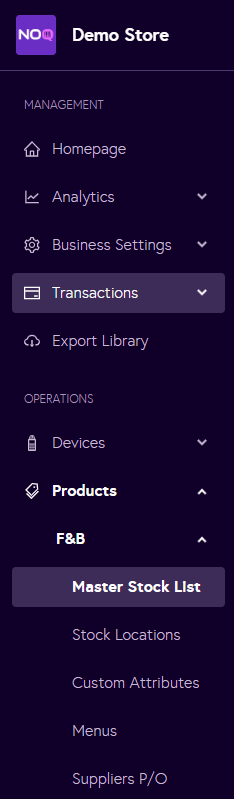
2. Navigate to Products → F&B → Master Stock List. If you don’t have a Master Stock List, select Items List instead.
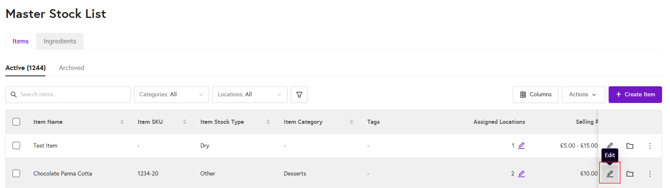
3. Click on the pencil icon for the item you would like to add variants for.
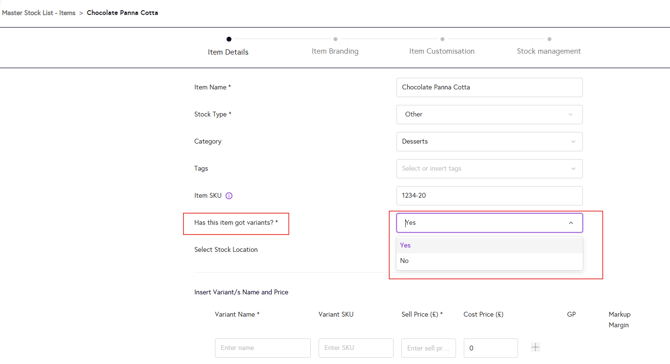
4. For the field ‘Has this item have variants?’, select ‘Yes’ from the dropdown.
5. Now you will see the fields to add the variant name and selling price (required), as well as SKU and cost price (optional). Once you’ve entered these details, click on the plus (+) icon to add the variant. For deleting the variant you can click on the bin icon.
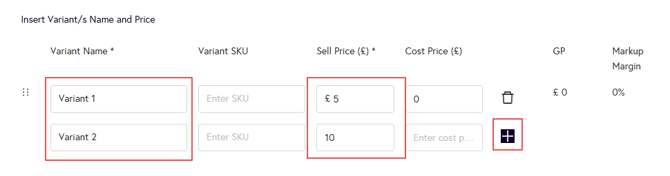
Note: If ‘Yes’ is selected for “Has this item have variants?”, the item must have at least one variant, and you can add multiple variants as needed.
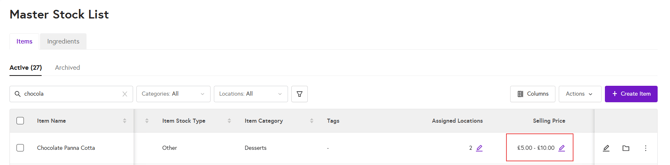
6. After adding your variants and clicking the plus (+) icon, click ‘Next’ and then click ‘Save’ in the final Stock Management section. Your variants will now be added. When you view your item in the Master Stock List, you will see the price range for the variants you’ve created.