
How to add modifiers at the Item Level:
Step 1: Navigate to Your Items
The path to access your items will vary depending on whether Stock Locations are enabled on your account:
-
If Stock Locations are enabled:
Go to NOQ Backend Portal ➡️ Products ➡️ Stock Locations ➡️ Your Stock Location ➡️ Manage Products -
If Stock Locations are disabled:
Go to NOQ Backend Portal ➡️ Products ➡️ Item List
Step 2: Select the Item and Assign Modifier Groups
- Locate the item you want to assign a Modifier Group to.
- Use the Search box or use the available filters.
- Click the Pencil Icon ✏️ in the Modifier column.
- In the Modifier Group panel that appears, choose the desired Modifier Group from the list and click Add.

- You can assign multiple Modifier Groups to a single item (e.g., Pizza Toppings and a Gluten-Free option).
Step 3: Optional - Make the Modifier Group Required
- If you want customers to select something from the Modifier Group before adding the item to their cart (e.g., selecting a Mixer for a drink), enable the Required option.

Step 4: Save Your Changes
- Once you've assigned your Modifier Groups, click Save.
- Repeat this process for all items that require Modifier Groups.
How to add modifiers at Menu Level:
Step 1: Navigate to Products -> F&B -> Menus
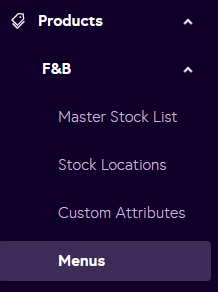
Step 2: Click the manage Items for the menu you want to add Modifiers to:

Step 3: From the menu, click the three dots next for each item you would like to add modifiers to and then click on '+ Add Modifiers'

Step 4: Select the Modifier Group, click Add, and then click Save to apply it to the selected item.

What to do If Modifiers not showing on the EPOS app or Web app.
- Ensure you have a stable internet connection.
- After making any changes in the backend, refresh the EPOS or Web app (and, if needed, log out and log in).
- Confirm that you clicked Save after assigning the Modifier Group.
- Check that the Modifier Group you assigned actually contains Modifiers. If not, follow these guides:
- Make sure the relevant Modifiers and Modifier Groups are not archived. If they are, unarchive them.
- Re-assign the Modifier Group to the item and click Save again.
Next Step
If you have been following along with the previous guides, you should now have Items, Modifiers, Modifier Groups and you have Assigned Modifier Groups to your applicable Items. Are you ready to create a Menu? Let's do it!
Next Up: 🍽️ Creating a Menu ⇒