
Step 1: Accessing the NOQ Portal
- Visit app.noqgroup.com.
- Log in with the provided credentials:
You’ll receive an email confirming that you’ve been added as an admin for your business.
On the login screen, enter your email address and click Continue. A one-time passcode (OTP) will be sent to your email.

Enter the one-time passcode (OTP) you received at your email address. If you need to use a different email, click Change email address. If you didn’t receive the passcode, click Resend passcode.
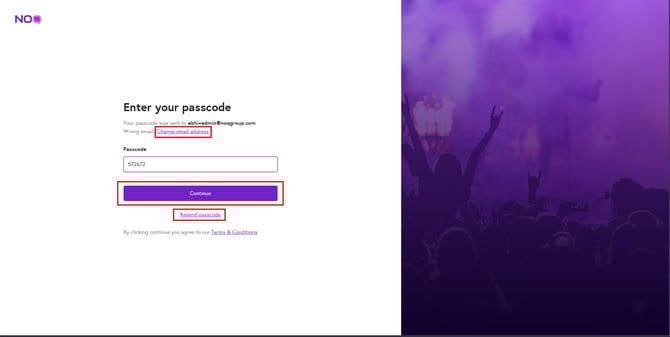
After entering the one time passcode, click Continue. You will then see your business name—click on it to proceed.
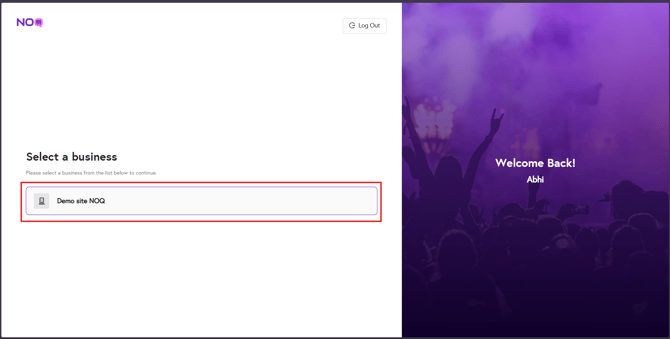
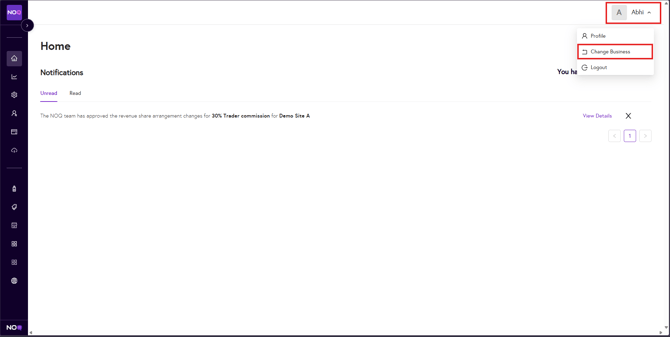
If your email address is associated with multiple businesses, you will see a list of all available businesses. Select the relevant business name to continue. You can switch between businesses at any time by clicking your name in the top-right corner and selecting Change Business from the dropdown menu.
Step 2: Updating Business Details
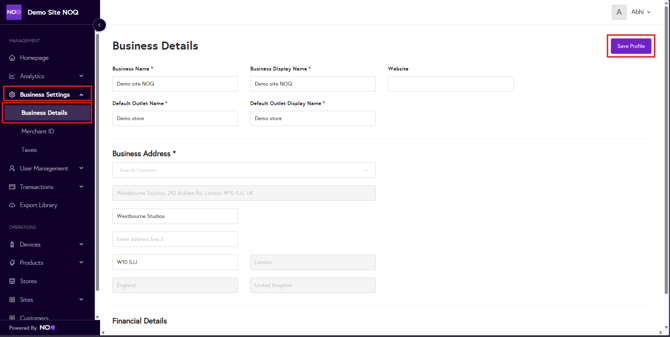
- Go to Business Settings > Business Details.
- Update your business information as needed.
When adding your address, please use the search bar and this will automatically populate all other fields.
Click Save Profile.
Step 3: Merchant Account Setup
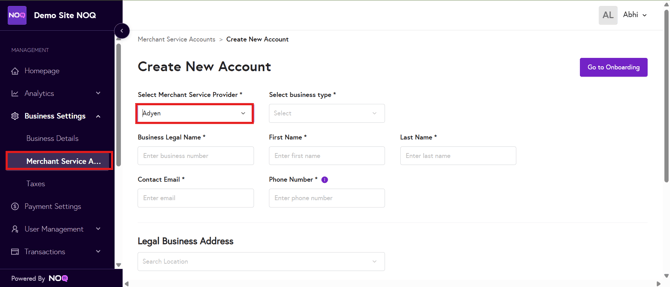
- Navigate to Business Settings > Merchant Service Accounts.
- Click Create Account.
- Select Adyen as your merchant service provider.
- Update the required business information.
- Click Go to Onboarding.
If you are a legally registered business, please select organization. Otherwise, select sole proprietorship .
⚠️When entering your mobile number, do not include a leading 0 (Zero) or any country code.⚠️
Step 4: Adyen Portal Setup
- After clicking Go to Onboarding, an Adyen pop-up window will appear.
- If the pop-up does not appear, disable your browser's pop-up blocker or use Google Chrome.
- If you close the Adyen page by accident, Click Verify Adyen Account to proceed back into this page from the NOQ portal.

- Complete all required sections in the Adyen portal.
For existing businesses:
Updating Bank Details for Payouts:
If you want to receive your payments to new Bank Account, you can add new bank account by creating a new MSA by following above steps. Complete all required information and upload the requested documents as mentioned in the guide above. Once submitted, Adyen will verify your account. If you get stuck or encounter any issues, please contact us using this link.
Note: Verification from Adyen can vary from a few hours to several days or up to a week.
After your new MSA is approved, we will:
- Update your Store ID from our side
- Update your financial details
- Schedule a follow-up call (if needed) and reassign your terminals to the relevant stores
You can also reassign terminals yourself via Device Management. You can refer this guide here.
What happens to pending payouts when bank details change?
Once we’ve updated your bank account details and assigned the new Store ID to your terminal, all future payouts from your POS transactions will be sent to your new bank account.