
Bulk Upload Items
Rather than create several individual Items, we recommend taking advantage of the Bulk Upload function. This quick guide will demonstrate how to use the New Items Template to create all your items at once in Excel and then upload the file in the Backend Portal.
- Navigate to the NOQ Backend Portal > Products > F&B Products > Master Stock List > Items
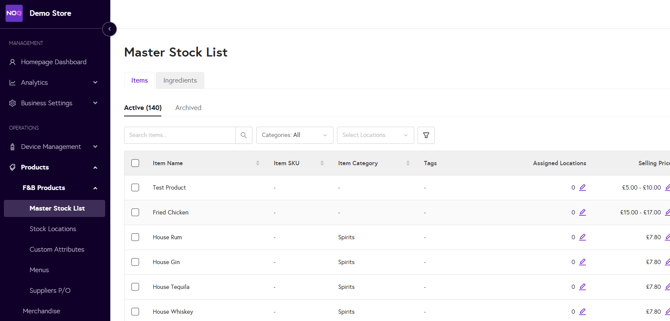
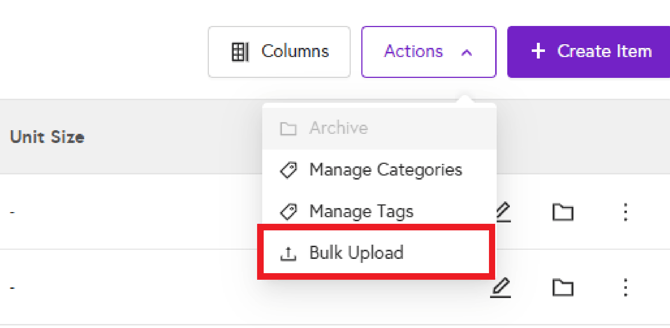
- Click the Actions button

- Select Bulk Upload.
- Download the New Items Template CSV file.

- Open the file in Excel or Google Sheets and populate the following fields with your Items:
Key Fields in the Template
- Item Name: The name displayed to customers. Compulsory
- Stock Type : It can be either Dry, Wet, Other or N/A depending on your item. Compulsory
- Item Category: Organize menu Items into categories (e.g., Wines, Spirits). Optional
- Item Tags: Enables tagging of Items to enhance search functionality. Optional
- Item SKU: Stock Keeping Unit ID. Optional
- Item Description: Customer-facing. Optional
- Has Variants?: Y/N. Variants are mandatory customer choices (e.g., size or type). Examples: Complusory
- Variant Name 1: Glass (£5)
- Variant Name 2: Bottle (£12)
- Selling Price: Price without variants. Compulsory
- Cost Price: Cost of raw goods (for profit tracking). Optional
- Block Price: Allows manual price overrides via EPOS. Y(Yes)/N(No). Compulsory
- Deposit Item: Print QR code on the receipt which helps for refund Y(Yes)/N(No). Compulsory
- Variant Name 1: Name of Variant 1 , Compulsory
- Variant Selling Price 1: Selling Price of Variant 1 , Compulsory
- Variant Cost Price 1: Cost of Variant 1 , Optional
- Variant SKU 1: SKU of Variant 1 , Optional
Note: The system supports up to ten variants during bulk upload. Additional variants can be added after upload.
Save the completed template as a CSV file and upload it to the system via the Bulk Upload page. In the Upload Template menu, select Add New Items and then upload your Items CSV.
If the data in your CSV file isn’t correct, the upload may fail and an error CSV file will be downloaded. Open this error CSV, scroll to the far right, and locate the “error” column. Review the message to understand what went wrong, update your original CSV accordingly, and then try uploading again. If all issues are resolved, the file will upload without errors.
