1. Login to the NOQ Portal
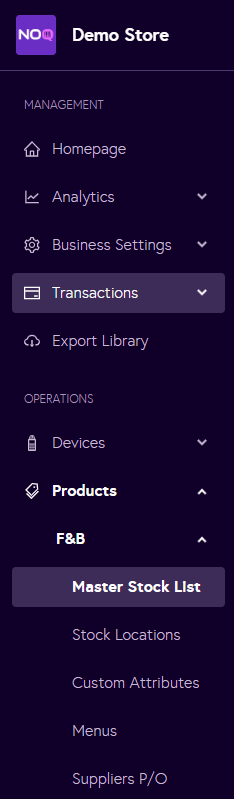
2. Navigate to Products -> F&B -> Master Stock List from the left navigation panel
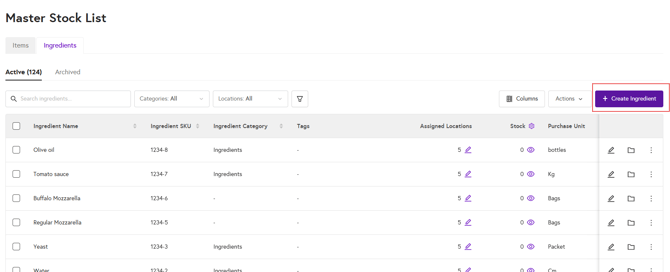
3. Navigate to Ingredients Tab and click on Create Ingredient.
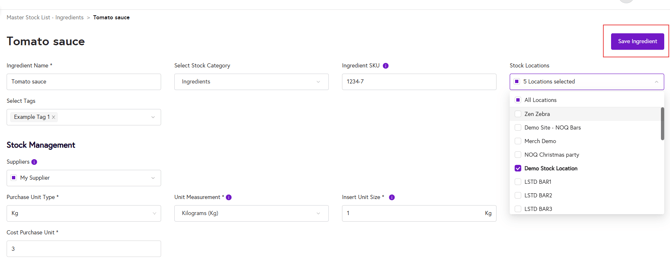
4. Fill in the Ingredient Details:
- Enter the Ingredient Name (Required).
- Select the Stock Category (Optional).
- Add the SKU of the Ingredient (Optional).
- Select all the applicable Stock Locations for this Ingredient, multi select is allowed. (Optional).
- Stock Management Details:
- Select all the applicable Suppliers from the dropdown (Optional)
- Enter Purchase Unit Type (Required).
- Enter Unit Measurement (Required).
- Enter the Unit Size (Required).
- Enter the Cost Purchasing Unit (Required).
- After adding all the details click on 'Save Ingredient'.
5. Once you have created your ingredients, you can assign them to items (if Advanced Stock Location is enabled). To do this, go to the Items tab and click on the edit icon for the item you want to add ingredients to.

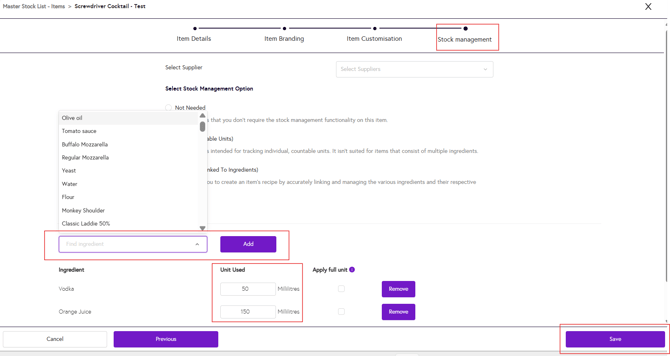
6. Now go to the Stock Management section. If Advanced Stock Location is selected, you can add ingredients to the item.
-
Select the ingredient to be added from the dropdown and click Add.
- Specify the unit used for each ingredient and enter the exact quantity of that ingredient required for the item.
- To remove an ingredient, click on the ‘Remove’ button.
- Once you have added the ingredient details, click on ‘Save’.
- You can repeat these steps to edit, add, or remove ingredients for any item as needed.