1. Login to the NOQ Portal
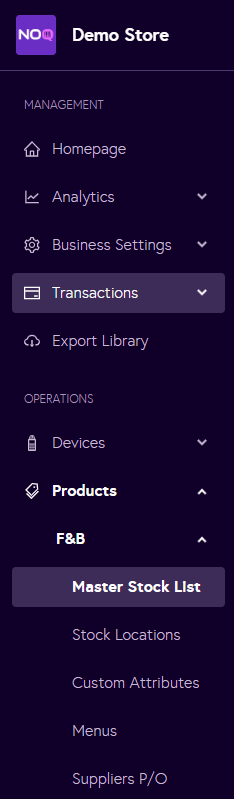
2. Navigate to Products -> F&B -> Master Stock List from the left navigation panel
3. There are two ways to create items: you can either add them individually using the Create Item button, or you can bulk upload and create multiple items at once. For bulk uploading items guide, click here.
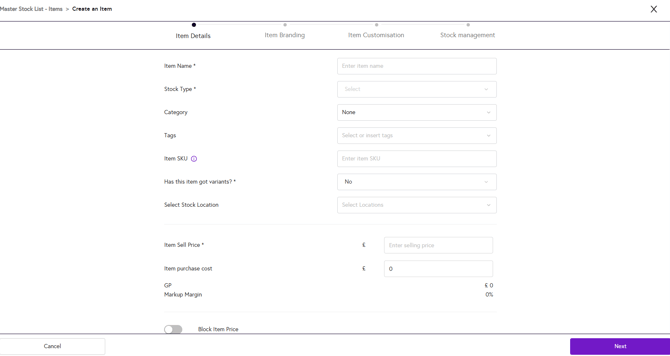
- Click the Create Item button on the right-hand side, then complete the item details as follows:
- Item Name (Required): Enter the item’s name.
- Stock Type(Required): Choose one of the stock types Wet, Dry, Other or N/A
- Category: Choose an existing category or create a new one.
- Tags: Select or create relevant tags for the item.
- Item SKU: Enter a stock-keeping unit code if required.
- Has this item got variants? (required)
- Select Yes or No.
- If Yes, define the variants (e.g., pint, half pint).
- Set individual prices, costs, and SKUs for each variant.
- Click the + button to add each variant.
- Select Stock Location: Choose where your item will be stocked
- Item Sell Price (Required): Enter the selling price.
- Item Purchase Cost: Add the item’s cost price.
- GP (Gross Profit) and Markup Margin: These are calculated automatically based on your entered prices.
- Block Item Price: Toggle this on to lock the price in the EPOS app.
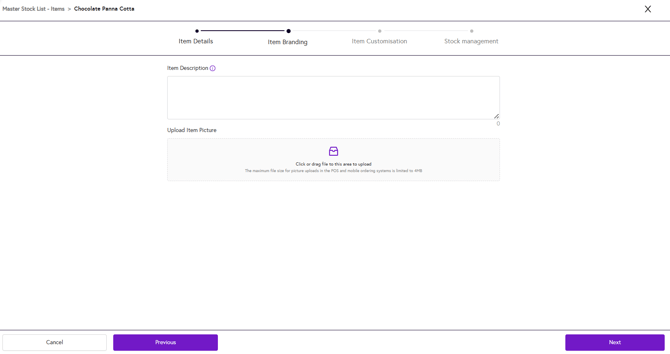
- Next, complete the Item Branding (Optional):
- An item description for customer-facing menus.
- An image to visually represent the item.
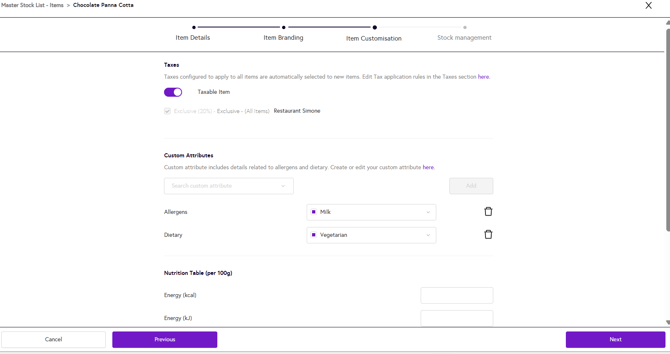
- Next, add any Item Customisation (Optional)
- Tax status for the items.
- Custom attributes like allergens.
- Nutritional information if applicable.
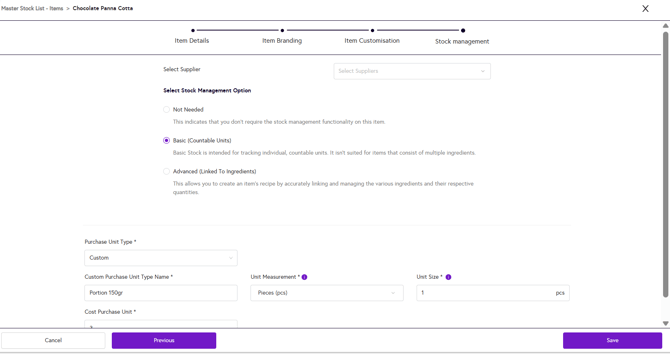
- Click Next, final step is adding Stock Management Details:
- Select Supplier: Assign a supplier (if set up).
- Not Needed: Choose this if stock tracking isn’t required.
- Basic (Countable Units): For individual countable items like cans.
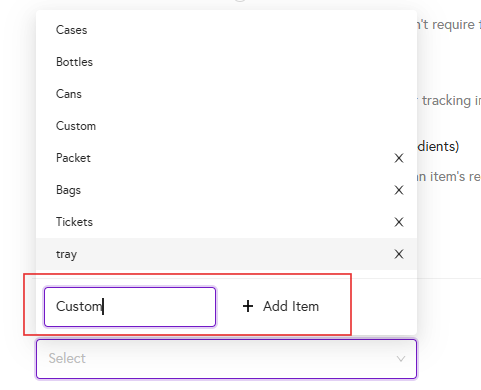
- Purchase Unit Type (Required): Select the appropriate purchase unit type from the dropdown. If the option you need isn’t available, choose Custom Name, click on ‘Add Item’, and enter your custom unit.
- Unit Measurement, Unit Size & Cost Purchasing Unit (Required): Select the appropriate unit measurement from the dropdown and enter appropriate unit size and cost purchasing unit in the textbox provided .
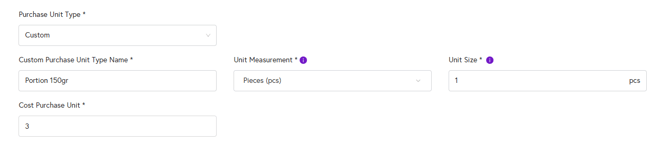
- Purchase Unit Type (Required): Select the appropriate purchase unit type from the dropdown. If the option you need isn’t available, choose Custom Name, click on ‘Add Item’, and enter your custom unit.
- Advanced (Linked to Ingredients): For items that require recipes with multiple ingredients and quantities.
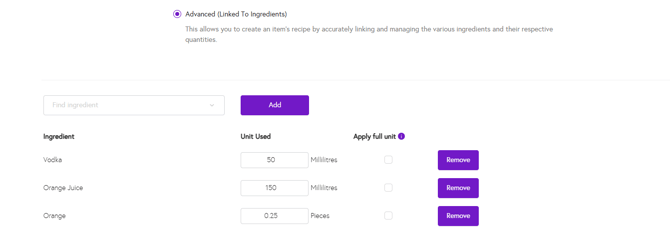
- After setting it all up, click Save and then the Item will be created.