
1. Login to NOQ Portal
2. Navigate to Products -> F&B -> Stock Locations

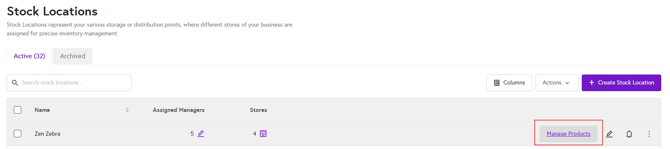
3. Click on Manage Products.
4. Click on the Modifier Groups tab at the top, then click the Create Modifier Group button on the right side of the page.

5. Add Modifier Group Details as below:
- Enter Modifier Group Backend Name (Required)
- Enter Modifier Group Display Name (Required)
- Selection Type (Required): Choose one of the options below based on your requirements
- Single Selection - if you want the modifier to be selected only once
- Unlimited Selection - if you want the modifier to be selected an unlimited number of times
- Multiple Selection - if you want the modifier to be selected a specific number of times, specify this in the input box called ‘Maximum Modifier Selection’.

- Select the Fee Type, indicating whether the modifiers are Free or Paid, and choose the option that applies.
- Now you can add modifiers from the modifier list you created into this group. Simply select a modifier, click Add, and repeat to add multiple modifiers to the group. For removing the modifier just click on Remove button as displayed in the screenshot below.

6. Once you have added all the modifier group details, click Save Modifier Group in the top right corner to create your modifier group.
