1. Login to NOQ Portal
2. Navigate to Products -> F&B -> Stock Locations

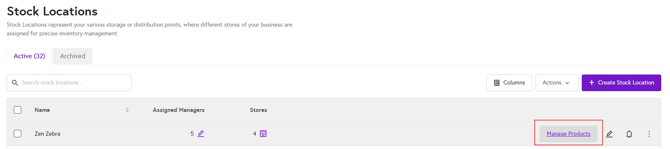
3. Click on Manage Products.
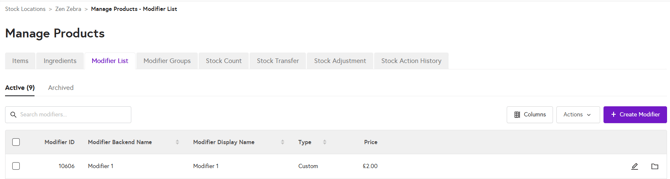
4. Click on the Modifier List tab at the top, then click the Create Modifier List button on the right side of the page.

5. Follow the below steps for Creating Modifier:
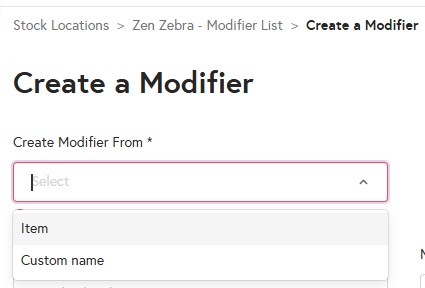
- Under Create Modifier From you can either select Item or Custom Name.
Select item if you want to use already existing item as modifier or use custom name to use custom name for modifier
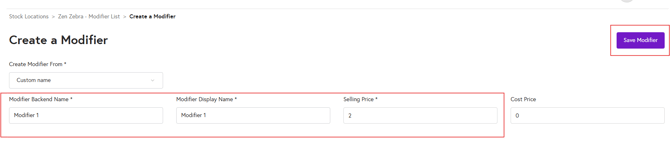
- Add a Modifier Backend Name, Display Name, Selling Price (Required) and you can also add Cost Price (Optional).
- After adding all the details click on 'Save Modifier' and your modifier will be created and added in the modifier list.
- You can view the created modifier here: