
If a store or site offers a loyalty program, you can use it to collect points on your account and redeem them at the same store or site.
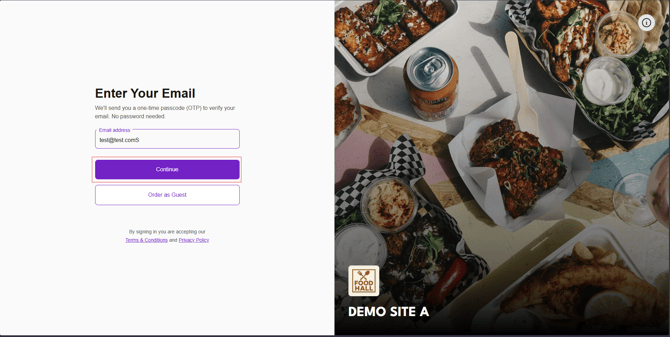
1. To view your loyalty points, log in to the NOQ web app. Enter your email address and click on Continue.
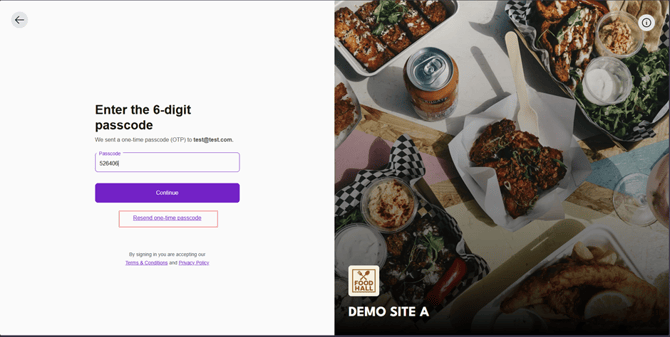
2. Enter the one-time password sent to your email address, then click Continue. If you don’t receive a code, click Resend one-time password.
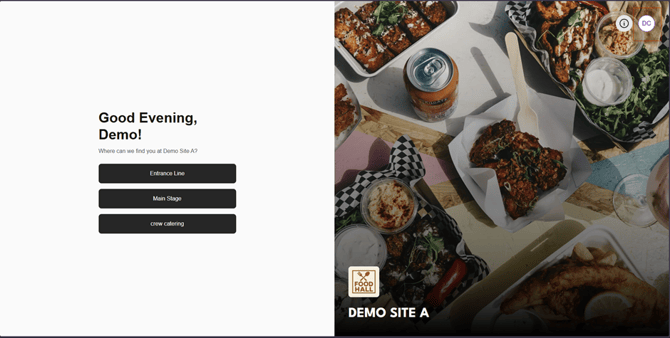
3. If you are signing in for the first time, enter your name and click Continue, then click your profile icon in the top-right corner.
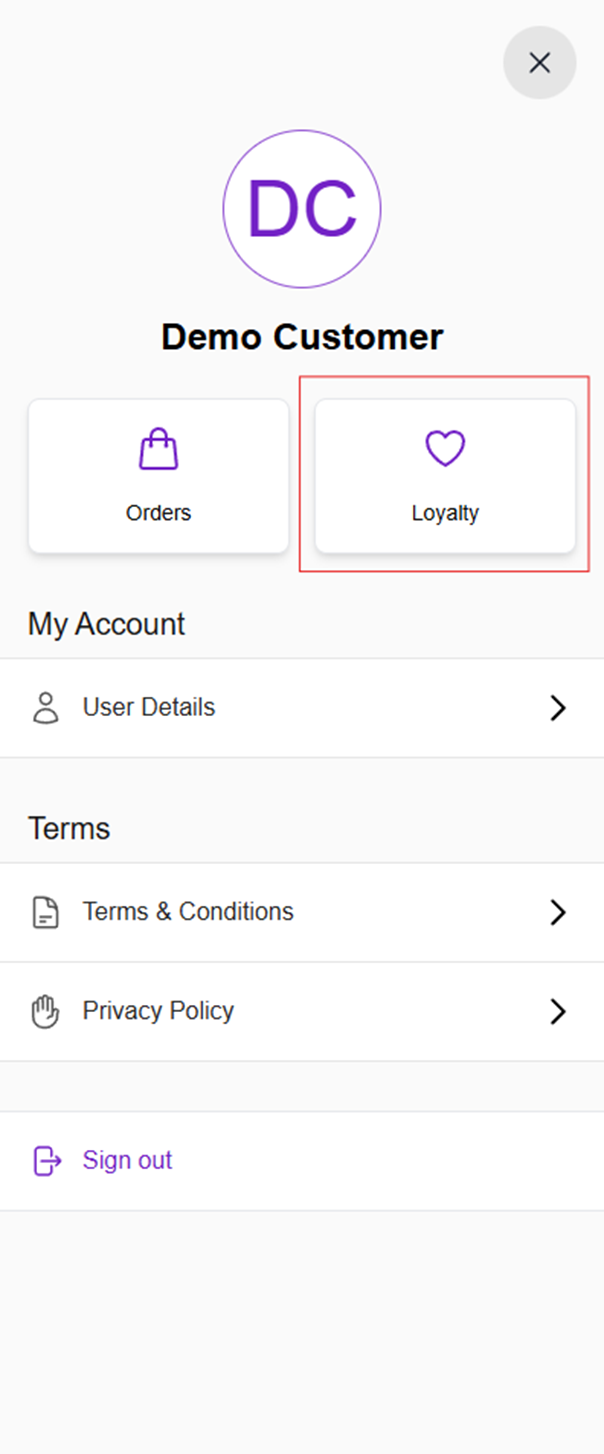
4. Click Loyalty to view your loyalty QR code.
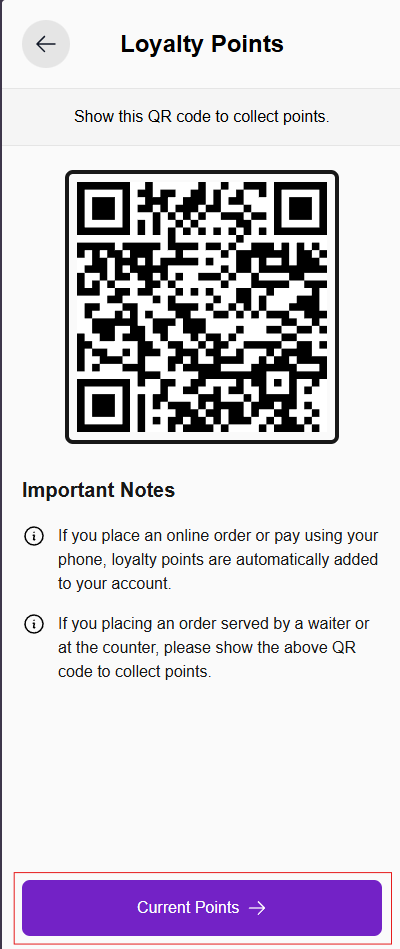
5. Your loyalty QR code will now be visible. Show this QR code to the vendor to collect loyalty points. If you are ordering through the web app and the store or site has a loyalty program enabled, your points will be added to your account automatically. To see your loyalty points, click on Current Points.
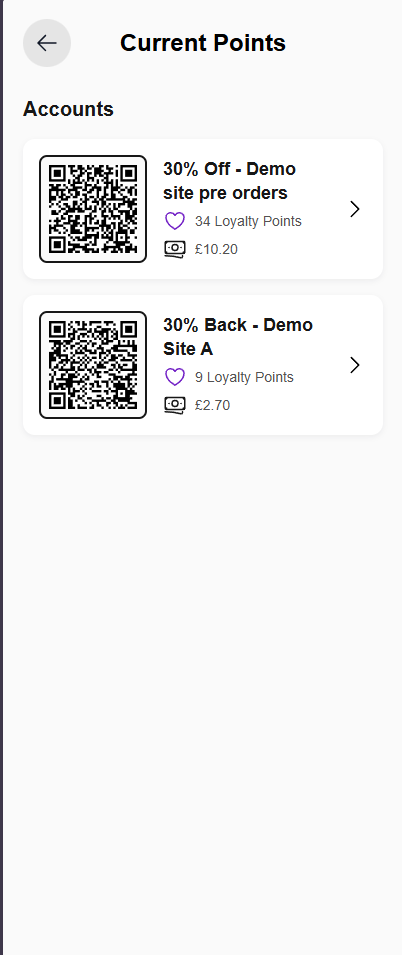
7. You will see a list of your loyalty accounts, which you can earn by ordering from loyalty-enabled stores or sites, or by showing your QR code. Click on any account to view the details.
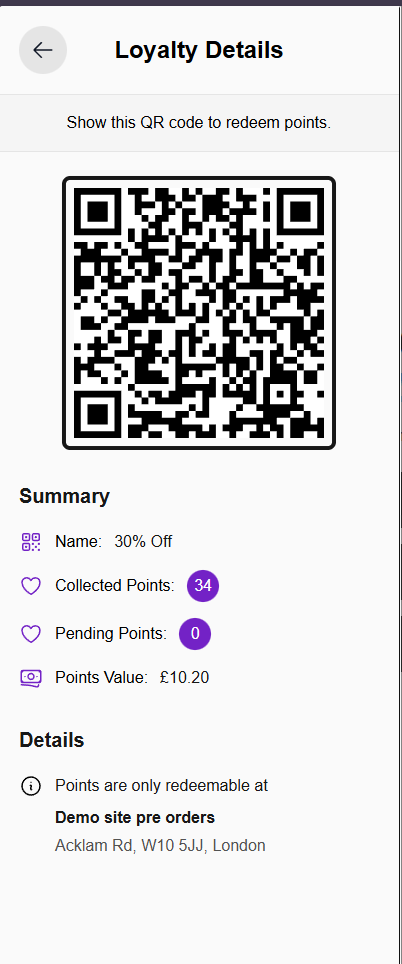
8. You will see a QR code that you can use to redeem your loyalty points. You can view which loyalty program you are using, how many points you have, and their cash value. Below this, you can see which store or site you can redeem these points at.
Make sure you present the correct loyalty QR code for the store or site you’re at. Using a QR code from a different store or site may result in an error.