
Need to charge for an item that’s not on the menu? Use NOQ’s Manual Entry feature to add the item at checkout and take payment without adding it to the menu.
Part 1: Enable Manual Entry in the Backend
Step 1: Log in to the NOQ Portal
-
Log in to the NOQ Backend Portal.
Step 2: Open Store Settings
-
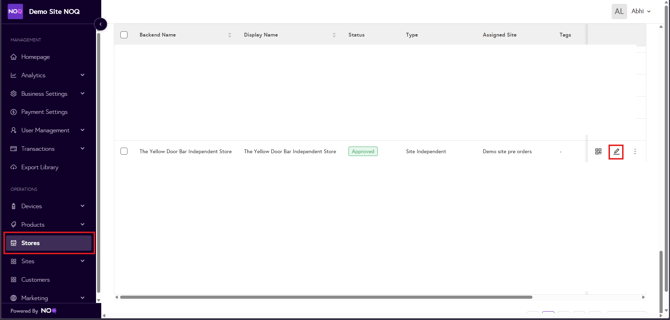
From the sidebar, click Stores.
-
Click the pencil (edit) icon for the store you want to configure.
Step 3: Enable Manual Entry
-
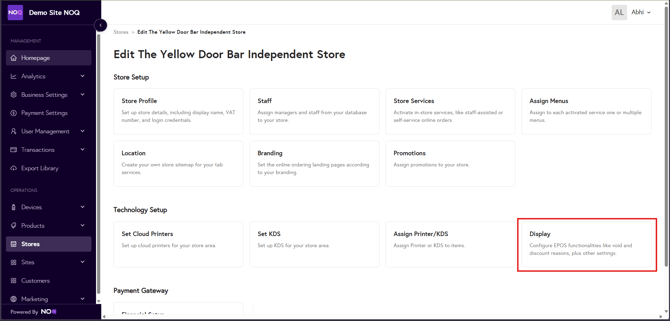
In the store profile, click Display.
-
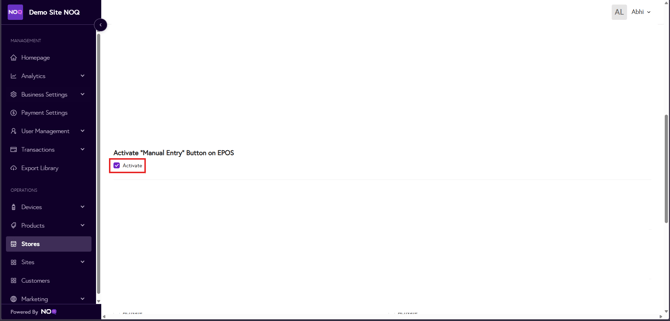
Scroll down and locate Manual Entry Button on EPOS.
-
If it is not enabled, set it to Active.
-
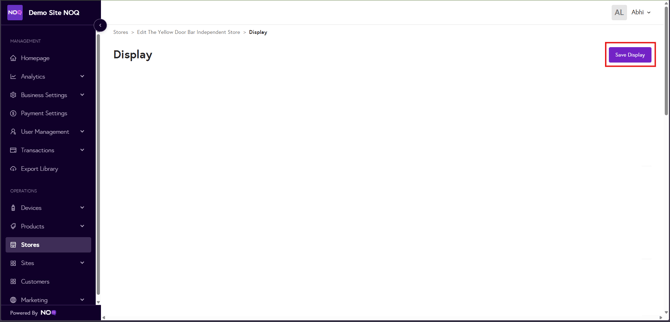
Click Save Display to apply the changes.
Part 2: Add a Miscellaneous Item to Cart
Step 4: Open EPOS and Access Cart
-
Log in to the NOQ EPOS app.
-
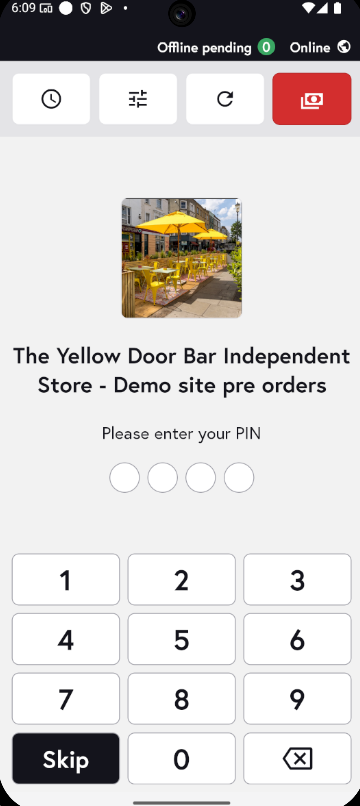
Enter your PIN.
-
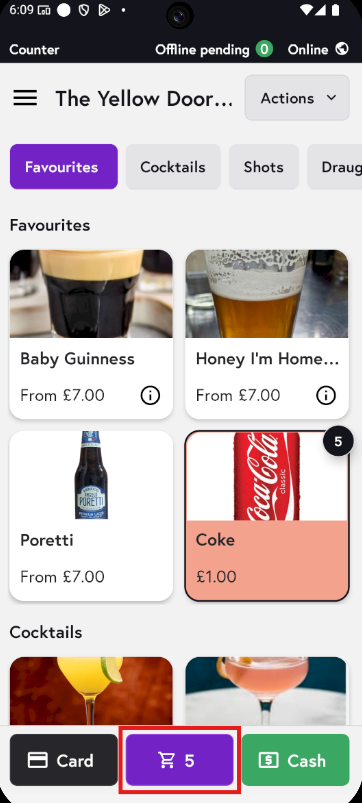
Add items as usual.
-
Tap the Cart icon.
Step 5: Add Item Manually
-
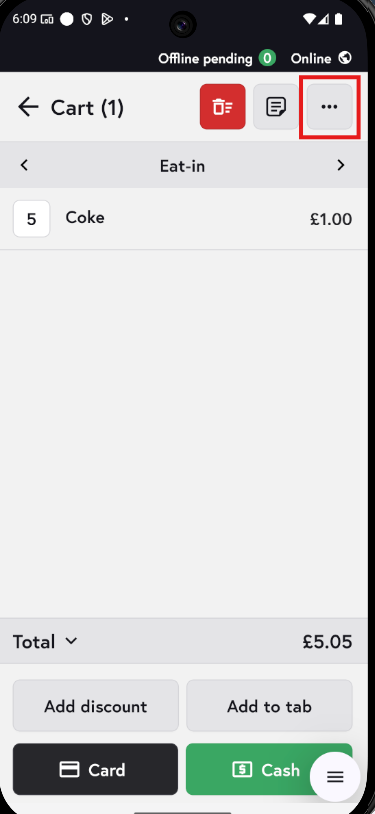
Tap the three dots (...) in the top-right corner.
-
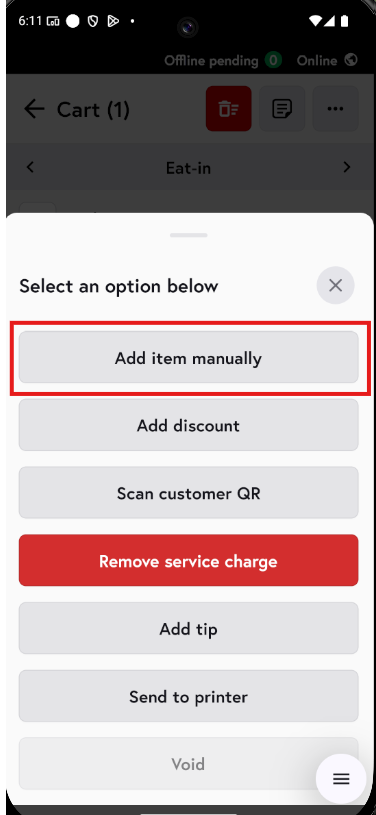
Select Add items manually.
Step 6: Enter Item Details
-
Enter the amount for the item. You can also use the default amount for faster entry.
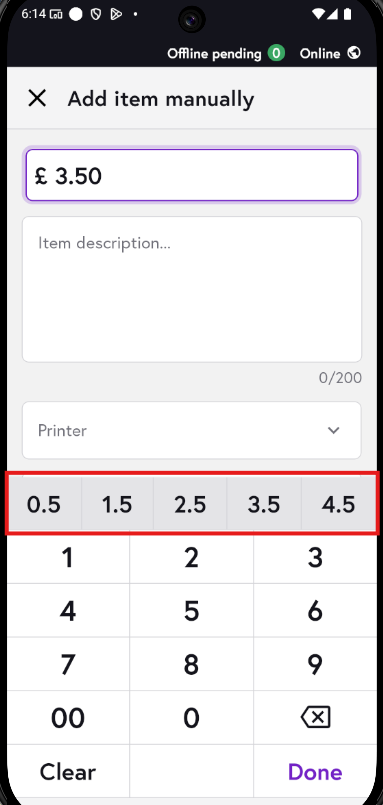
-
Add an item description. You can add item name in the description.
-
If applicable, select the printer or KDS.
-
Tap Add item.
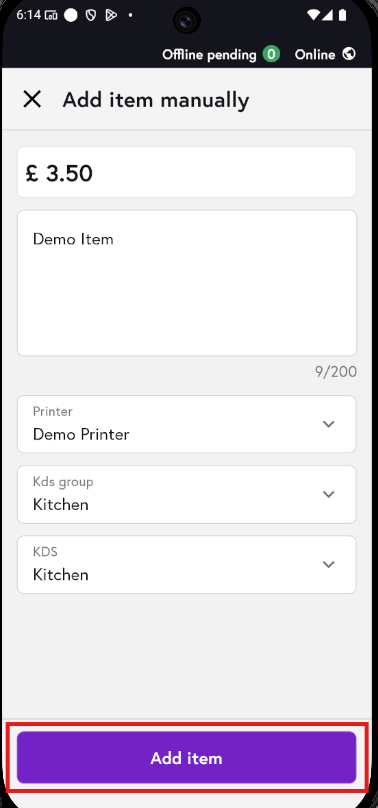
The miscellaneous item will now be added to your cart. You can then proceed with payment as usual.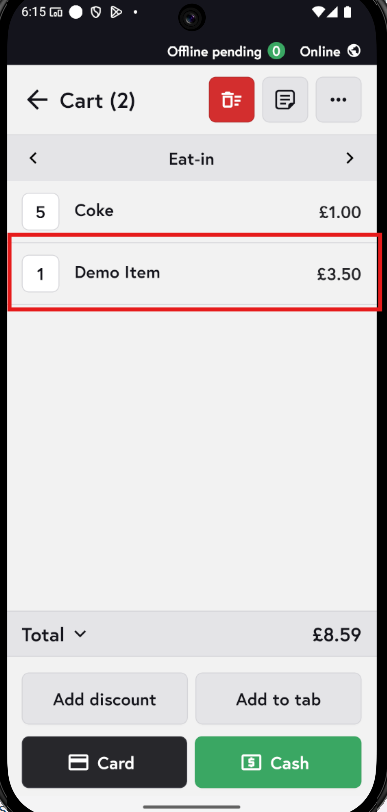
You can also see the miscellaneous item on the email receipt.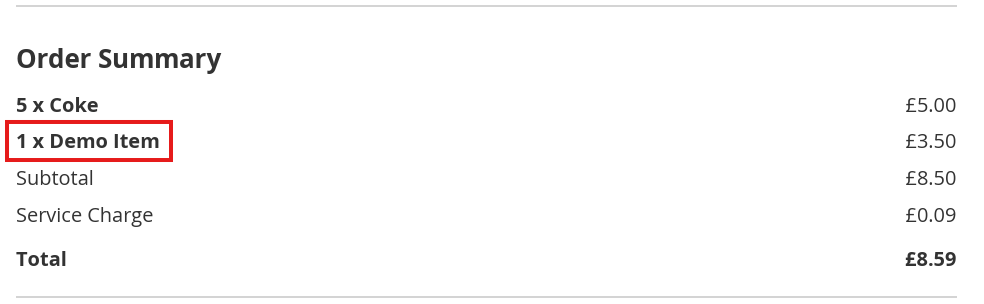
Part 3: Add a Miscellaneous Item to an Existing Tab
Step 7: Add to a Tab
-
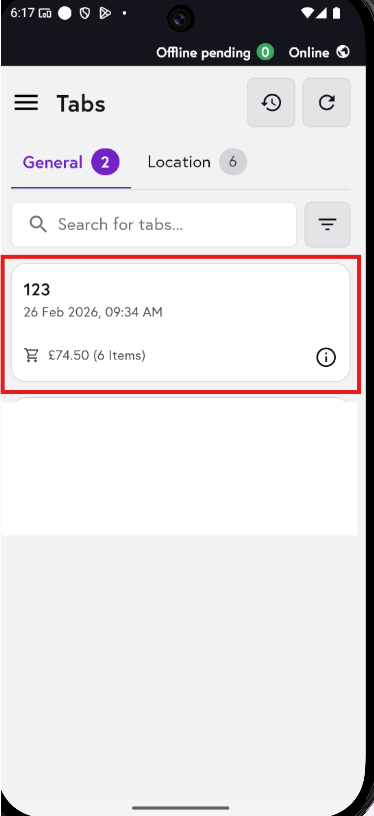
Open the existing tab.
-
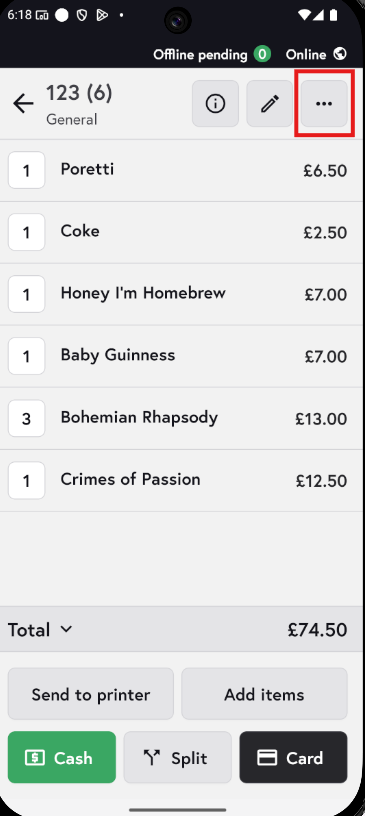
Tap the three dots (...) in the top-right corner.
-
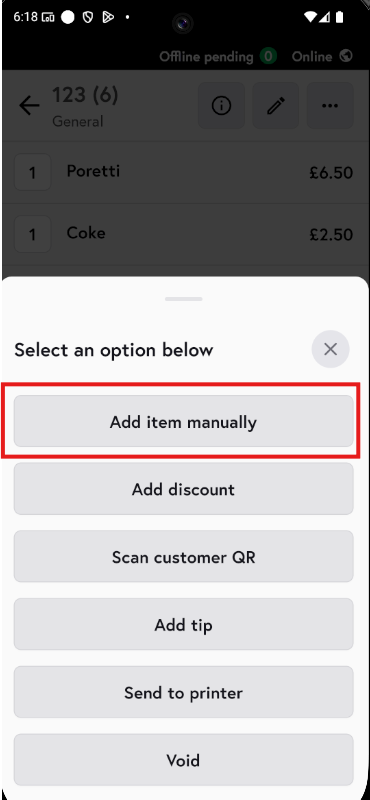
Select Add items manually.
-
Follow the same steps as above to enter item details and add the item.