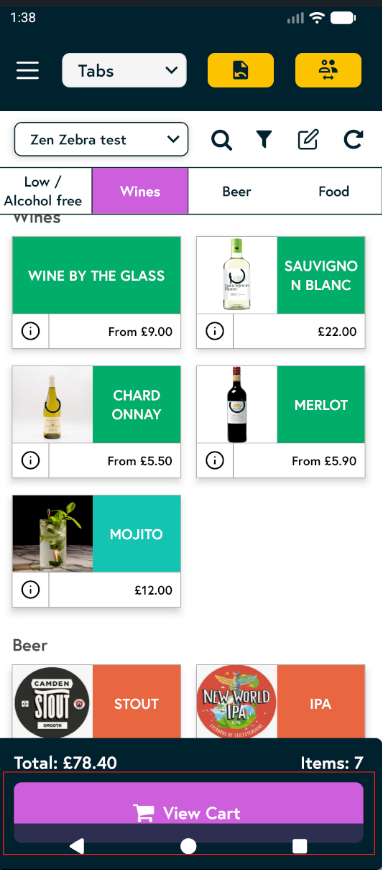
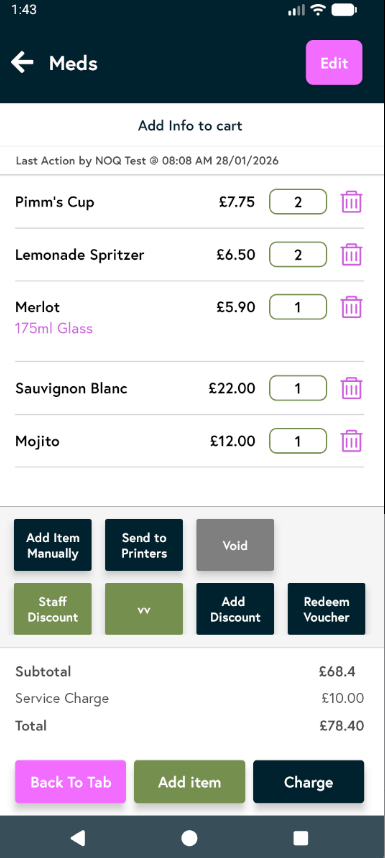
1. Open the EPOS v2 app on the device.
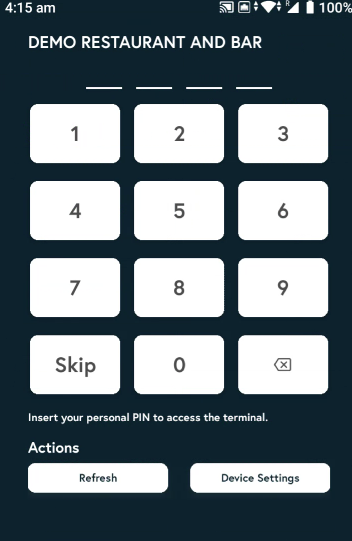
2. Enter the PIN, or tap Skip if you don’t have one.
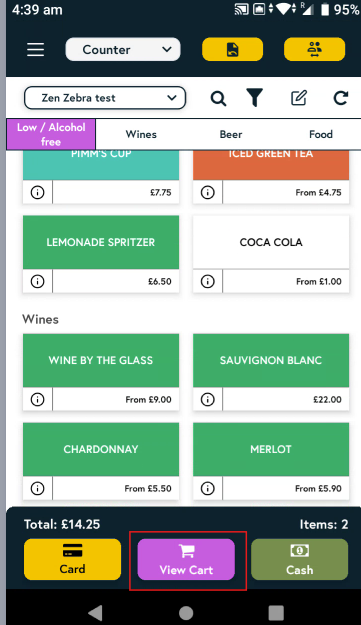
3. Tap on the items you’d like to order, then tap View cart.
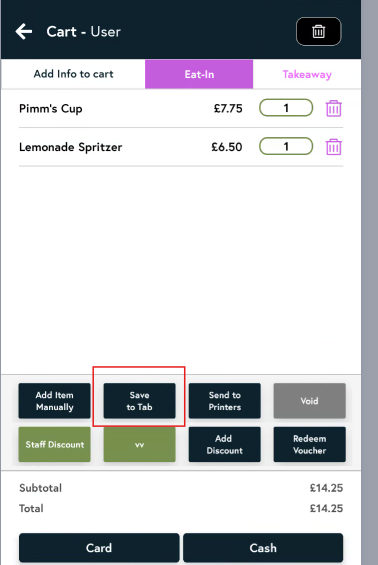
4. Now click on 'Save to Tab' button.
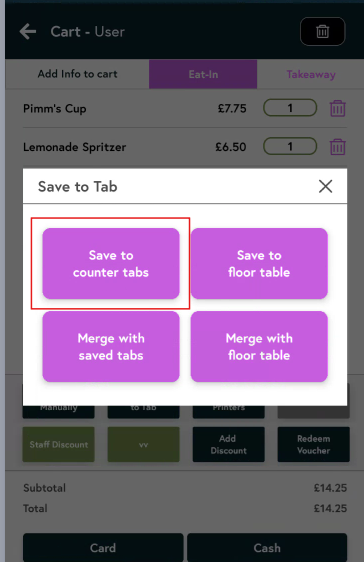
5. Next, click on save to counter tabs button.
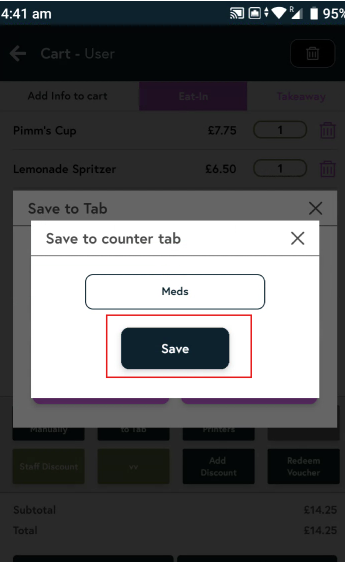
6. Enter Customer Name and click save.
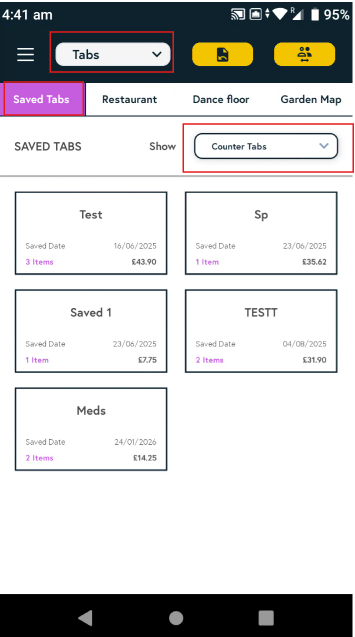
7. Once you save it, you will be taken to the Tabs section, where you can select the relevant tab and review all saved tabs.
8. To add more items once tab is created, follow this step.
-
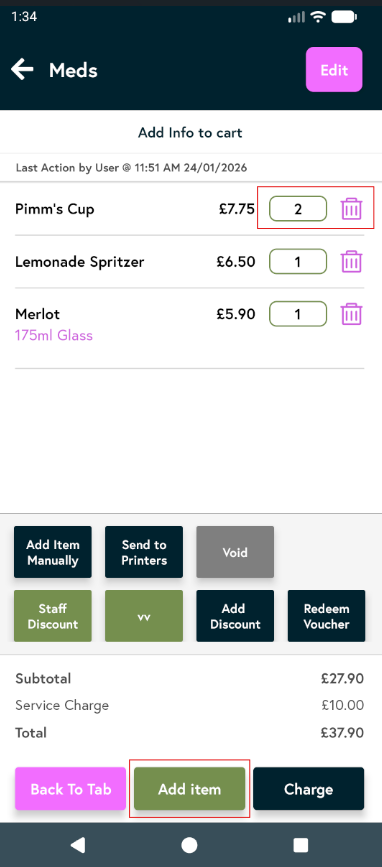
Click on the tab you’ve just created. You’ll see all the items already saved to it. You can delete an item by tapping the bin icon, or adjust the quantity by tapping the number next to the item name. To add more items to this tab, tap Add Items.
- You’ll be taken to the items menu. Tap the item you want to add and it will be added to the tab automatically. Once you’ve added the required items, tap View cart to view them.