
Please note, images will only appear on IOS and Android apps (phones and tablets)
1. Login to NOQ Portal.
2. From sidebar, navigate to Stores.

3. Click on Pen 🖊️ to edit store profile.

4. Go to Display under Technology Setup.

5. Scroll down to find Activate Item Pictures on EPOS app. By default, this option is not enabled. Click on Activate ☑️. It will start displaying photos on the EPOS V2 app.
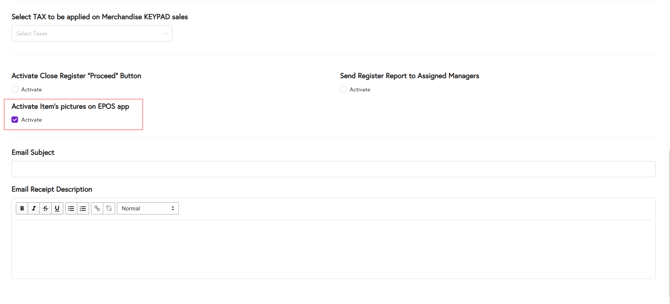
Before going to refresh the V2 app, make sure that you have added photo to the item on the backend. Click Here to learn how you can add photo to the item.
⚠️After activating item pictures, log out and log back into the EPOS V2 app to see the images.