1. Open the EPOS v2 app on the device.
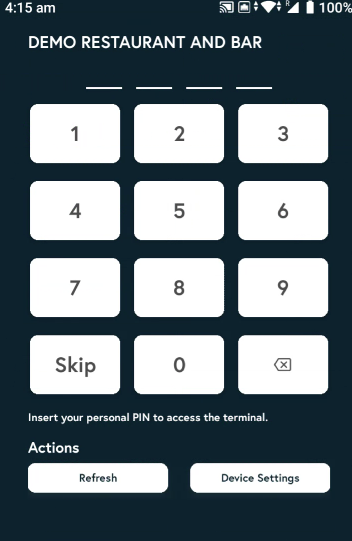
2. Enter the PIN, or tap Skip if you don’t have one.
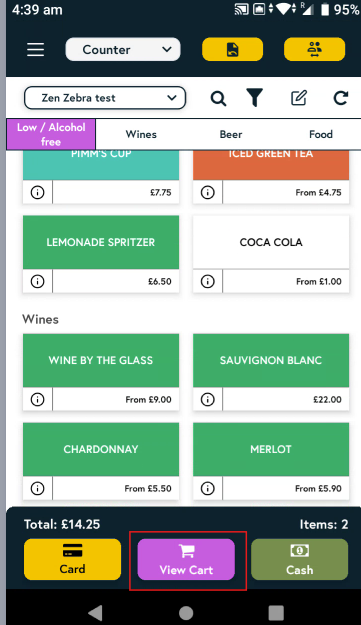
3. Tap on the items you’d like to order, then tap View cart.
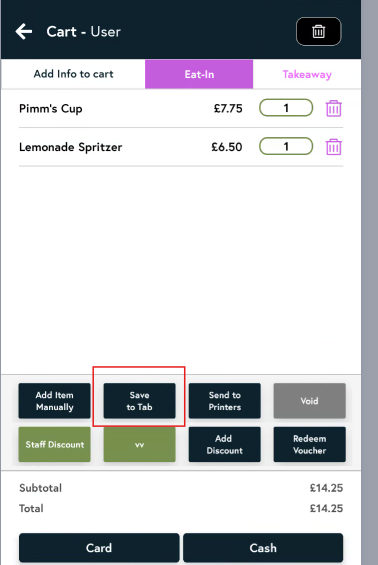
4. Now click on 'Save to Tab' button.
5. Next, click on Merge with floor tabs button.

6. From the dropdown, select the desired floor tab, then choose from the available table from the dropdown below it and click Save.

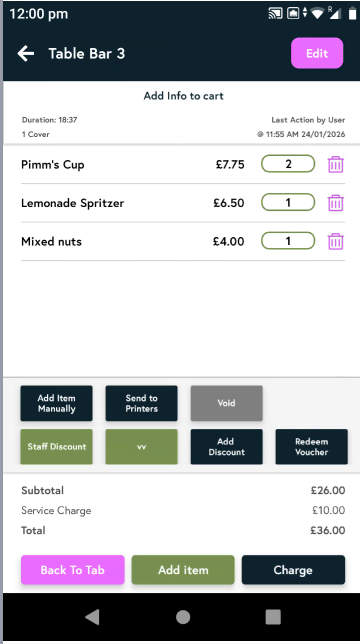
7. Once saved, the items in your cart will be merged into the selected floor tab. You can then view this under the Tabs section by selecting the Restaurant tab and, for example, choosing Bar 3 (as selected in the previous step).

8. When you select Bar 3, you’ll see the items you selected added to that floor tab.