
Step 1: Downloading the NOQ Insights App
- Go to the App Store (iOS) or Google Play Store (Android) on your device.
- Search for NOQ Insights and download the app.
- Open the app and log in with your credentials. If you don’t have login information, contact NOQ support for assistance.
Step 2: Access the Sidebar
- Once logged in, tap the Three Lines menu icon in the top left.
- Tap Device to view device list.

Step 3: Set Filters & Viewing device details.
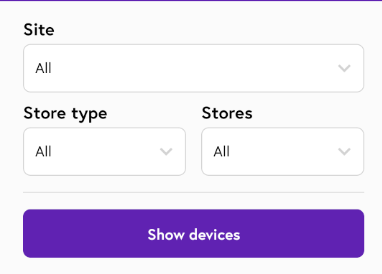
- You can choose whether you want to see all available device list linked with the business or you want to see specific device linked to specific site & store.
- Choose Site, Store type (internal or external) & Store from the respective drop-down. After selecting Site & Stores filter click on Show devices to see devices for applied filter.
- You will see a drop-down with the default filter set to Last Card Transaction (Newest First). Click on the drop-down to change this filter. Click on Hide Filters to collapse the filter panel and expand your screen view.

- You can search by device ID & device name in search bar.

-
Tap on any device in the list to view its details.
Tap the Refresh button to update the device information, including current battery percentage and the most recent transaction (if available).

If you don't see the device section as an option, please contact NOQ Support.