
1. On your terminal, click on the EPOS v3 app icon.
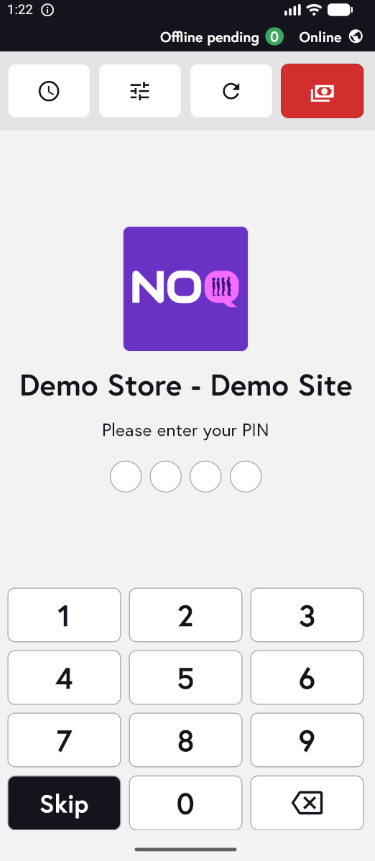
2. When the app opens, you will see the welcome screen. Either tap ‘Skip’ or enter your PIN (if you have one) to continue into the app.
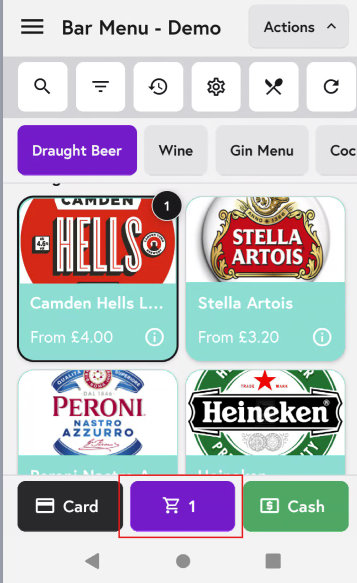
3. Add the items to the cart and after adding all the items click on cart icon as shown in the screenshot below.
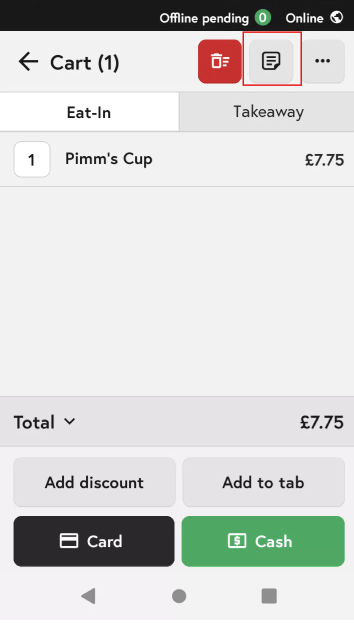
4.In the Cart section, tap the top button in the middle (the note icon) highlighted by the red box in the EPOS app.
5. Type your cart note into the text box, then tap Save note.

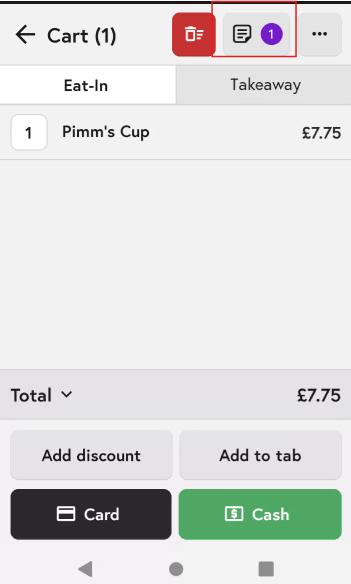
6. When you save it, you will see a small “1” badge next to the cart note icon, indicating that this cart has a note, as shown in the screenshot below.
Cart notes are only visible on the order print out and within the KDS app. They do not appear on the customer’s printed receipt or in receipt emails.