1. On your terminal, click on the EPOS v3 app icon.
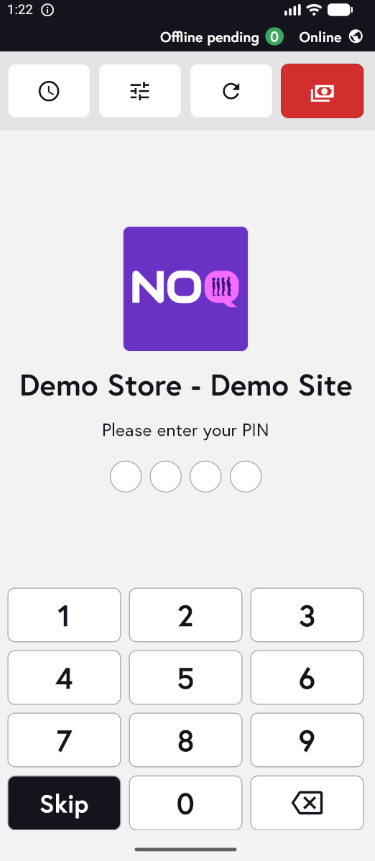
2. When the app opens, you will see the welcome screen. Either tap ‘Skip’ or enter your PIN (if you have one) to continue into the app.
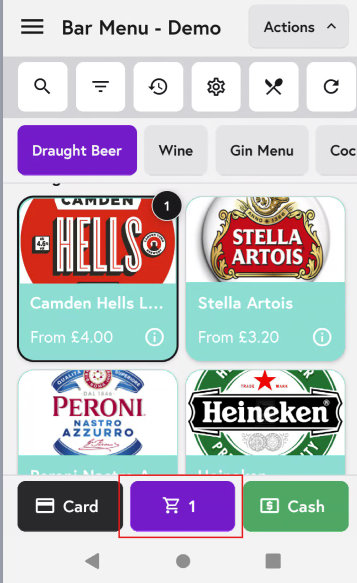
3. Add the items to the cart that you want to include in a new general tab. After adding all the items click on cart icon as shown in the screenshot below.
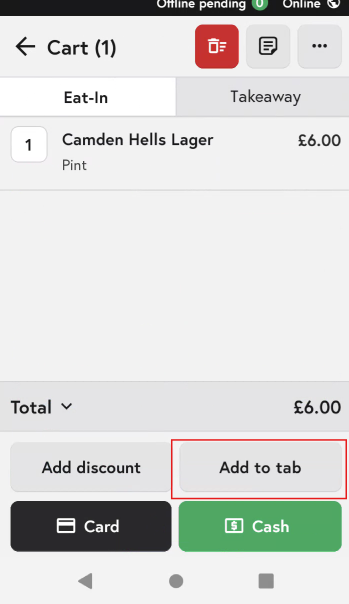
4. In the Cart Section, click on Add to tab button on the bottom.
5. Then click on 'Merge with Existing Tab'
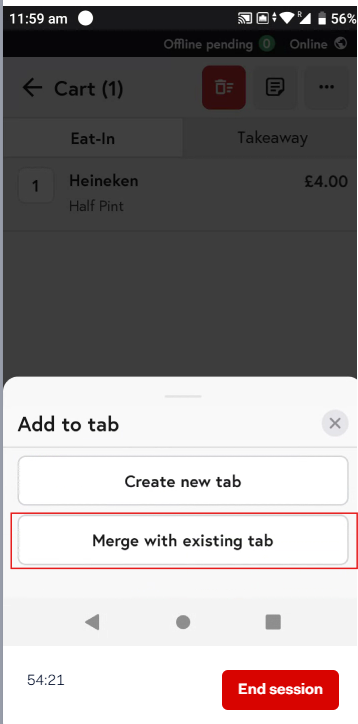
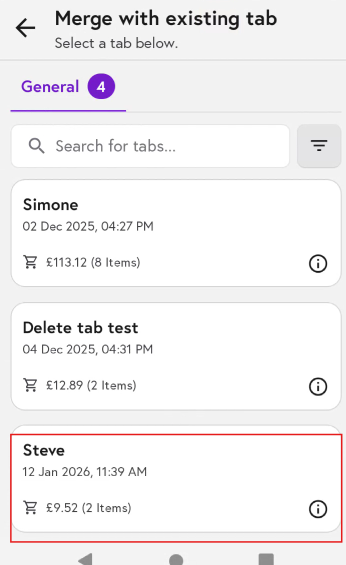
6. You can now select which tab you would like the items to be added to.
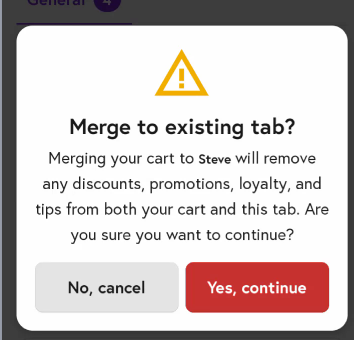
7. You will get a dialog box like below click on 'Yes, continue'
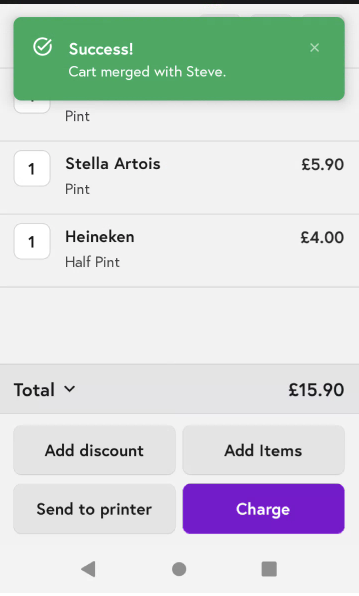
8. You will see a notification confirming that the cart has been merged with the selected tab.