
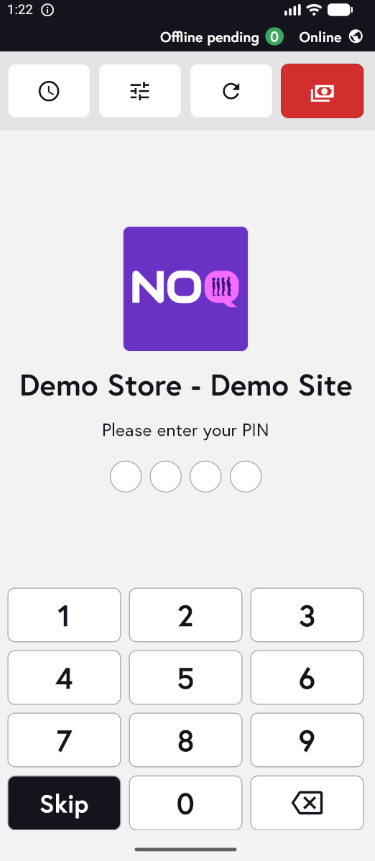
1. On your terminal, click on the EPOS v3 app icon.
2. When the app opens, you will see the welcome screen. Either tap ‘Skip’ or enter your PIN (if you have one) to continue into the app.
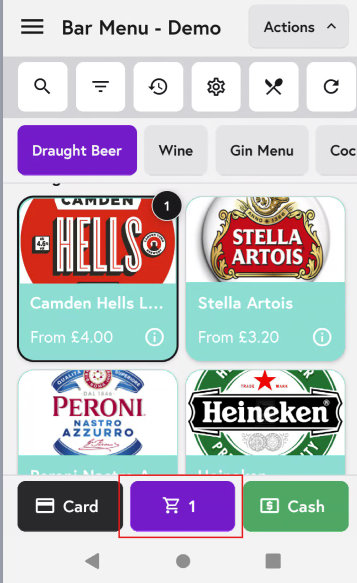
3. Add the items to the cart and after adding all the items click on cart icon as shown in the screenshot below.
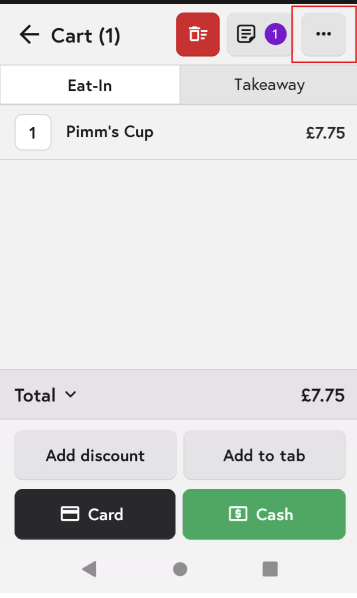
4. In the Cart screen, tap the three dots in the top-right corner.
5.From the options available, click on ‘Add S. Charge’. (S means service)
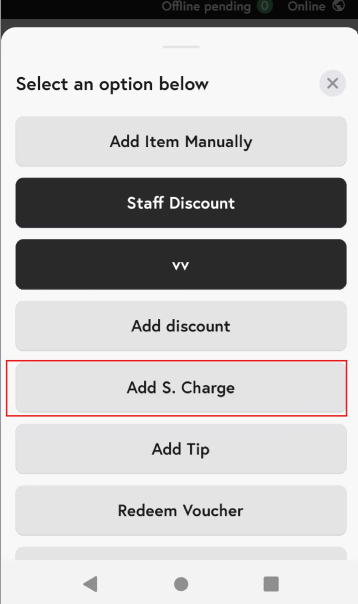
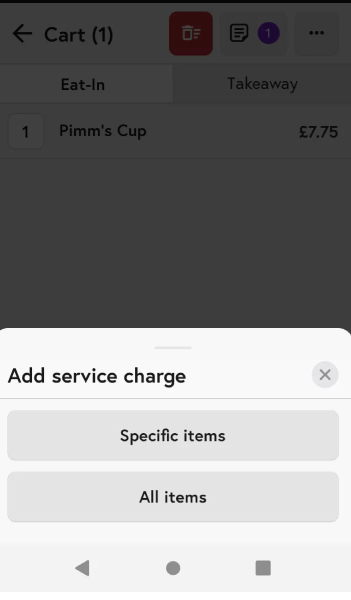
6. You can choose to add a service charge to specific items in your cart or to all items, depending on your preference and the service charge will be added.
7. To remove the service charge, tap the three dots again and select ‘Remove S. Charge’. This will remove the service charge from your cart.
