1. On your terminal, click on the EPOS v3 app icon.
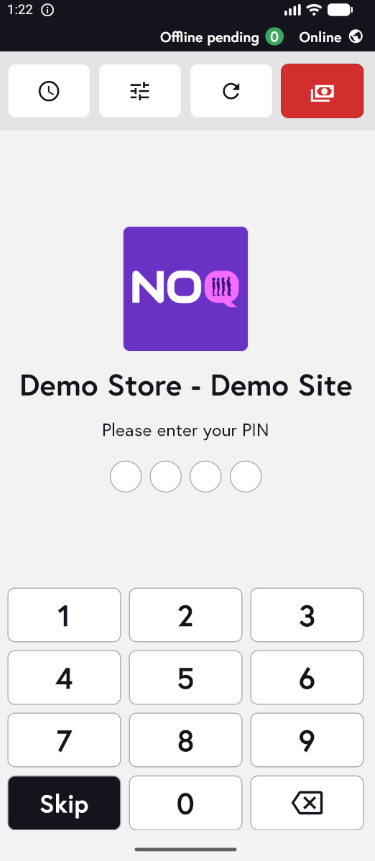
2. When the app opens, you will see the welcome screen. Either tap ‘Skip’ or enter your PIN (if you have one) to continue into the app.
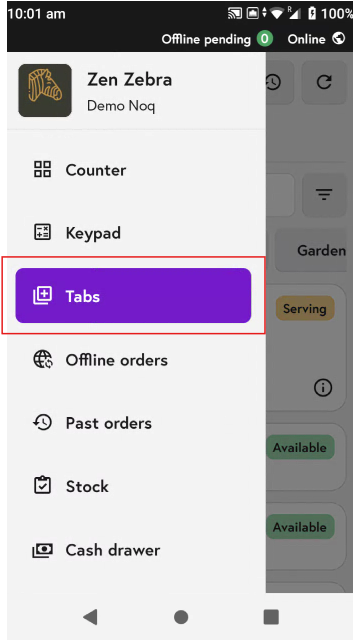
3. From the three horizontal lines in the top corner, tap on Tabs.
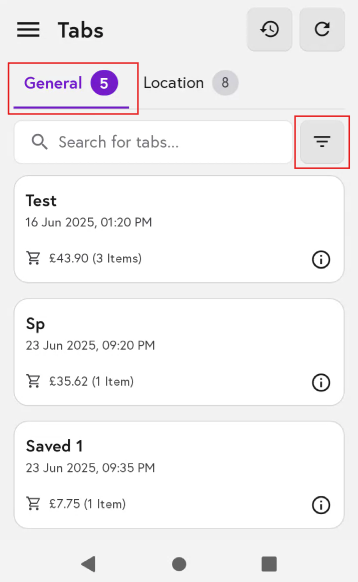
4. Tap on the General tab, then tap the funnel icon to the right of the search tabs, as shown in the screenshot.
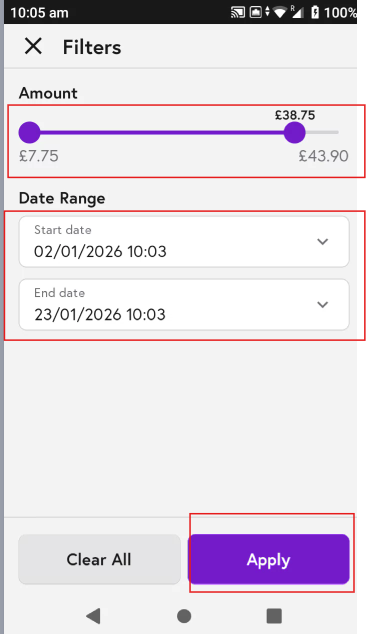
5. Now in the Filters section, you can apply the following filters:
-
Amount: this will show you a range of minimum to maximum orders in the tab taken, so you can adjust the bar accordingly
- Date range:
- Start date and time you can enter
- End date and time you can enter
- Lastly, after setting those filters, click on Apply.
- If you want to clear all the filters, tap Clear all.