
1. On your terminal, click on the EPOS v3 app icon.
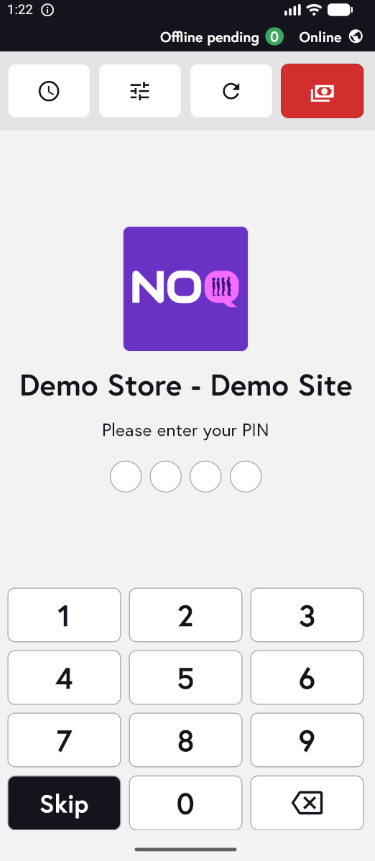
2. When the app opens, you will see the welcome screen. Either tap ‘Skip’ or enter your PIN (if you have one) to continue into the app.
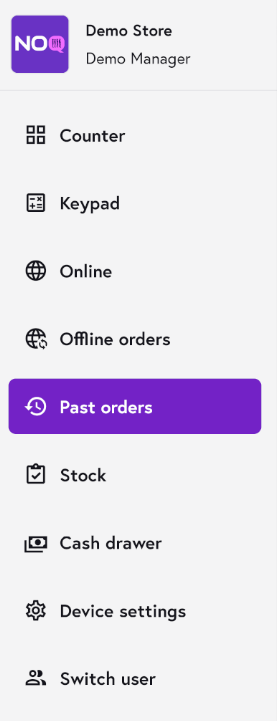
3. Tap the three horizontal lines in the top-left corner to open the sidebar, then select Past orders from the menu.
4. The Past orders screen will show a list of all previous orders. To narrow down what you see, tap the Filter icon.

5. You’ll then see the following filter options:

-
Search By :From the Search By drop-down, choose an option. A search bar will then appear, which you can use to find specific orders.


- Location : You can filter past orders by location. You can search orders placed on the terminal you’re using, or filter by store or site.

- Origin : You can filter past orders by location. You can search orders placed either through the EPOS app or online.

- Date : Use the Start date & time and End date & time fields to filter past orders for a specific timeframe.

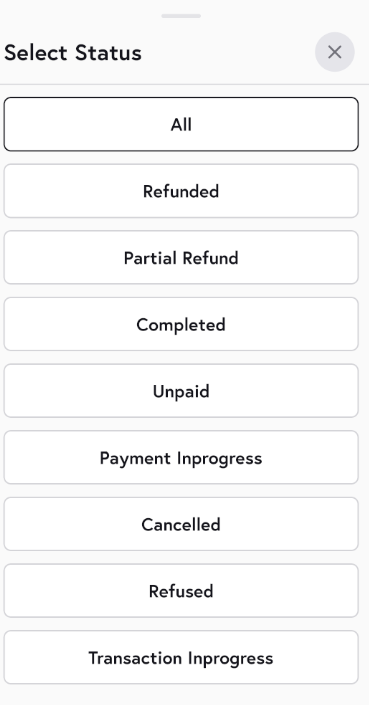
- Status : You can filter past orders by payment status.
- After choosing your filters, tap Apply to update the list of past orders. Once filters are applied, the Clear All button will be enabled, allowing you to reset all filters.
