
After creating items, its important to assign created items to the store. If you want to how to create items check the link given below.
1. Login to the NOQ Portal.
2. From the Sidebar, navigate to F&B > Products > Items List.
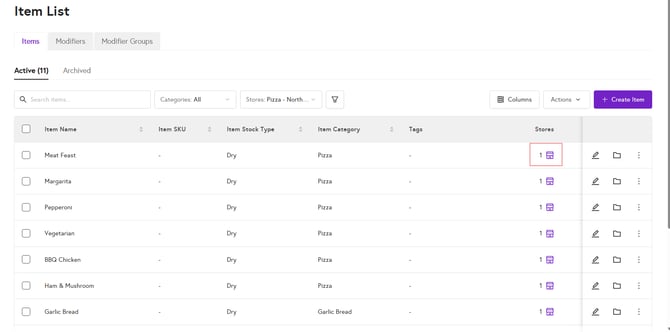
3. You will see all the created items. Under Stores column, click on the Store🏪 icon to open Assign Store pop-up.
4. From the Select Store drop-down, select all the store you want to assign item to.
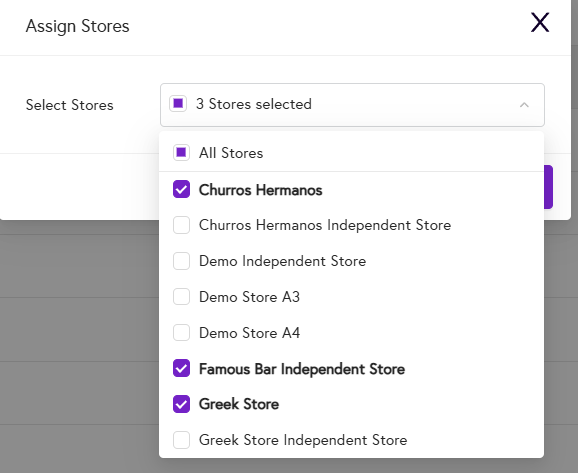
5. Click on Assign.

Your item is assigned to the store.
After assigning items to the store, now you can check how to assign items to the menu.