
1. Login into NOQ Portal.
2. Navigate to Transactions -> Payouts.

3. From the MSA dropdown, select the merchant service account number for which you want to view the payout. If you only have one MSA, it will be selected automatically. Under Reports Tab, then click on Download for the chosen MSA. This will download a CSV file where you can review all your transactions and reconcile them with your NOQ sales report. To learn how to view NOQ sales report click here.
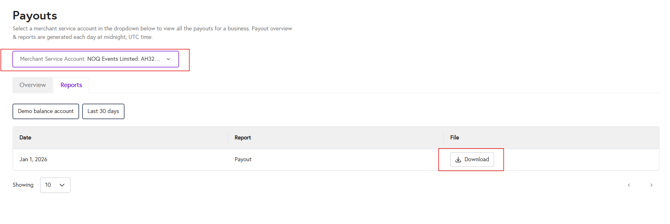
4. When you download the payout report, click on the Download button to save the file. In the CSV, locate the column titled “Balance PC” and find the row with the type - bank transfer. If the status shows “booked”, this is the amount that has been paid to you. Refer to the screenshot below.

If the status shows “booked” but the funds have not yet appeared in your bank account, if it shows “pending”, “reversed”, or “failed”, or if you require confirmation of payout details for finance reconciliation, please reach out to us here. here.