1. On your terminal, click on the EPOS v3 app icon.
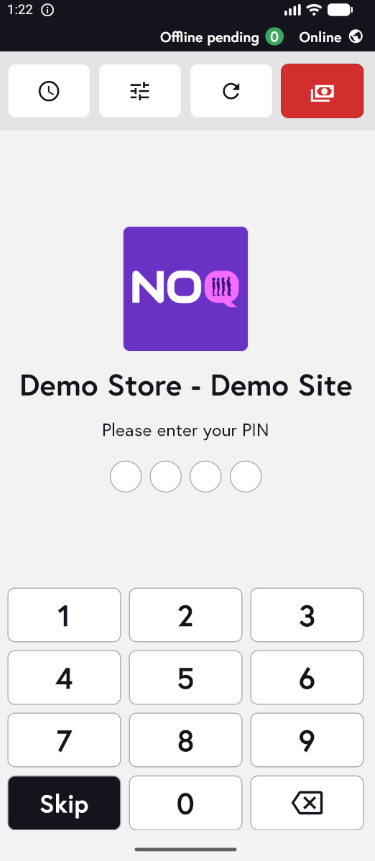
2. When the app opens, you will see the welcome screen. Either tap ‘Skip’ or enter your PIN (if you have one) to continue into the app.
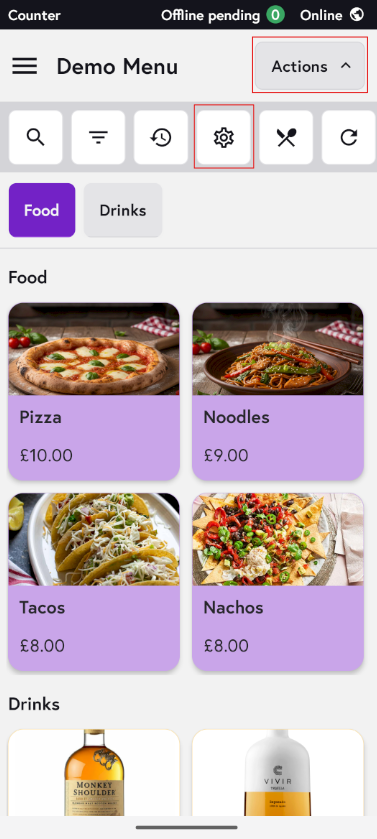
3. Click on Actions and then Settings Icon.
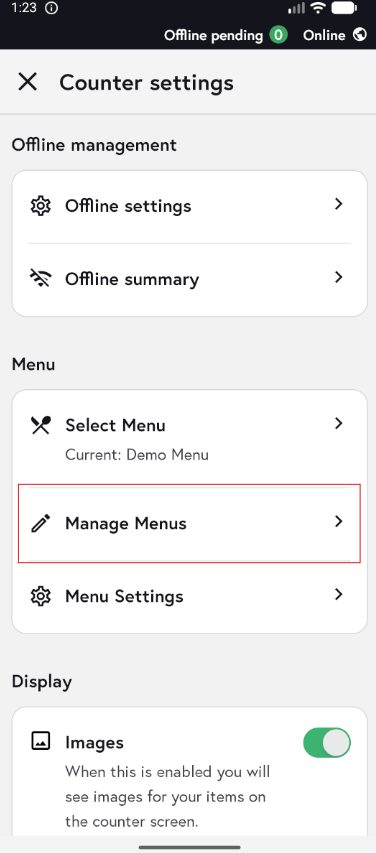
4. Click on Manage Menus.
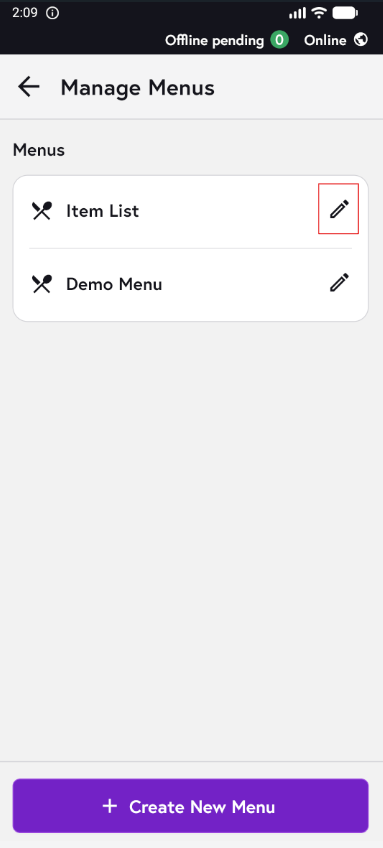
5. Click on the pencil Icon for Item List to add any item.
6. You can colour‑code either the whole category in one colour or each individual item. To colour‑code the entire category, select the block on the right of the category as shown in the image below. To change the colour for a specific item, click on the block on the left of that item.
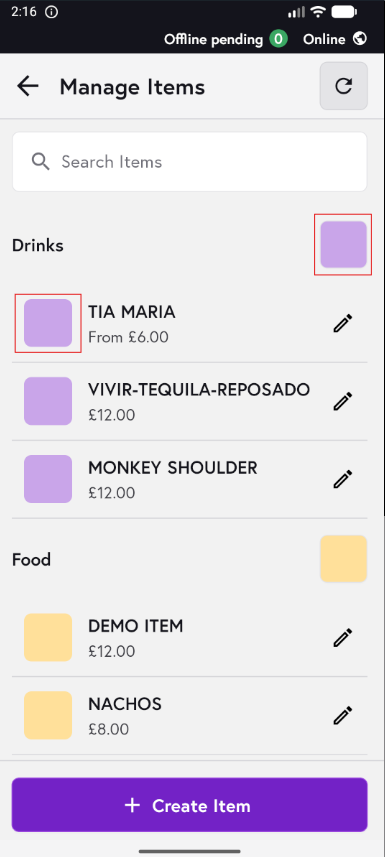
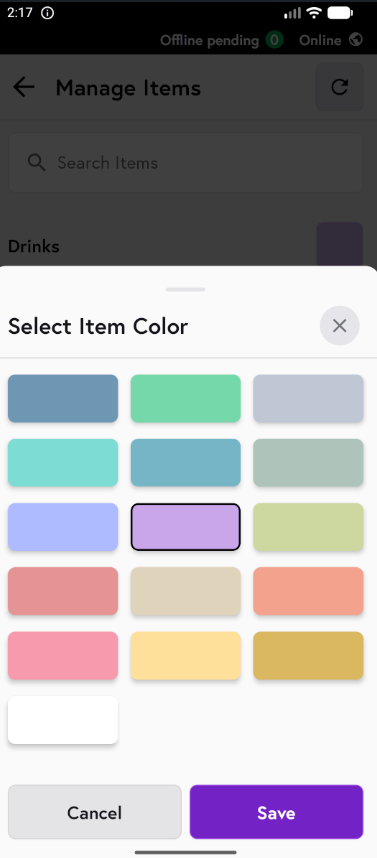
7. When you click on the block, a color palette will appear. Select your preferred color, then tap Save to apply it. You may need to refresh the screen to see the updated color.