1. On your terminal, click on the EPOS V3 app icon.
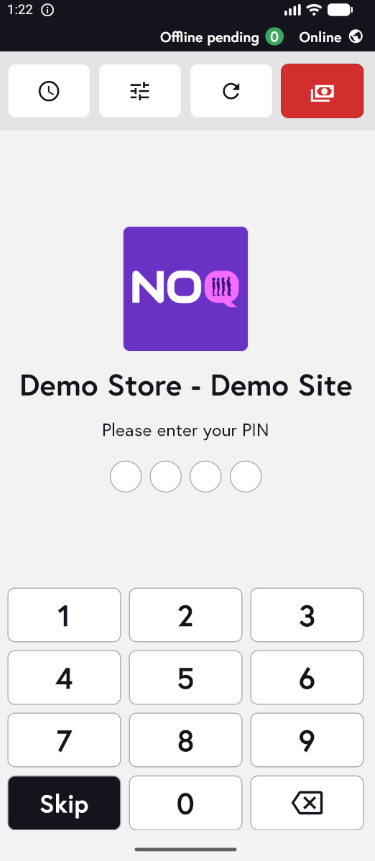
2. When the app opens, you will see the welcome screen. Either tap ‘Skip’ or enter your PIN (if you have one) to continue into the app.
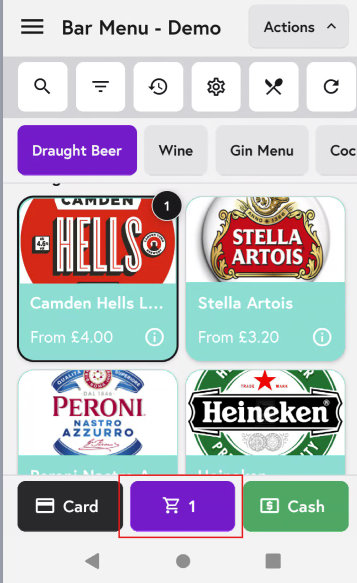
3. Add the items to the cart that you want to include in a new general tab. After adding all the items click on cart icon as shown in the screenshot below.
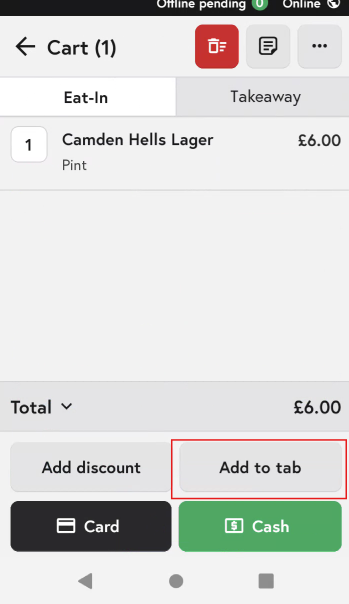
4. In the Cart Section, click on Add to tab button on the bottom.
5. Then click on 'Create a new tab button'
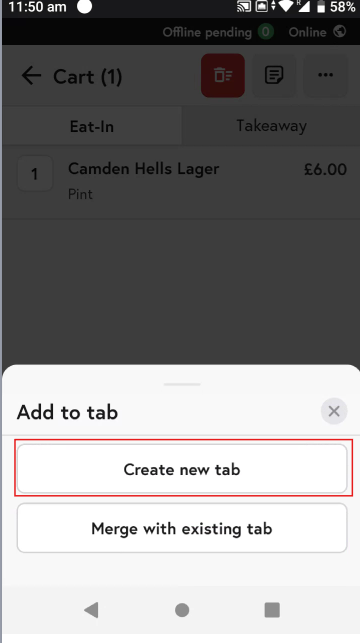
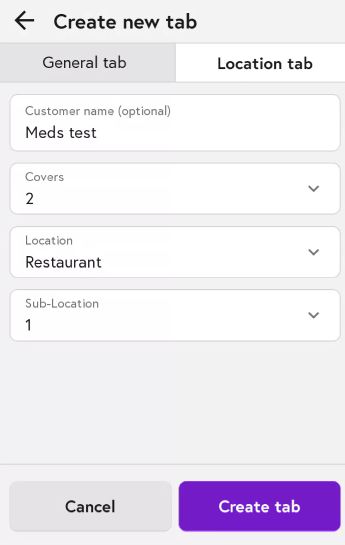
6. Hover to the Location tab and fill in all the details as follows:
-
Customer name (Optional): Enter the customer name.
-
Covers: Number of people for the table. You can select up to 10 people.
-
Location: Select from the dropdown one of the location.
-
Sub-location: Select any sub location if set.
- After entering all the details click on 'Create Tab'.
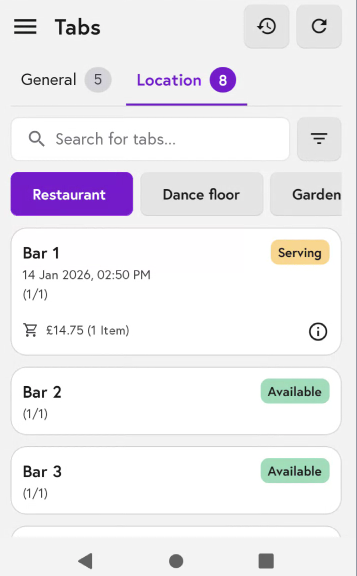
7. After creating the location tab, you can view it in the Tabs section. To access it, tap the three horizontal lines (menu icon) and select ‘Tabs’.
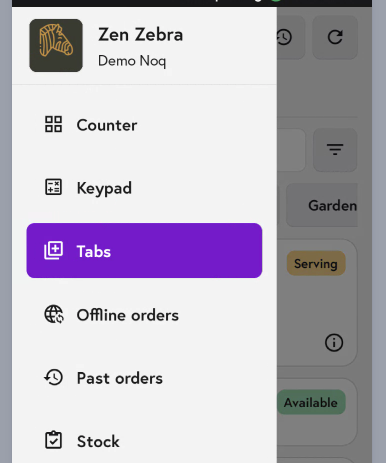
8. You can click on the Location tab at the top to view all of the details.