1. On your terminal, click on the EPOS v3 app icon.
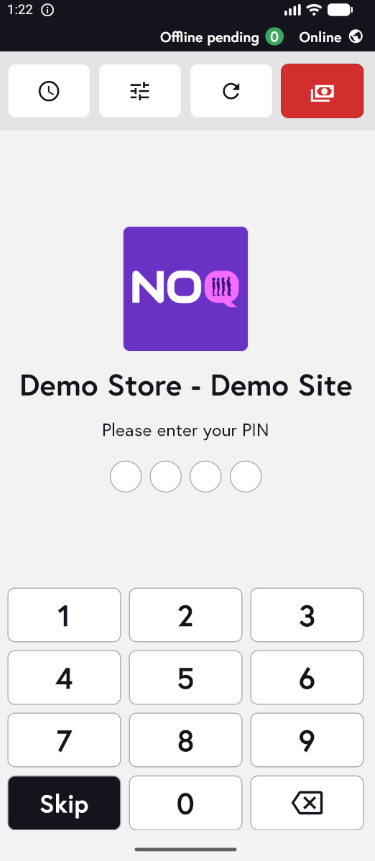
2. When the app opens, you will see the welcome screen. Either tap ‘Skip’ or enter your PIN (if you have one) to continue into the app.
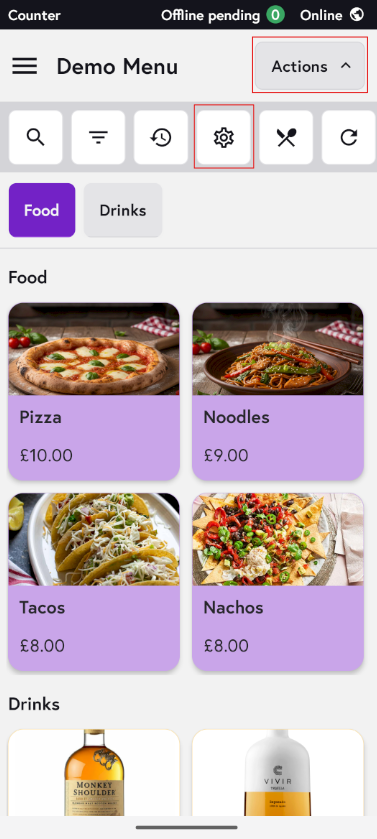
3. Click on Actions and then Settings Icon.
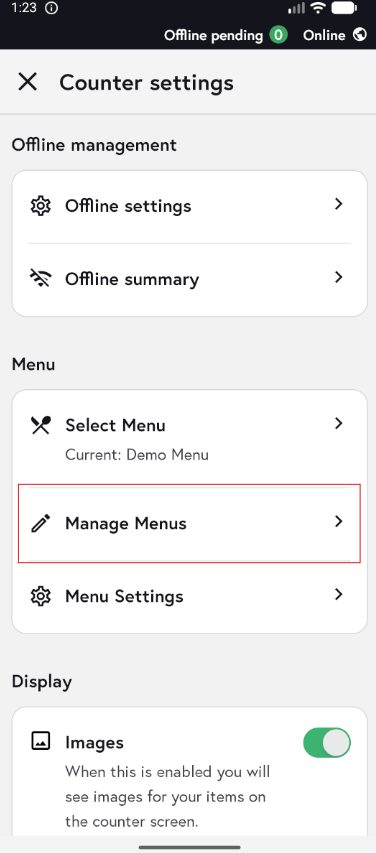
4. Click on Manage Menus.
5. Click on the pencil Icon for the Menu to edit any item on the Menu.
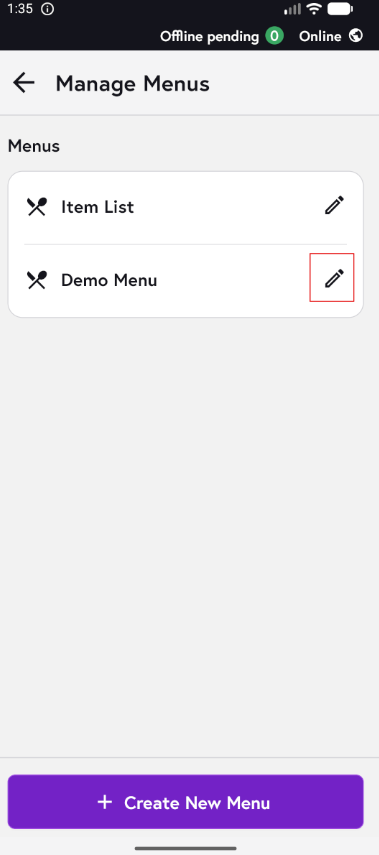
6. Click on the edit icon for the category you would like to edit the item for.
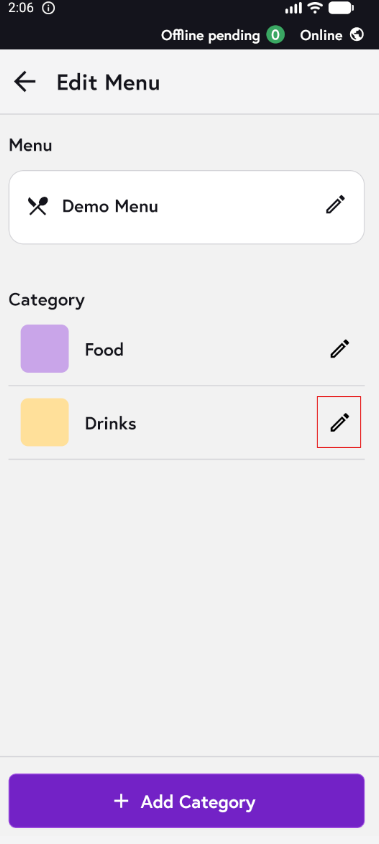
7. Click on the edit icon for the item inside the category you would like to edit. You can archive the category, if needed, by clicking the toggle button at the top.
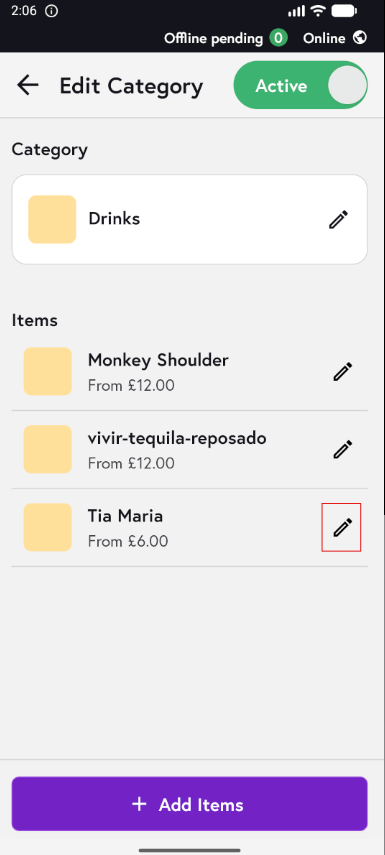
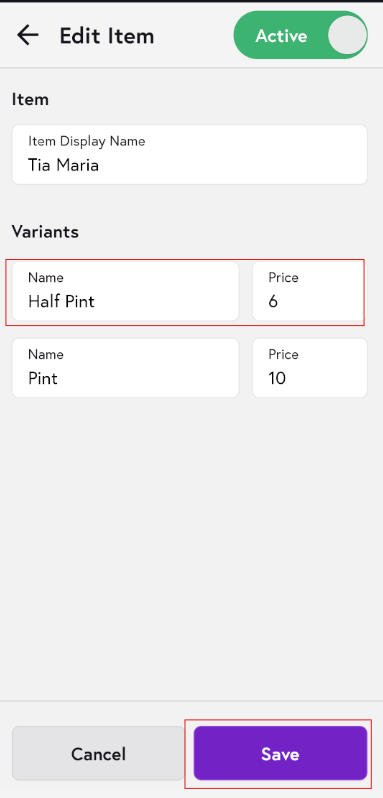
8. Here you can edit the item name, variants (if any), and prices. Once done, click Save and the item will be updated at menu level. Then refresh the menu to see the changes.