
1. On your terminal, click on the EPOS v3 app icon.
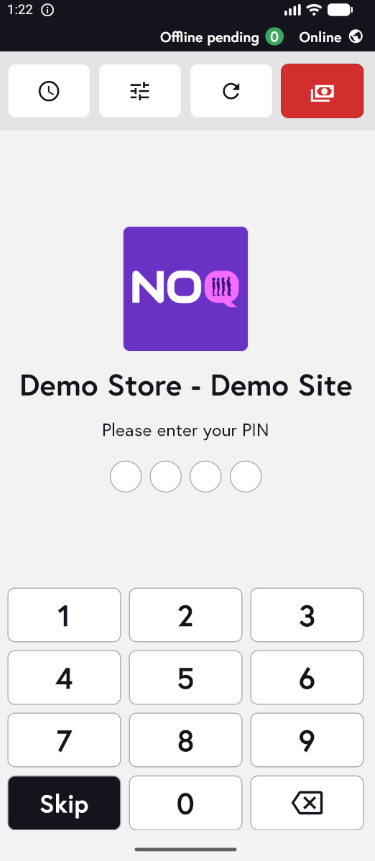
2. When the app opens, you will see the welcome screen. Either tap ‘Skip’ or enter your PIN (if you have one) to continue into the app.
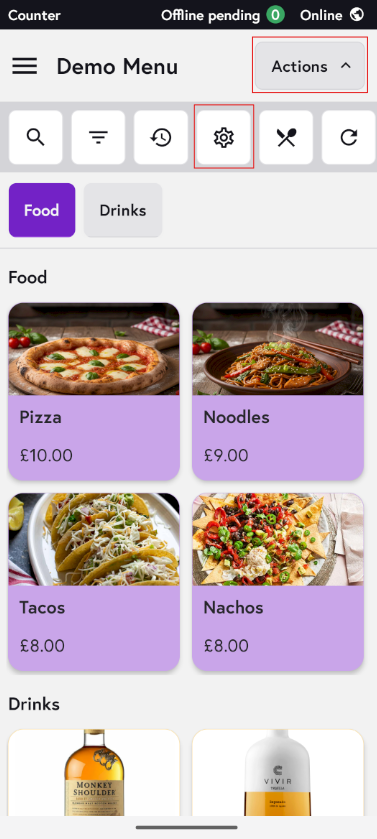
3. Click on Actions and then Settings Icon.
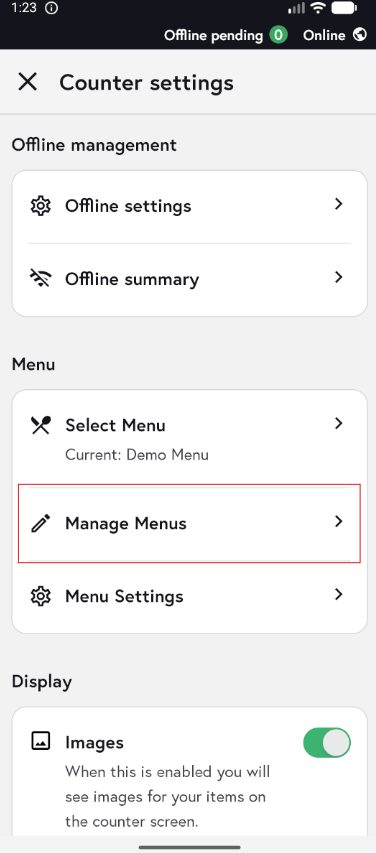
4. Click on Manage Menus.
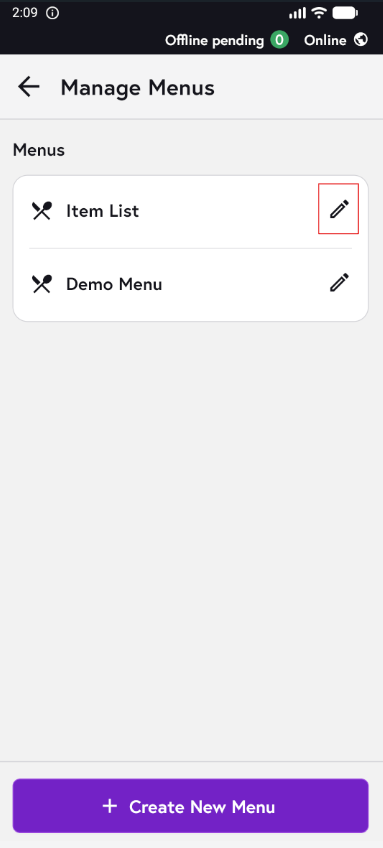
5. Click on the pencil Icon for Item List to add any item.
6. Search for the name of the item you would like to edit, then click on the pencil icon to edit that item.

Note:
- When you are editing items from the Item List, you will not be able to edit the item name, category, SKU, or item description.
- You will also see an Active toggle button in the top-right corner. If you do not want the item to be displayed, you can toggle this off and it will be archived and no longer shown.