1. On your terminal, click on the EPOS v3 app icon.
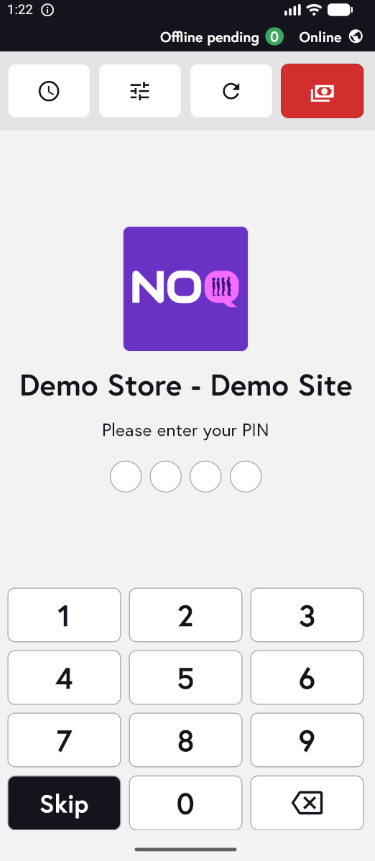
2. When the app opens, you will see the welcome screen. Either tap ‘Skip’ or enter your PIN (if you have one) to continue into the app.
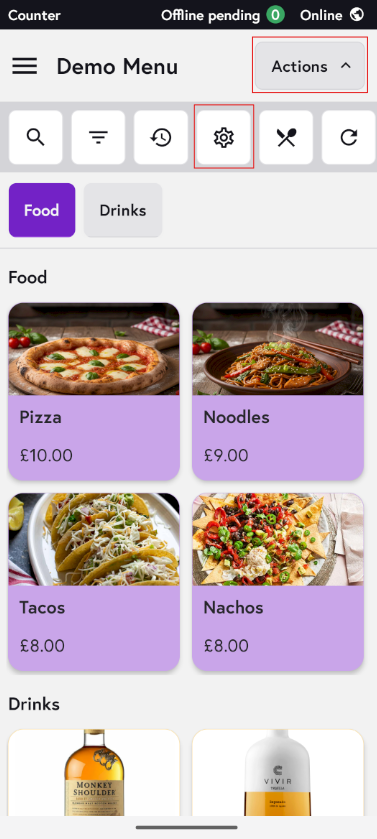
3. Click on Actions and then Settings Icon.
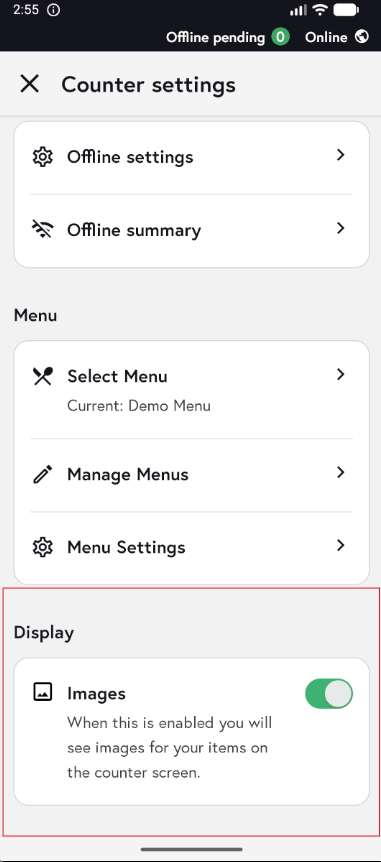
3. Scroll to the bottom of the screen and use the Images toggle to turn menu images on or off. When it is turned on, images will appear on the menu as shown above; when it is turned off, no images will be displayed.
For example, with Images turned off, your menu will display without any item images, similar to the screenshot below.
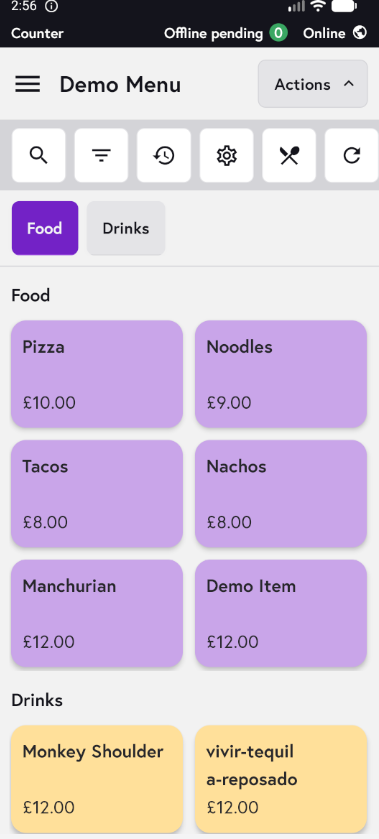
Note: You can choose to display your menu with or without images, depending on how large your menu is - this flexibility is there for you.
Not able to see the image? You might need to upload it on the backend.
- Go to the NOQ backend portal and login.
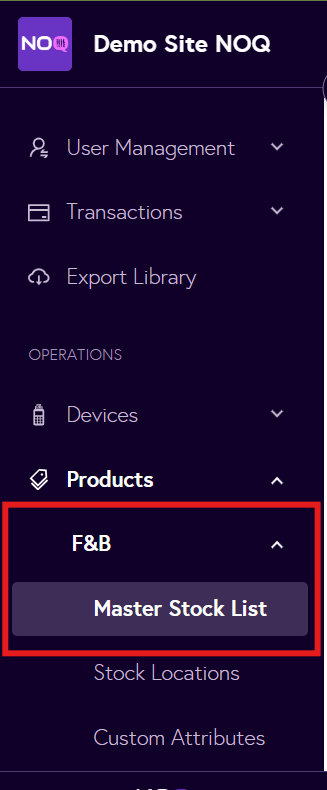
- From the sidebar, click on F&B > Master Stock List.
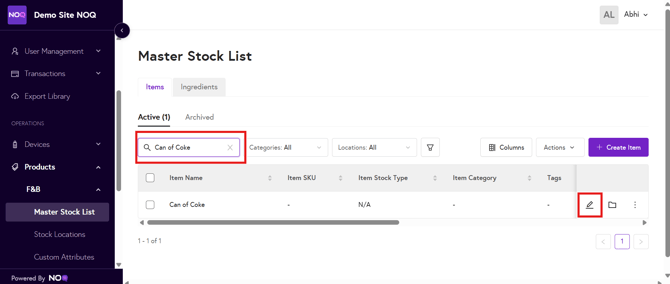
- Search for the item whose image you want to change, then click the pencil icon to edit it.
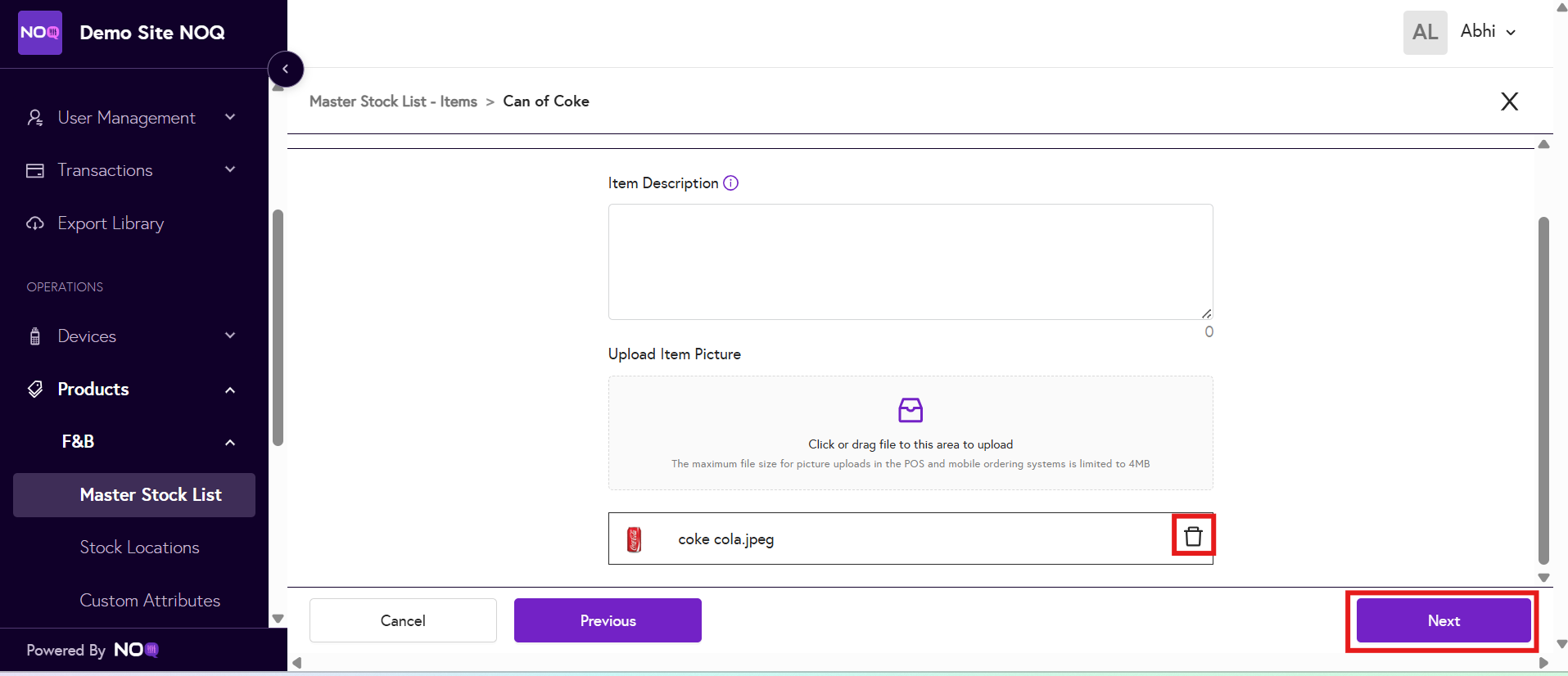
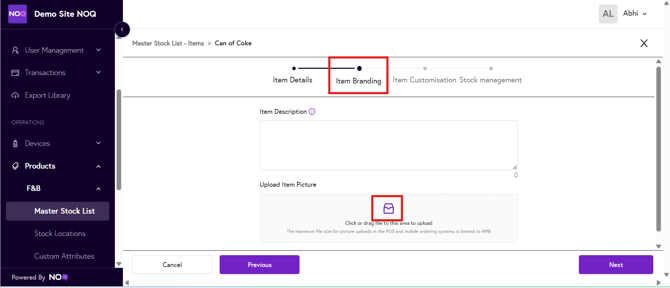
- Click Item Branding, then select the box icon to upload an image from your computer.
- You’ll now see the image you selected has been uploaded. To remove it, click the trash icon. Once you’re happy with the image, click Next and save your changes.