
1. On your terminal, click on the EPOS v3 app icon.
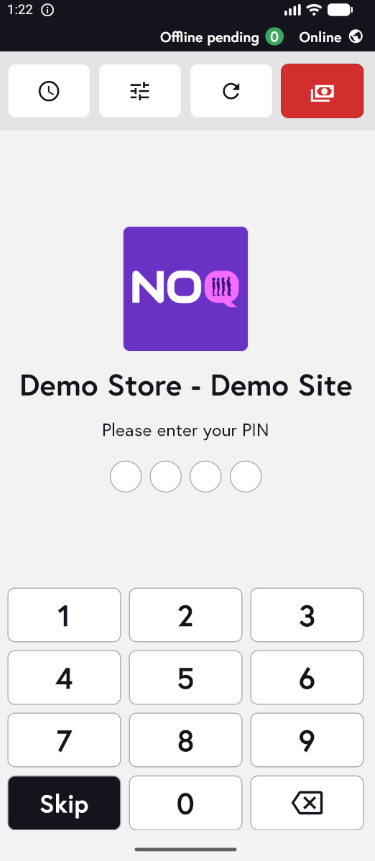
2. When the app opens, you will see the welcome screen. Either tap ‘Skip’ or enter your PIN (if you have one) to continue into the app.
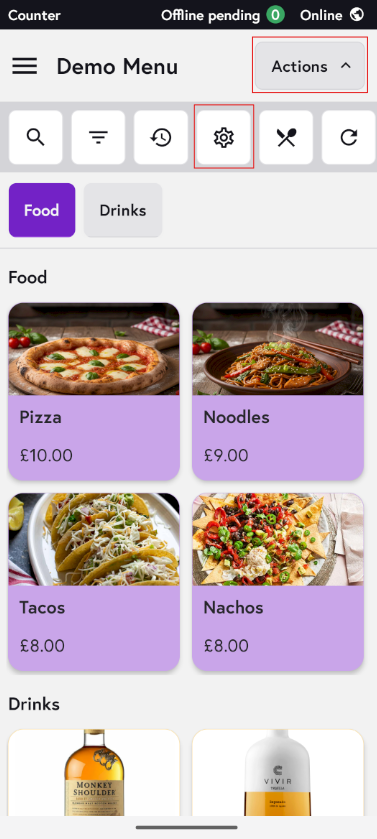
3. Click on Actions and then Settings Icon.
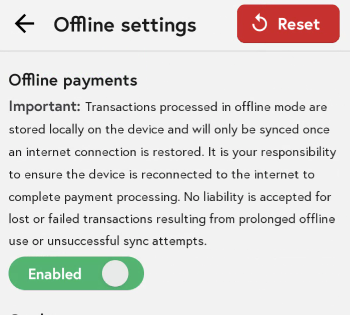
4. Click on Offline Settings.

5. Toggle offline payments on to allow trading when there is no network connection. If offline payments are turned off, the POS will not be able to take payments when you are offline.
6. Once you confirm that you are working offline, there are a few additional settings you can configure when you scroll down.
-
You can see which card types are allowed when trading offline. If you want to change these settings, please see the guide on how to create/edit your offline profile on the backend.
- You can set a maximum limit per offline transaction; in the screenshot, this is set to £50.
- You can also set the maximum number of offline transactions; the maximum is 2,000, and in the screenshot, this is set to 100.
- You can also set the maximum total value of offline transactions you will accept while the device is offline; this is set to £500 by default, but you can change it by entering a new amount.
- 7. When you’ve finished adjusting these settings, click Save changes.

