
1. Login to the NOQ Portal.
2. Navigate to Transactions -> Invoices.
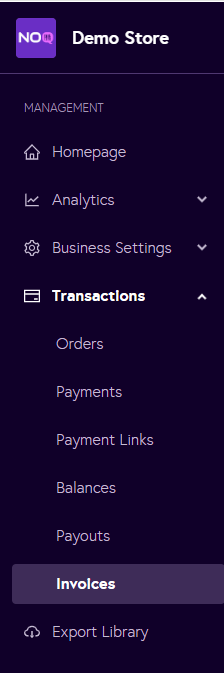
3. From the tabs at the top, click on Commission & Deduction, then select Generate invoices manually on the right side of the screen.

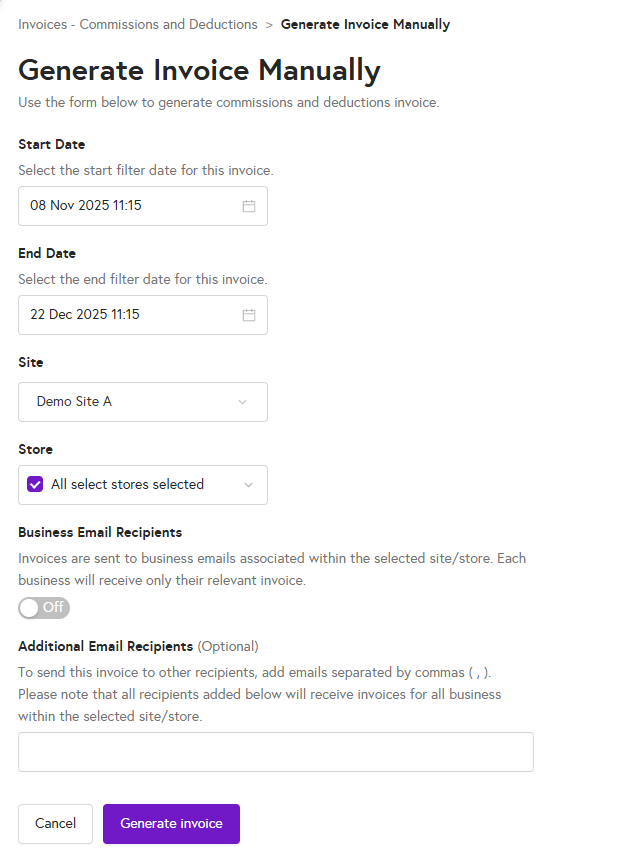
4. Fill in the Invoice Details as below:
- Start date: enter the date and time from which you want to view the invoice.
- End date: enter the date and time until which you want to view the invoice.
- Site: select the site from the dropdown menu.
- Store: select the store from the dropdown menu.
- Business email recipients: toggle this on if you want invoices to be sent to the business email addresses associated with the selected site/store. Each business will receive only its own invoice.
- Additional email recipients (optional): to send this invoice to other recipients, enter their email addresses separated by commas (,). Please note that all recipients added here will receive invoices for all businesses within the selected site/store.
- After entering all details, click the Generate invoice button to create your invoice.
5. When you click the Generate invoice button, a pop-up will appear. Click Dismiss and refresh the page. After a short time, your invoice will appear in the list on that page.

6. After refreshing the page, click the three dots on the right side of the invoice, then select Download invoice. This will download your invoice so you can open and view it.

Note: If you have multiple stores within a site, you can select multiple stores at the same time when generating invoices. The system will then create separate invoices for all selected stores in one go. After a short while, refresh the page and you will be able to view all generated invoices in the list.