
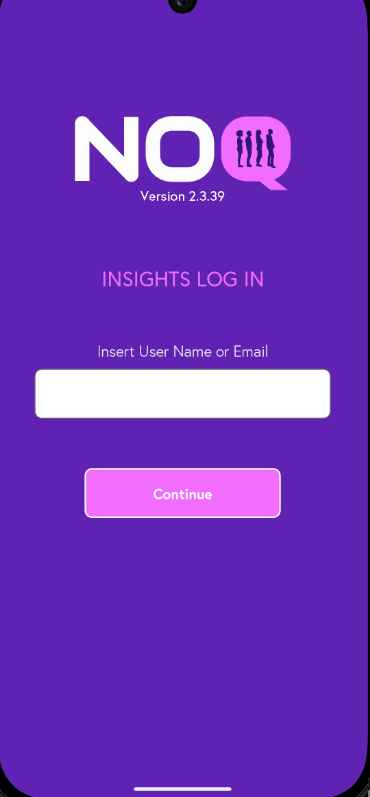
1. Open the NOQ Insights App on your mobile phone.
2. Enter your registered email or user name, then tap Login to receive OTP(One Time Password) on your mail to access your NOQ Insights account.
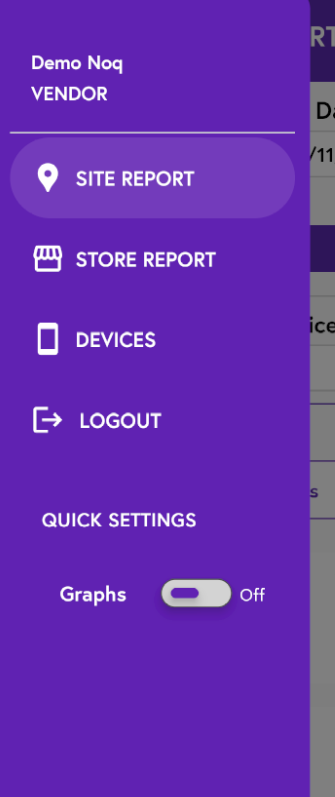
3. Tap the three lines in the top left corner to open the navigation panel, then select either Site Report or Store Report. Choose Site Report to view a site-wide report, or Store Report to view a store-wide report.
4. Say you have selected a site, choose the same start and end date, then select the time range for which you want to view the hourly report. Tap Generate, then scroll down to the bottom of the screen and look for the row labeled Hour, where you can see your store’s sales broken down by hour.

5. Example of sales-per-hour data will appear similar to the below:
