
1. On your terminal, click on the EPOS v3 app icon.
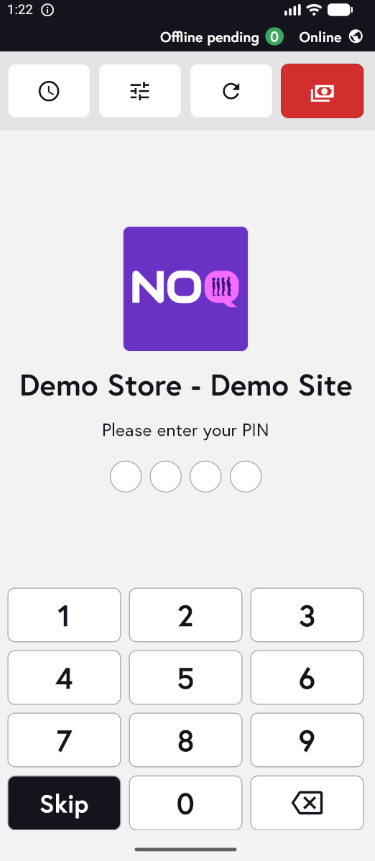
2. When the app opens, you will see the welcome screen. Either tap ‘Skip’ or enter your PIN (if you have one) to continue into the app.
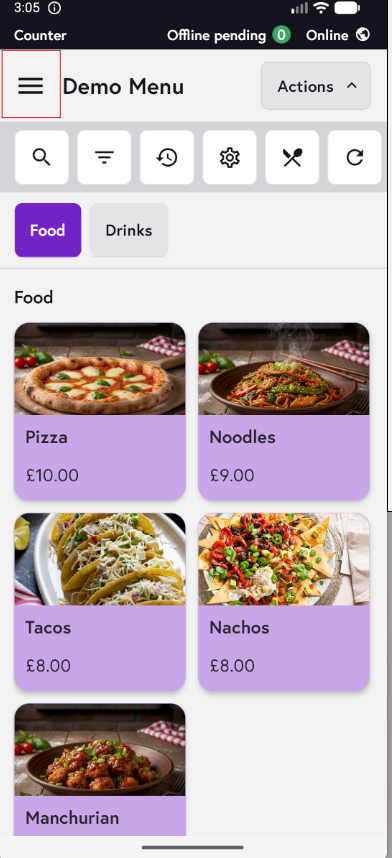
3. Click on the three horizontal lines on the top left corner of the screen to access the sidebar.
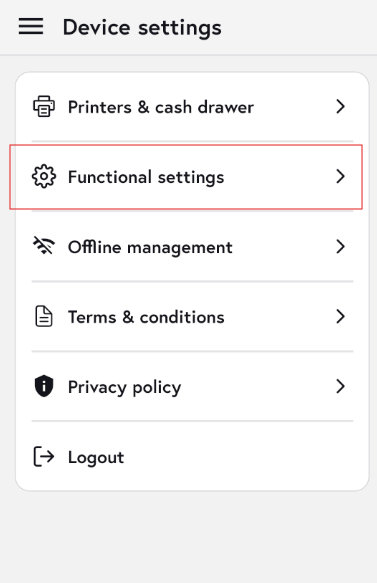
4. Click on the Device settings⚙️.

5. Click on the Functional settings⚙️.
6. You will now see the list of available profiles for your store. The ‘Terminal profile’ is the app’s default profile; any additional profiles are created in the backend portal. Tap the Pen🖊️ icon next to the Terminal profile to edit it.

Following is the explanation of the Functional Settings.
1. Terminal Screen Settings
- Enable/Disable Screens: Turn off any screen not in use by tapping the purple box to de-select.
- Prioritize Display Order: Use the Up or Down arrows to prioritize which Terminal will be the default

2. Sidebar Settings
- Remove Unnecessary Features: Deselect features that aren’t needed on the sidebar.
- Note: Some features may only be accessible to users with specific permissions.

3. Payment Types
-
Payment Types - Counter:
- Turn off any payment type by deselecting the purple box.
- Reorder payment types by popularity using the Up or Down buttons.
- Recommendation: Disable the “Training” payment type.

-
Payment Types - Keypad:
- Deselect any unused payment type and reorder as preferred.

- Deselect any unused payment type and reorder as preferred.
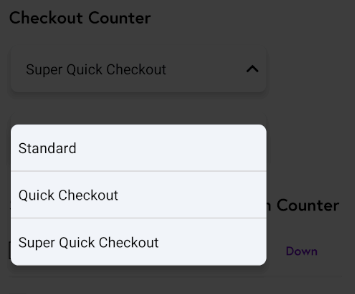
4. Counter Checkout Types
- Standard: Prompts for “View Cart” to access the “Charge” button, directing to payment.
- Quick Checkout: Directs to “View Cart” with available payment types.
- Super Quick Checkout: Immediately displays the payment type screen (e.g., card or cash).
- No Receipts: No prompt to print a receipt after payment.
- Receipt Pop-Up: Choose to print or email a receipt after payment.
- Automatic Customer Print Receipt: Automatically prints receipts post-payment. Receipt Preferences:
5. Show Eat-In/Takeaway options in counter
-
Tap the purple box to hide the Eat-In/Takeaway option during checkout.
- Reorder payment types by popularity using the Up or Down buttons.

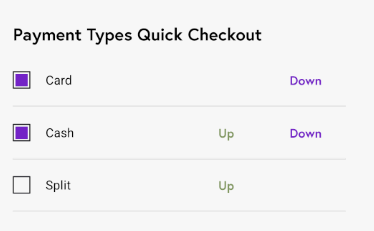
6. Payment Types Quick Checkout
- This setting will only be visible if you have selected either Quick Checkout or Super Quick Checkout.
- Turn off any payment type by deselecting the purple box.
- Reorder payment types by popularity using the Up or Down buttons.
- Use the Split option to divide the bill.
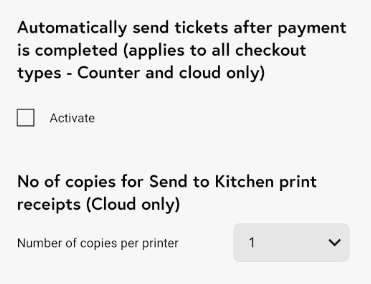
7. Automatically Send Tickets & No. of copies sent to KDS
-
Automatically Send Ticket after payment is completed :Select this option to automatically send the ticket to your printer and KDS once payment is successful. This applies to all service types but only works with a cloud printer.
- Number of copies for Send to Kitchen Print : Choose how many copies to send to the KDS. Use the drop-down to select up to 5 copies.
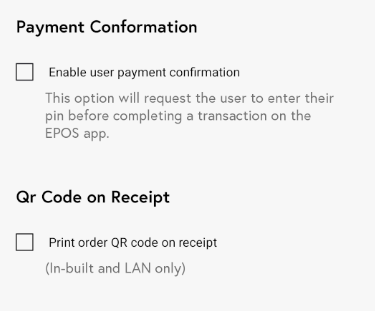
8. Payment Confirmation & QR Code On Receipt
-
Payment Confirmation : If you enable it, any staff/manager user will require to add their PIN to complete the payment.
- QR Code : It will print QR code on the receipt.
9. Show Cash Calculator
- Enable Cash Calculator: Activate this feature to assist employees with calculating the correct change for cash transactions. Note that it will override receipt pop-ups.

10.Pay by Item
-
Allows breaking down the bill by item, rather than using “Split.”

Want to create a custom Functional Settings profile on the backend? Click the link below.