
1. On your terminal, click on the EPOS v3 app icon.
2. When the app opens, you will see the welcome screen. Open the Device settings by clicking the settings icon.

3. Click on Printers & Cash drawer🖨️.

4. You will now see different options depending on the printer & drawer type you select.
-
-
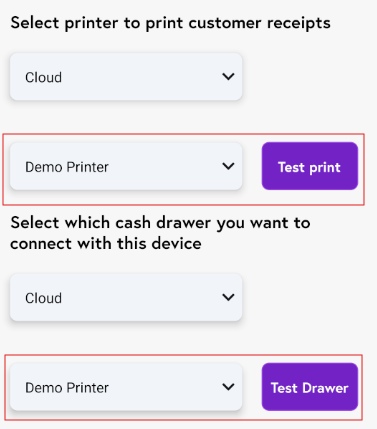
If you choose Cloud printer and cash drawer, select the required cloud printer name from the drop-down list below. Click Test Print and Test Drawer to confirm both are working correctly.
- If you select Inbuilt printer, choose the Adyen terminal receipt format from the Print receipt type drop-down. You can select either Image or Text. Click Test Print to confirm printer is working correctly.

- If you select LAN printer and cash drawer, click the Search button to automatically detect available LAN devices. Once found, click Test Print and Test Drawer to confirm both are working correctly.

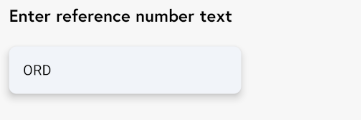
- Enter a reference label for this terminal. This text will appear as a prefix in reports for all orders taken on this device.
-