
To set up pre-order days, first thing is you need to go to your store services and make sure 'Enable pre-orders' check box is enabled
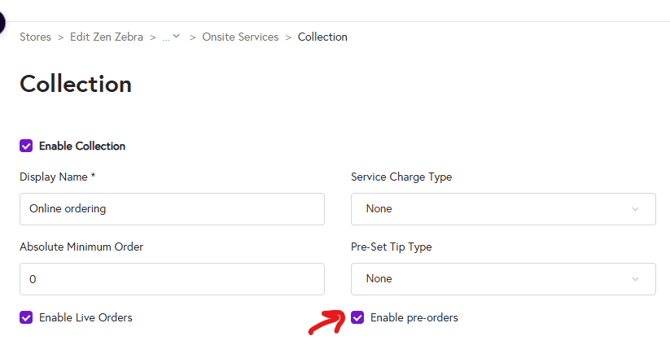
Now follow the below steps to setup pre-order days for the menu:
1. Navigate to your Store
2. Select Assign Menus
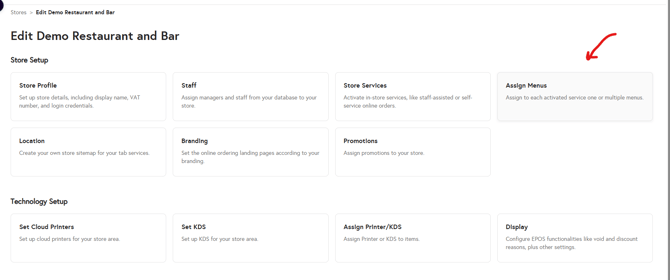
3. Click on the box with the pencil icon just beside the menu name assigned to the Store Service

4. Click on 'Setup Pre-Order Days'

5. Follow the steps below to setup pre-order Menu
- Select the check box on the top left corner stating 'Activate Pre-Orders'
- Recurrency:
- Select one of the options for 'How often should pre-order run'
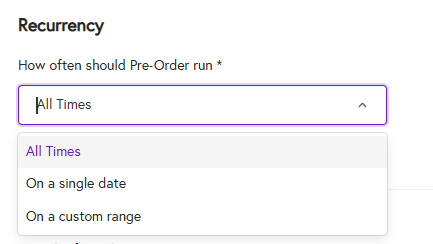
- If you select All Times, no action is required. If you want to set a specific date, select Single Date, specify the time, and click Add Time.

- If you select Custom Date Range, you can choose a start date and an end date.

- Select one of the options for 'How often should pre-order run'
- Pre Order Settings:
- Start Accepting Pre-Orders From: Set how many days in advance customers can start ordering (most clients set this to 7 days).
- Slot Duration: Choose a slot length between 15 and 90 minutes (in 15-minute increments).
- Limits per Slot: Enter either the max orders per slot or max products per slot.
- Notification Time Before: Set how long before the slot you want notifications (choose 15–90 minutes in 15-minute steps).
- Pre-Order Cut-Off Time: Set the cut-off window the same way (15–90 minutes in 15-minute steps).

- Select the days you would want pre-order to be enabled
- Set time time and click on 'Add Time'

5. Click Save on the top right corner to save all your pre-order menu setup
Access the PWA link for your Store:
Once you’ve finished setting everything up, go to your Store and click on the QR icon. You’ll then see the options shown below.
- If you click on Preview, you can scan the QR code from your phone to check that the link is working.
- Alternatively, you can copy the URL and paste it into your browser to confirm it loads correctly.
- You can also download and print the QR code so you can display it wherever you want at your event or venue.

If the QR code or URL isn’t working, or the page keeps loading or stuck on your screen, follow the troubleshooting steps below (you can refer to the guide above for how to do each step).
- Try opening the link in a new browser tab and refreshing the page.
- Make sure pre-order is enabled.
- Make sure the service type is correctly assigned to the store.
- Make sure the menu is assigned to your enabled service type (e.g. Collection)
- Make sure pre-order days and times are correctly set up for the menu
- Once you log in to the EPOS app, make sure, the following service type options are toggled on for your store.

What should I do if customers can’t place orders after scanning the QR?
If the customer can’t load the page, or the screen gets stuck after scanning the QR and they’re unable to place an order, ask them to refresh the page or reopen the link in a different browser/tab and clear their cookies. If it’s still not working, please contact our support team so we can investigate and resolve the issue.