
1. Login to the NOQ Portal.
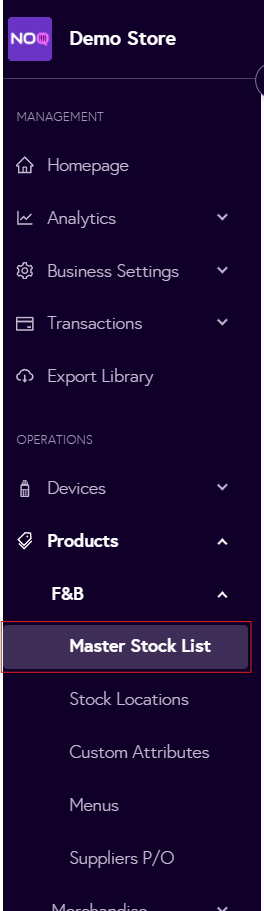
2. From the sidebar, navigate to Products > F&B > Master Stock list. If stock locations is disabled, navigate to Products > F&B > Item List.
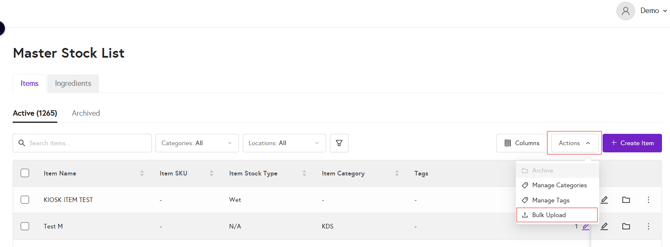
3. From the Actions drop-down, Go to Bulk Upload 📤.
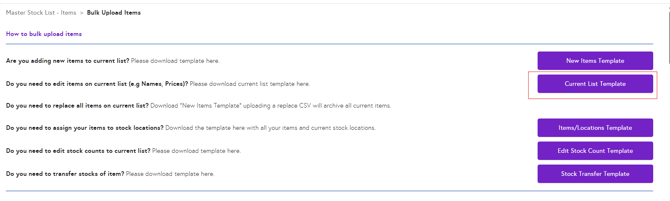
4. Click on Current List Template to download CSV file of all the current items.
5. Open the downloaded CSV file. You will see all the items.
- ⚠️Do not change Item Token & Item Id.⚠️
- Update the required fields, and Save the file.
6. From Select Action drop-down, Select Edit current items. You will see Upload Template button is now enabled. Click on it and upload the updated CSV file. Depending on the file size, it can take some time to upload the file. If any error occurs you will get error file. If file has no error, you will see a success message and under status column Completed.

7.You can now review your updates in the Master Stock List. Double‑check each item’s name, price, and other details at menu level to confirm everything is correct.
- When updating the CSV file, make sure to:
- Not to change Item Token & Item Id.
- The Item Stock column must contain only one of the following values; entering any other value will result in an error:
- Wet
- Dry
- Other
- N/A
- For the columns Has this item variants?, Cost Price, and Deposit, you must enter either Y (Yes) or N (No). Leaving these blank or entering any other value will result in an error.
- If you change Has this item variants? from N to Y, ensure you add a Variant item name and Variant selling price.