
1. On your terminal, click on the EPOS v3 app icon.
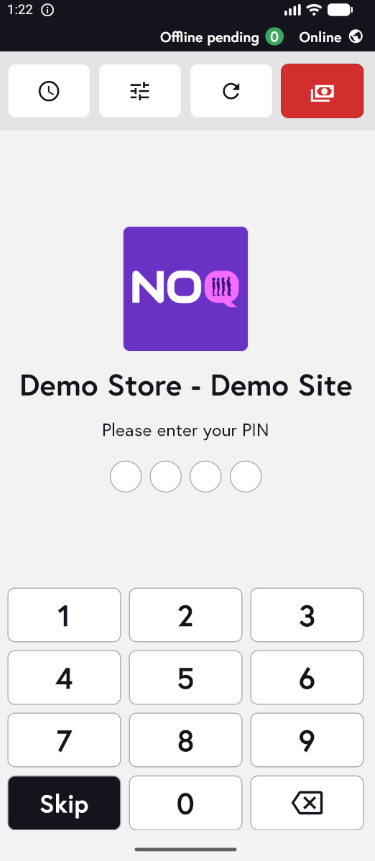
2. When the app opens, you will see the welcome screen. Either tap ‘Skip’ or enter your PIN (if you have one) to continue into the app.
3. Tap the three horizontal lines in the top-left corner to open the sidebar.

4. From the sidebar, click on Stock 📋.

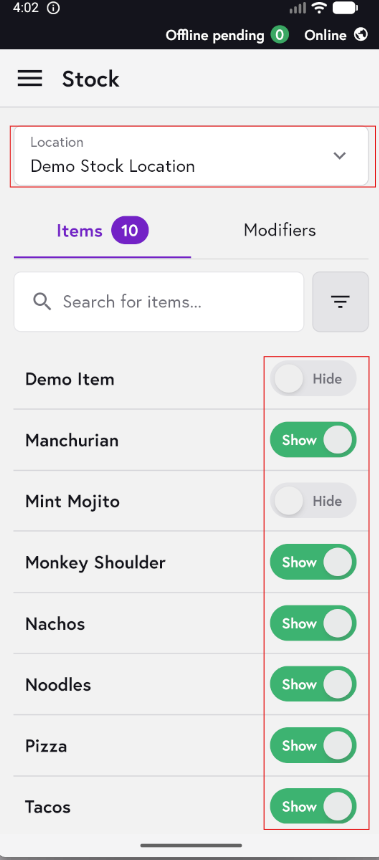
5. At the top, use the dropdown to choose the stock location. On the Items tab, you’ll see all items assigned to that store. Use the toggle next to each item to show or hide it.
6. Switch to the Modifiers tab to view the full list of modifiers. Use the toggle next to each modifier to show or hide it.
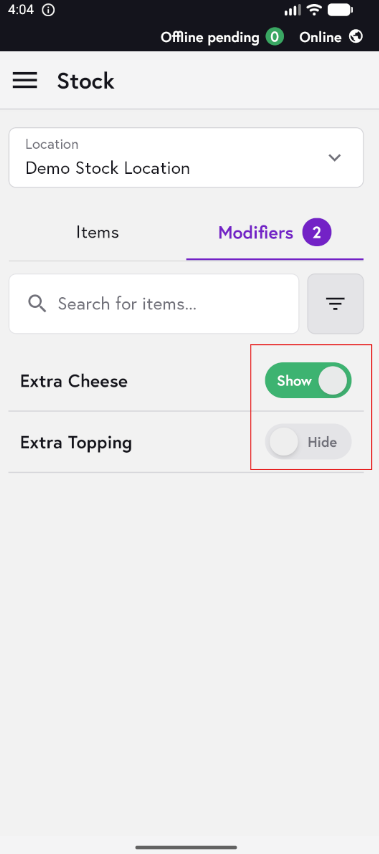
⚠️ Hiding an item or modifier will archive it in the backend. Toggling an item or modifier back to show will unarchive it in the backend.⚠️