1. On your terminal, click on the EPOS v3 app icon.
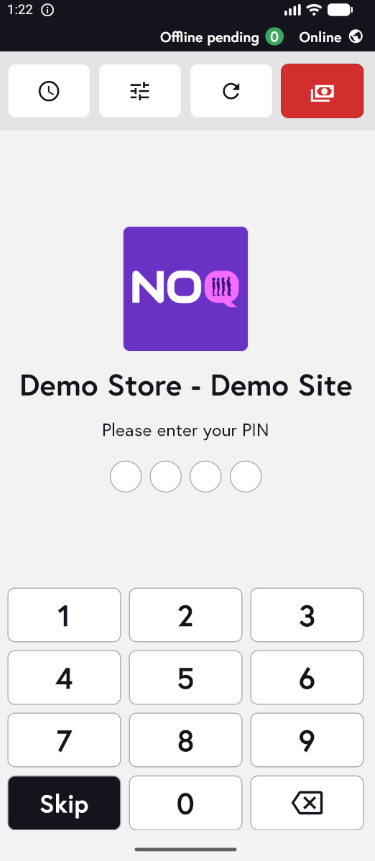
2. When the app opens, you will see the welcome screen. Either tap ‘Skip’ or enter your PIN (if you have one) to continue into the app.
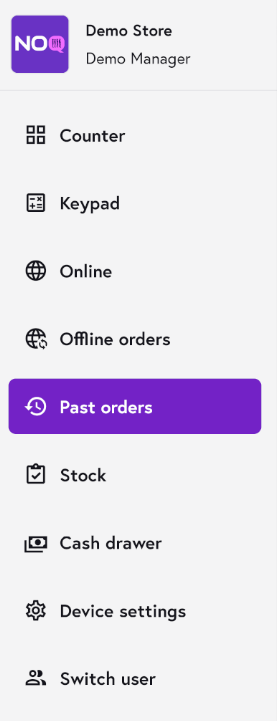
3. Tap the three horizontal lines in the top-left corner to open the sidebar, then select Past orders from the menu.
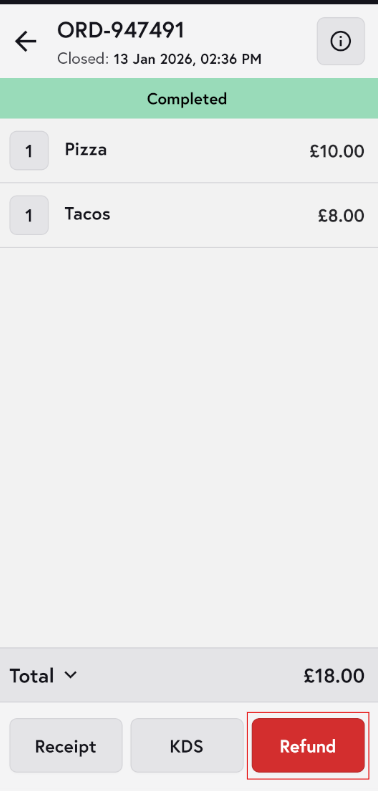
4. In the Past orders list, tap the order you want to refund. Alternatively, tap the card icon in the top-right corner and ask the customer to tap their card; the app will locate the order automatically, and you can then proceed to refund it.

5. Click on Refund to initiate refund.
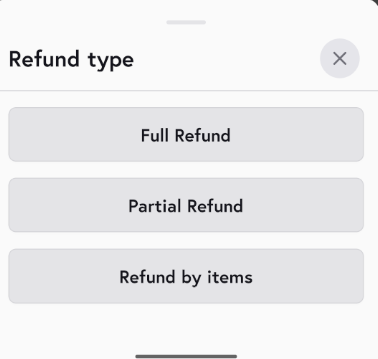
6. You will then be presented with the available refund options.
-
Full Refund : If you choose Full refund, you’ll also need to select a stock action from the drop-down:
- Select No Stock Action if you don’t want to change stock levels.
- Select Back To Inventory to return the refunded items to stock.
- Select Wastage to write off the refunded items as wastage.
You can enter refund not if you want. Click on Refund.

- Partial Refund : Enter the amount you want to refund. The refund amount cannot exceed the total cart amount, otherwise an error will be shown. Add a refund note if required, then tap Refund to proceed.

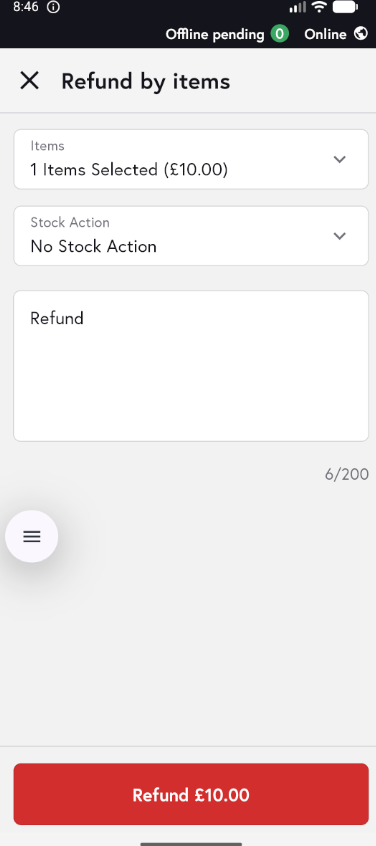
- Refund by Items : In this option, select the specific items you want to refund.
-
You’ll also need to select a stock action from the drop-down:
- Select No Stock Action if you don’t want to change stock levels.
- Select Back To Inventory to return the refunded items to stock.
- Select Wastage to write off the refunded items as wastage.
- Add a refund note if required, then tap Refund to proceed.