
1. Login to the NOQ Portal.
2. Navigate to 'Store' from the left navigation panel.
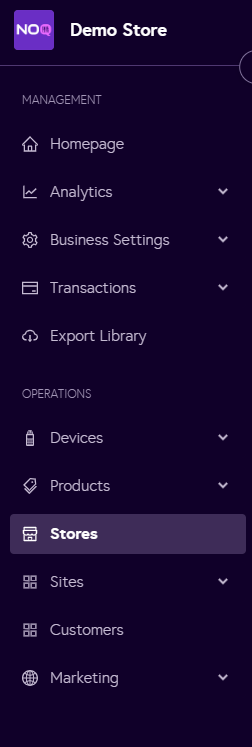
3. Once you are in Stores, click on the pencil icon (Edit) for the store you want to enable collection.
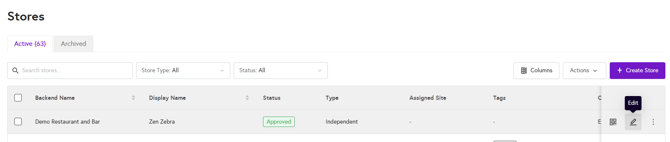
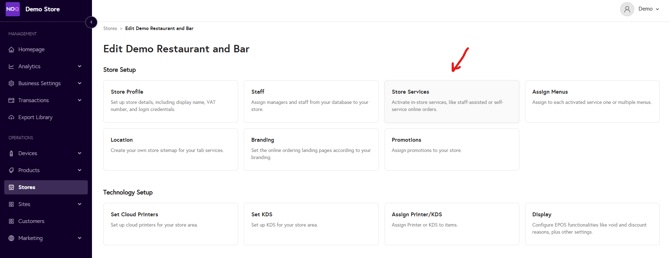
4. Click on Store Services within the Store.
5. Click on Onsite Service.
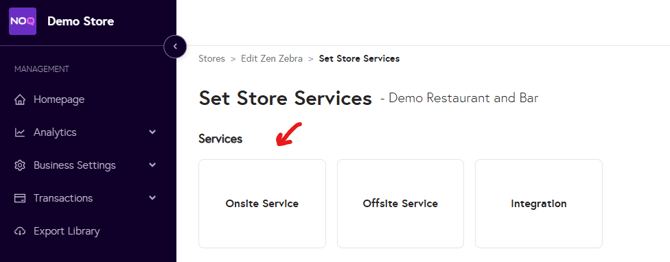
6. Click on Collection.
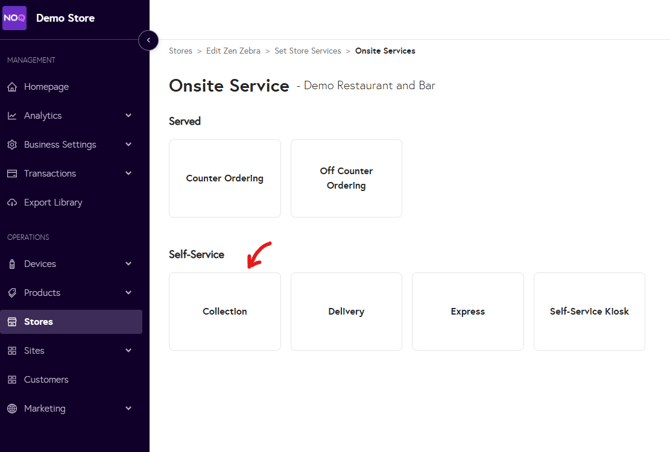
7. Enter Collection Details:
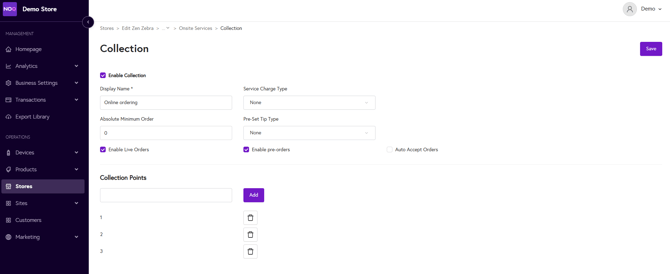
- Select the check box on the left hand corner called 'Enable Collection'. Now you can set all the parameters for collection.
- Set the 'Display Name' for your collection.
- You can select Service Charge Type either None, Flat or Percentage based on your choice.
- Set an Absolute Minimum Order value.
- Set Pre-Set Tip Type either None, Flat or Percentage.
- You can enable live orders and pre-orders for you collection. You can find the guide on how to set pre-orders here - ATTACH pre orders link once created
- You can also add collection points as shown in the screenshot, they can be in combination of Alphanumeric letters without spaces.
- Once you have set all the parameters, click on Save on the top right corner of the page.
8. Your collection store service type is now set up and ready to use. Once you have enabled the collection service type, the next step is to assign a menu to it. Follow this guide link on how to assign a menu to your service type.
Please Note: Only Display Name is a mandatory field, rest all the input boxes are optional and can be set based on your requirement.