
1. Login to the NOQ Portal.
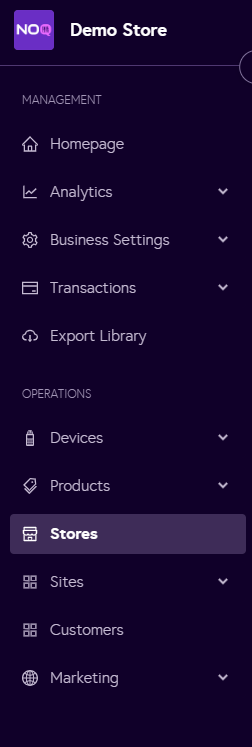
2. Navigate to 'Store' from the left navigation panel.
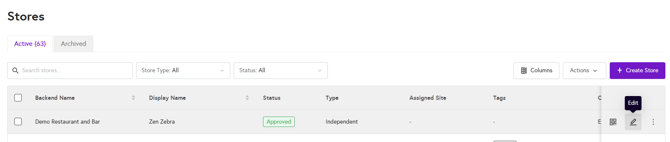
3. Once you are in Stores, click on the pencil icon (Edit) for the store you want to enable collection.
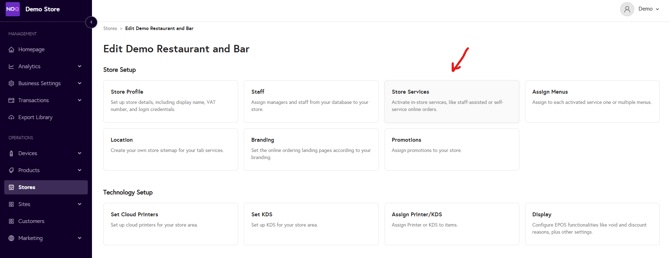
4. Click on Store Services within the Store.
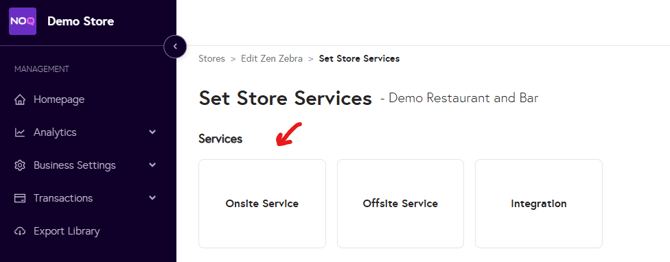
5. Click on Onsite Service.
6. Click on Delivery
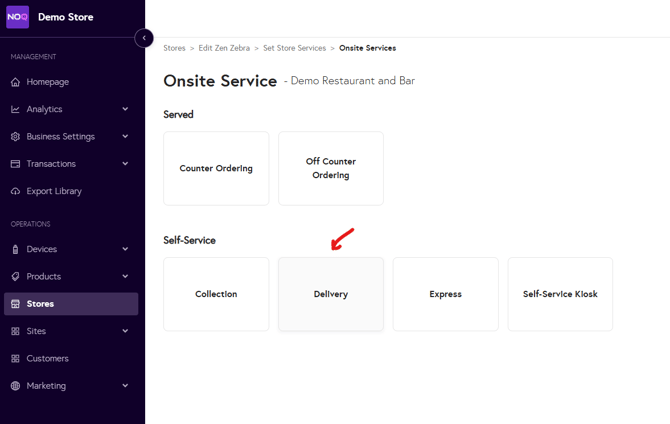
7. Click on Enable Delivery check box
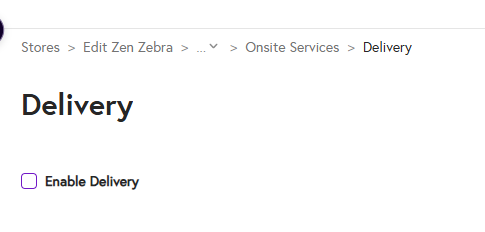
8. Enter Delivery Details:
- Set the 'Display Name' for your delivery.
- You can select Service Charge Type either None, Flat or Percentage based on your choice.
- Set an Absolute Minimum Order value.
- Set Pre-Set Tip Type either None, Flat or Percentage.
- Set Delivery Fee Type - None, Flat or Percentage

- Location input: Vendor
- Select Location Confirmation Check Box & Enable QR codes if you want
- Select Mandatory or Non Mandatory for Unique Identifier Validation
- Add a Name for Unique Identifier
- Add a Location Label
- Add Location Names as you want. You can download the QR codes for each location name separately or in bulk by clicking on 'Download all QR codes'
- Click on Save on top right corner of the screen

- Location Input: Customer
- Select Location Confirmation Check Box
- Add Customer Input
- Click on Save on top right corner of the screen
