
1. Log into the NOQ EPOS app.
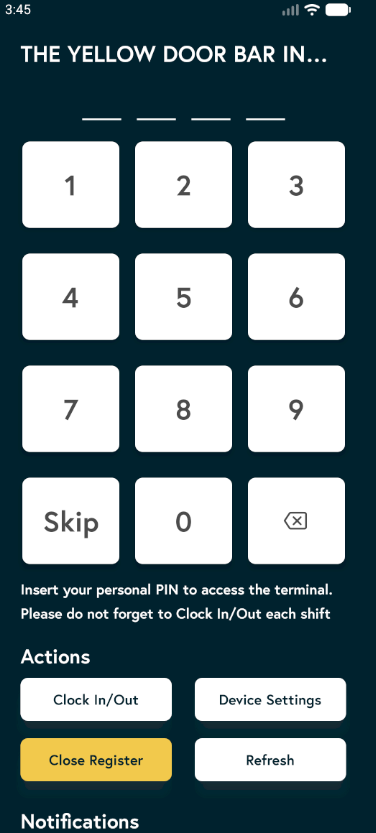
2. On the homepage, enter the Manager/Staff PIN. If a Skip button is available, you can tap this instead.
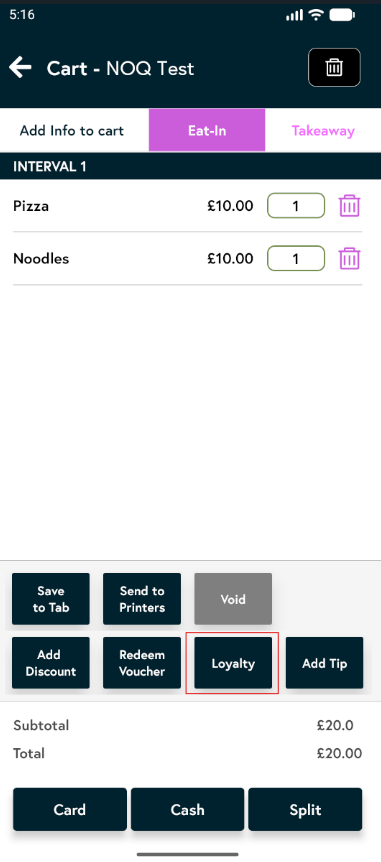
3. Add items to the cart as usual, then tap View Cart to proceed. Click on Loyalty to scan Loyalty QR code. Ask customer to show their loyalty QR code.
-
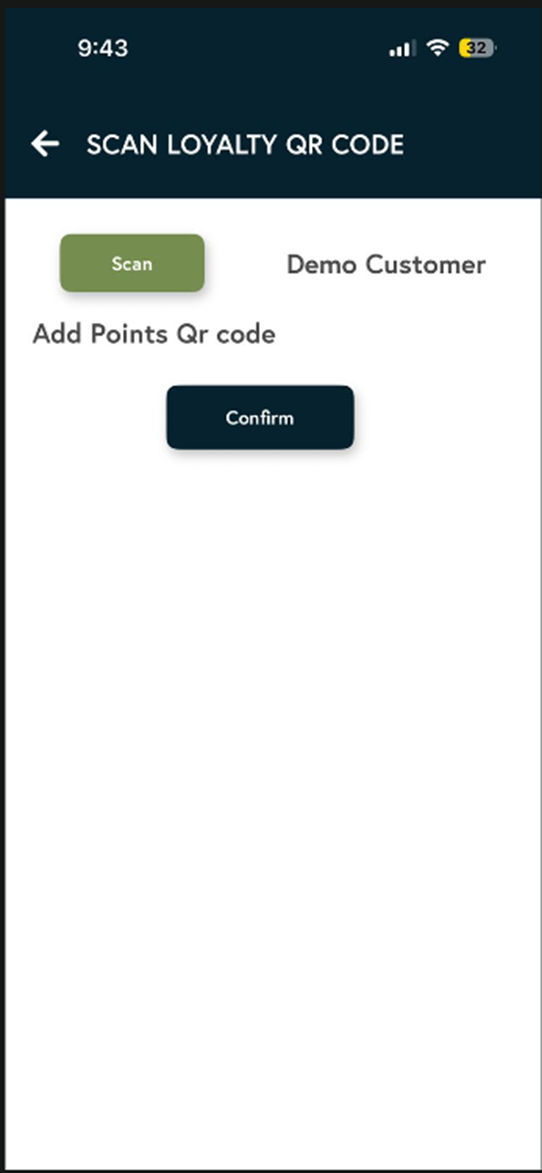
When the customer presents their loyalty QR code to collect points, scan it. The customer’s name will appear on screen—confirm it matches, then tap Confirm.
- When the customer presents their loyalty QR code to redeem points, scan it. A keypad will appear showing their available redeemable value. Ask the customer how much of this value they want to use. To redeem the full amount, tap Redeem Max. Once confirmed with the customer, tap Confirm to apply the redemption. (⚠️If you enter an amount higher than the available redeemable value, you won’t be able to proceed.. ⚠️)

- You will see a Remove Loyalty button, indicating that loyalty has been applied. Tap this button to remove the loyalty discount from the transaction. Proceed with payment as normal.

Viewing this as a customer and want to check your loyalty points? Click the link below to see your points.