
1. When you power on your terminal, you will see the NOQ Merch app on the screen - tap on it to open it.
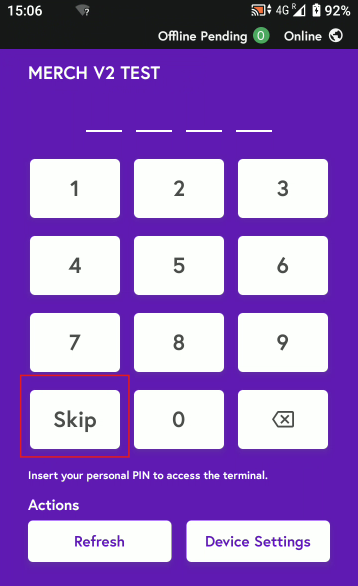
2. Either tap Skip or enter your store PIN to sign in to the app.
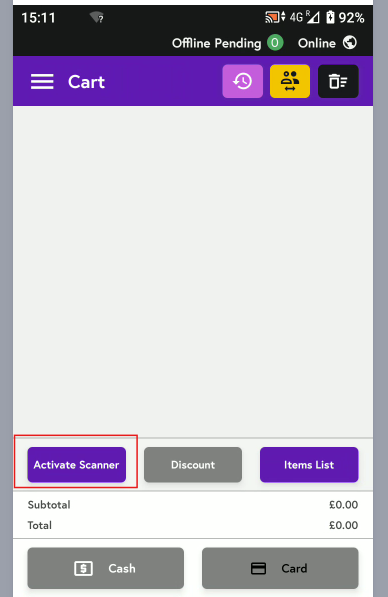
3. Click on 'Activate Scanner' on the Merch App as mentioned in the screenshot below.
4. Once you tap it, a light will turn on at the front of the terminal, as shown in the image below. The scanner light will stay on for approximately 30 seconds. If you want to deactivate it before then, tap the button indicated by the red arrow.
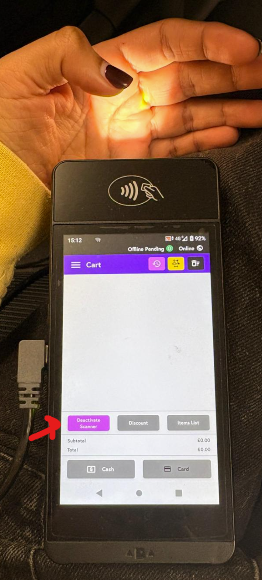
Note: Follow the same steps mentioned above to activate the scanner, scan the barcodes, and then tap the button again to deactivate it once you have scanned the item. If you don’t tap to deactivate it, the scanner will automatically switch off after 30 seconds.