1. Login to the NOQ Portal.
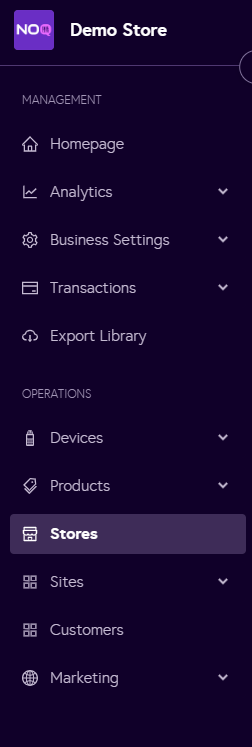
2. Navigate to 'Store' from the left navigation panel.
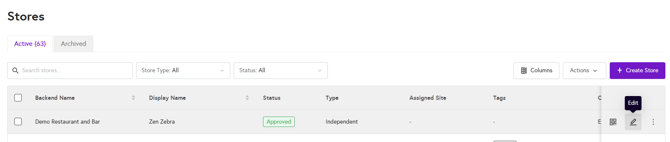
3. Once you are in Stores, click on the pencil icon (Edit) for the store you want to Add Discounts.
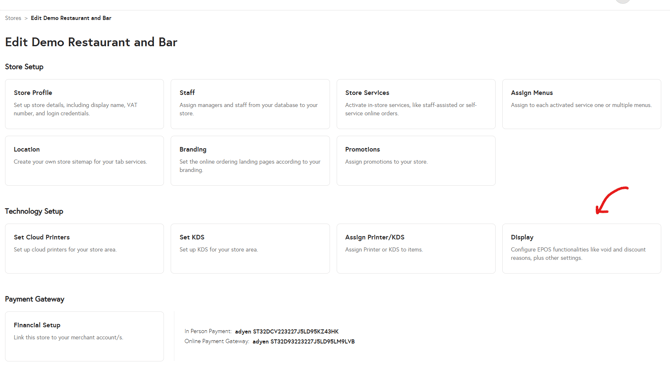
4. Click on 'Display' under the 'Technology Setup' section.
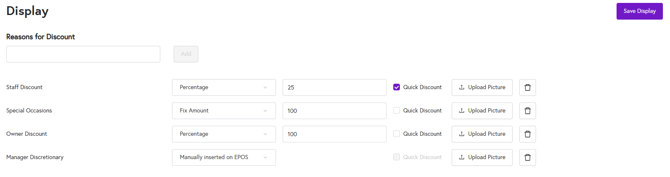
5. Under the ‘Reasons for discount’ section, enter a name for the discount and click ‘Add’.

6. Once you add the discount, you will see three options: fixed amount, percentage, or manually inserted on the EPOS as shown in the screenshot below. You can choose any one of these.

- If you select ‘Manually inserted on EPOS’, no further action is required. Once selected, click ‘Save Display’ in the top-right corner of the page and your discount will be saved.
- For Fix Amount, follow the below steps:
- Add the amount of discount you would like to offer in the input box.
- Select ‘Quick discount’ if you would like it to appear as an option on the checkout page in your terminal.
- Click ‘Save Display’ when you have finished adding the discount.
- If you want to delete it, click on the bin icon.

- For Percentage, follow the same steps as above. Instead of entering an amount, enter the percentage value for the discount. For example, if you want to give a 10% discount, type ‘10’ in the input box.

7. Your discount has now been added. Once you click ‘Save Display’, an ‘Upload picture’ button will appear. Click this to add an image for your discount, then click ‘Save Display’ again.