Overview
This guide explains how to:
-
Open a new tab
-
Add items to a tab
-
Merge items into an existing tab
Use this when serving customers at a table or location in the NOQ EPOS app.
Open a New Tab
Step 1: Log In to NOQ EPOS
-
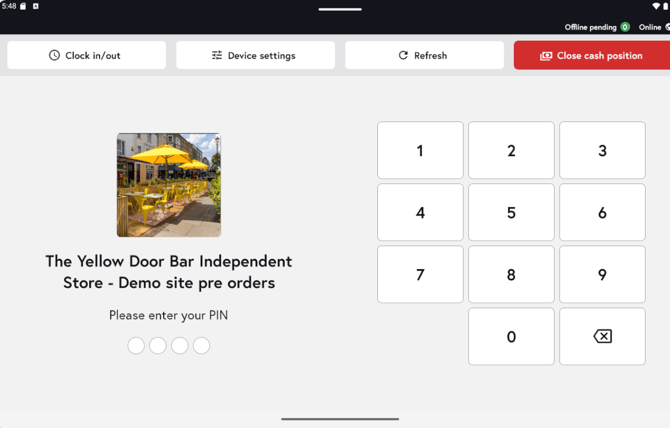
Open the NOQ EPOS app.
-
Enter your PIN (or tap Skip if enabled).
-
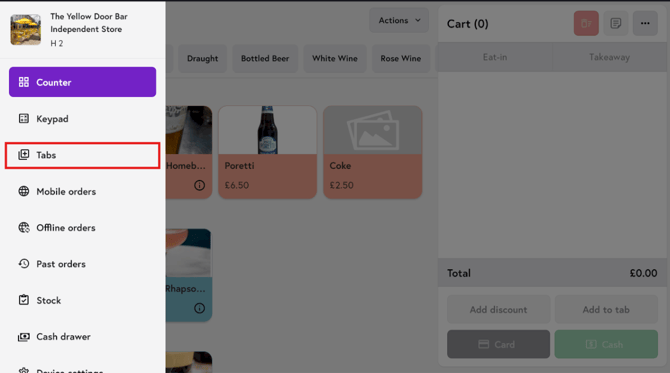
Tap the ☰ menu.

-
Select Tabs.
Step 2: Select Location and Table
-
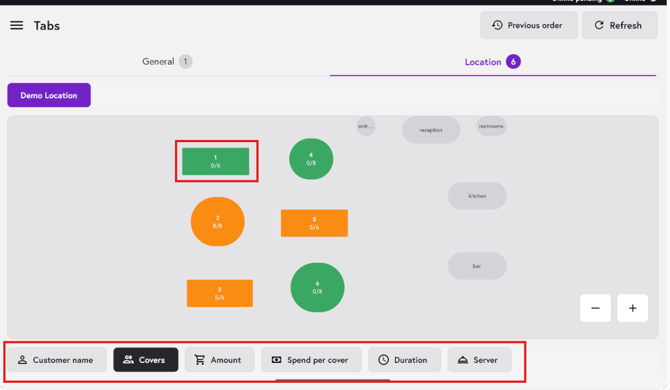
Tap Location to open the Location tab.
-
You will see all locations created in the backend.
-
Tap the location you want to manage.
-
At the bottom of the screen, several options will appear.
-
Each option displays different activity for the selected tab.
For example:
-
Tapping Covers shows how many covers are assigned to that tab.
-
Other options display related information such as amount, duration, or assigned server.
-
Select the required table.
-
Tap Open tab.
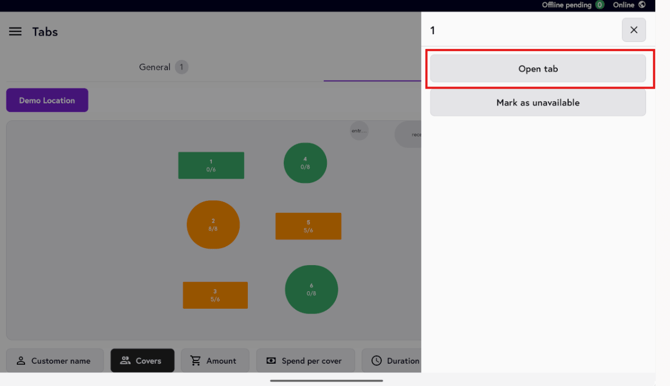
If you tap Mark as unavailable, the table cannot be opened and the Open option will be disabled.
Step 3: Enter Customer Details and Confirm
-
Enter the Customer name.
-
Select the Cover from the dropdown.
-
Tap Open tab.
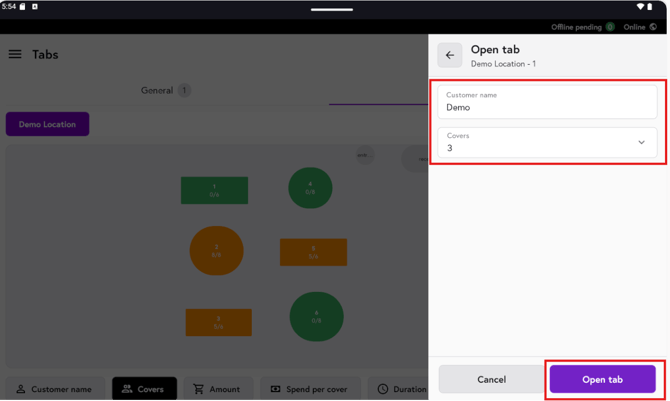
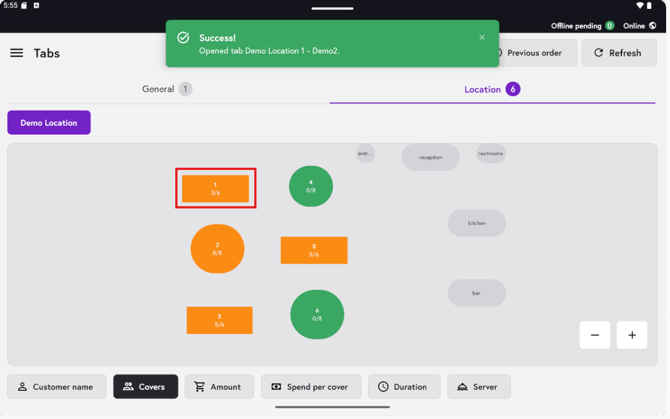
A confirmation message will appear, and the status of the selected tab will update to orange, indicating the table is now in serving status.
-
Tap the tab to open it.
Add Items to an Open Tab
You can add items in two ways.
Option 1: Add Items from the Tab Screen
-
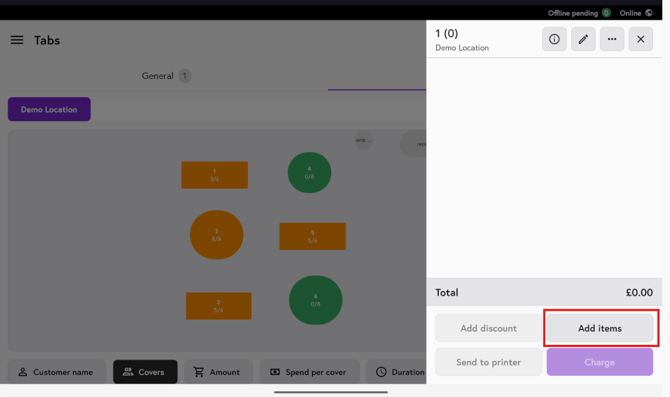
Open the active tab.
-
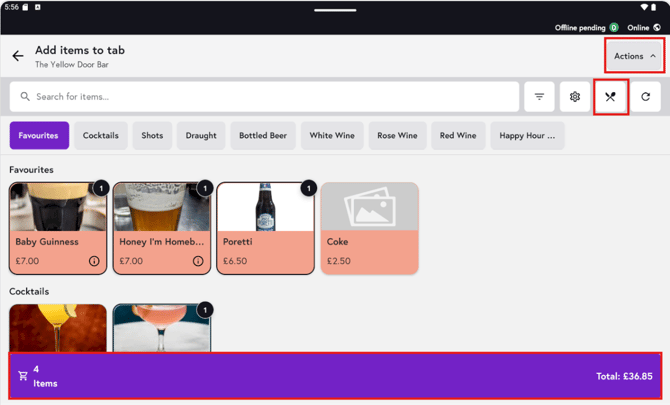
Tap Add items.
-
Select menu items. To change the menu, click the Action button in the top-right corner, then select the Knife and Spoon icon.
-
Tap the Total to return to the tab.
Option 2: Add Items from Counter
-
Ensure the table is in serving status.
-
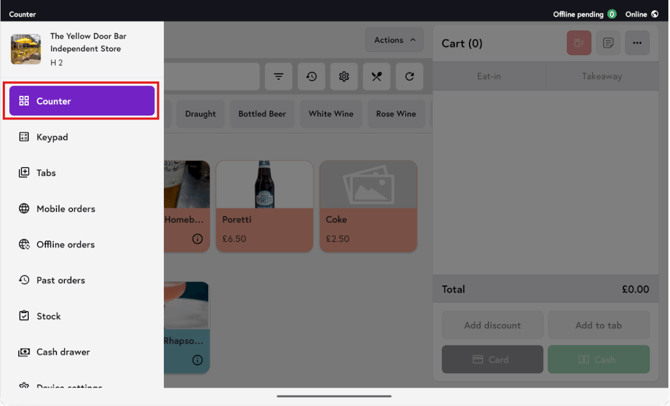
Tap ☰ menu → Counter.
-
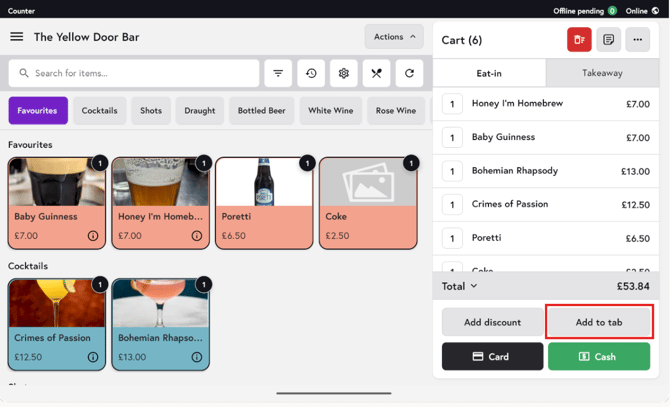
Add items as usual.
-
Tap Add to tab.
Merge Items into an Existing Tab
If you need to merge items:
-
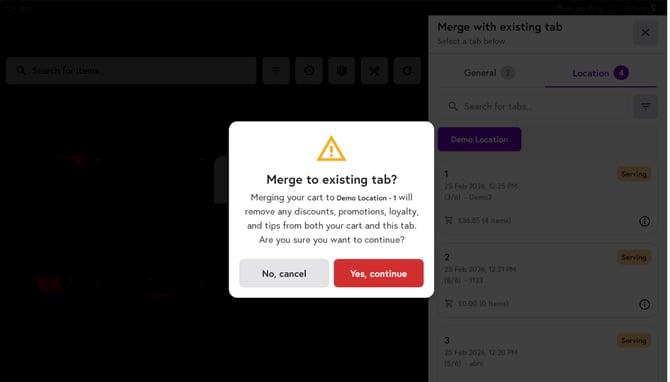
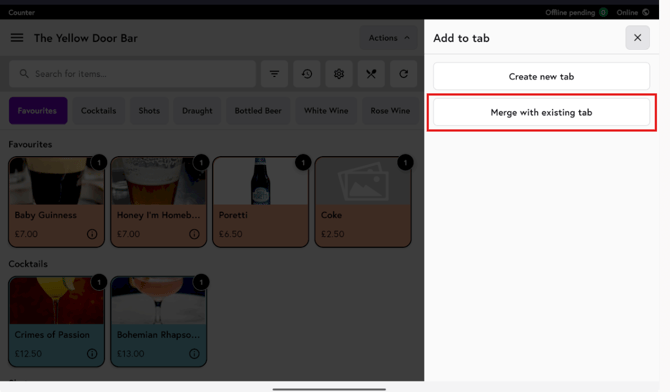
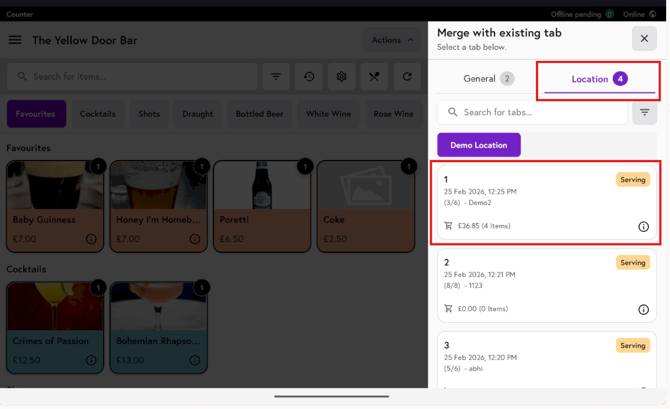
Tap Merge with existing tab.
-
Switch to the Location tab.
-
Select the active table.
-
Tap Yes, continue to confirm.