1. Login to the NOQ EPOS app.
2. The PIN screen will appear. Enter your PIN, or tap Skip if that option is available.

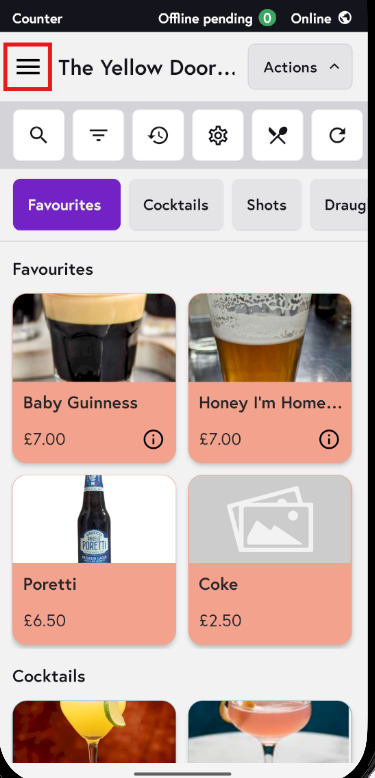
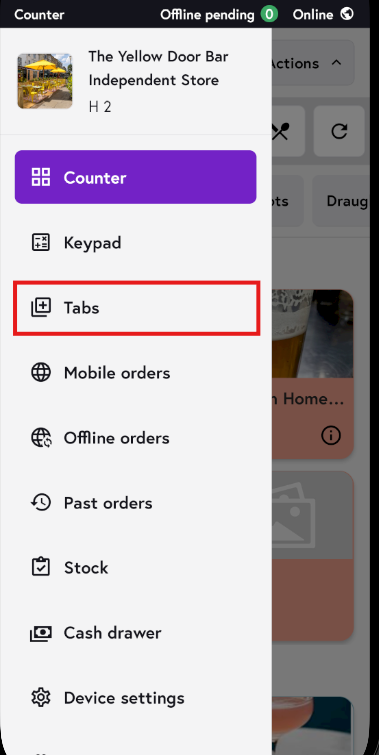
3. Tap the three horizontal lines to open the sidebar. Click on the Tabs.
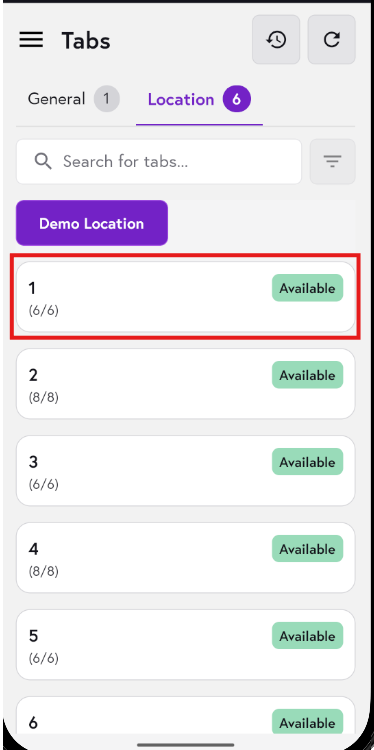
4. Tap Location to open the Location tab. Here you’ll see all the locations you’ve created in the backend. Tap any location you want to manage.
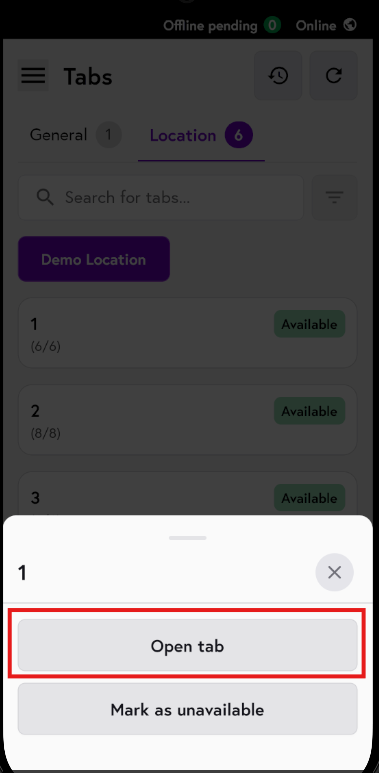
5. You will see two options. Tap Open tab to continue. If you tap Mark as unavailable, this tab can no longer be used as an open table and the Open option will be disabled.
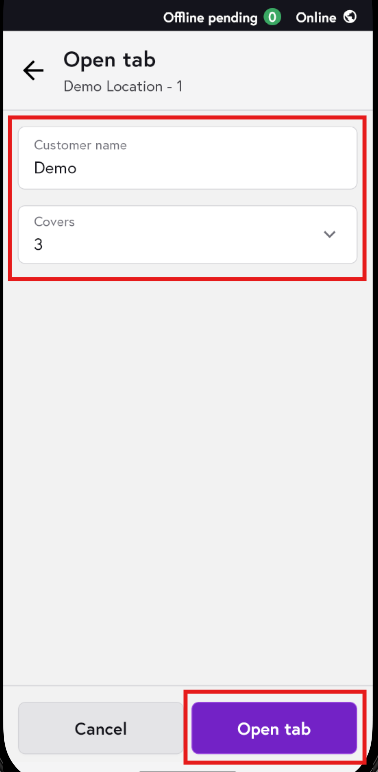
6. Enter the Customer’s name and select the Cover from the drop-down menu, then tap Open tab.
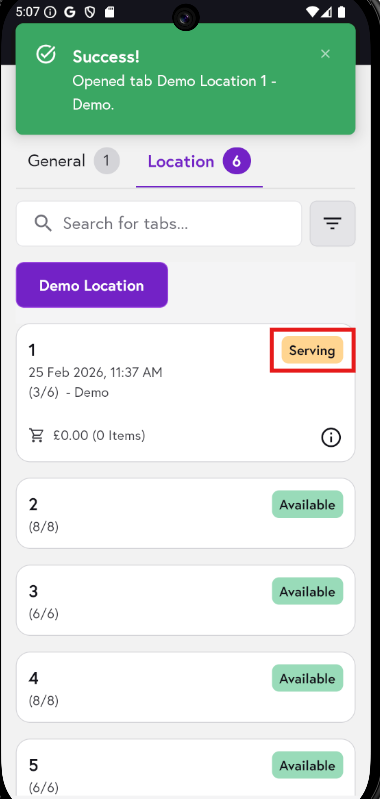
7. A confirmation message will appear, and the status of the tab you selected will update to Serving. Tap the tab to open it.
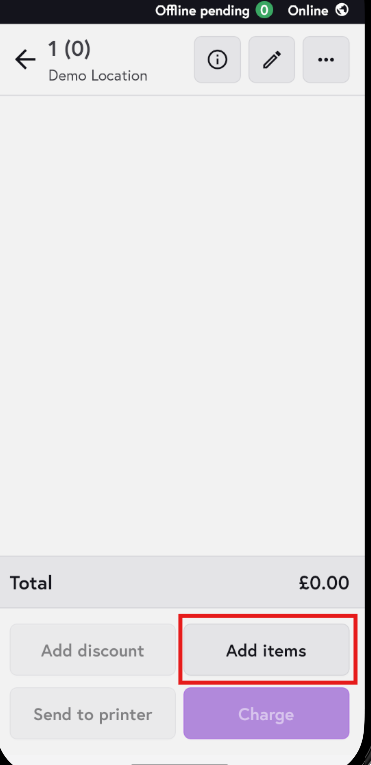
8. Tap Add items.
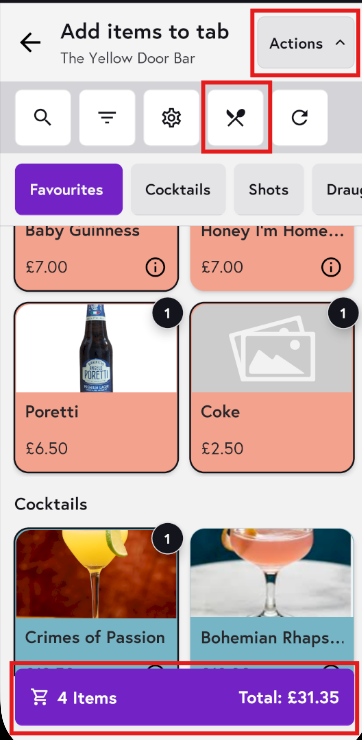
9. You’ll be taken to the menu screen. Select the items you want to add. If you have multiple menus, tap the Action button and then the knife and spoon icon to open the menu list. Tap the menu you want to update. Once you’ve added the items, tap the total to return to the tab.