1. When you power on your terminal, you will see the NOQ Merch app on the screen - tap on it to open it.
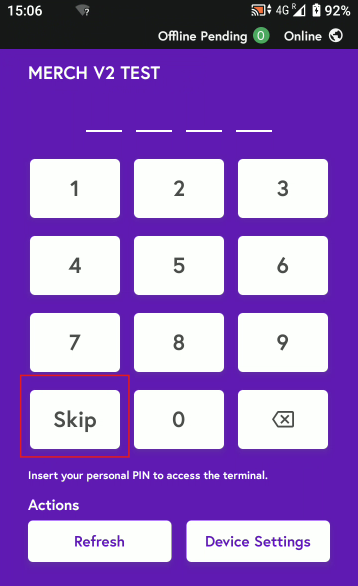
2. Either tap Skip or enter your store PIN to sign in to the app.
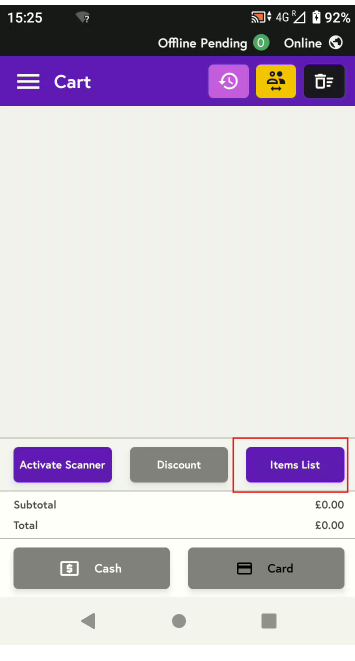
3. Here you can either activate your scanner and scan the barcodes of the items you want to add or add items from the item lists, and they will appear on the screen. To learn how to activate the scanner, click here. To add items from item list, click on Items list:
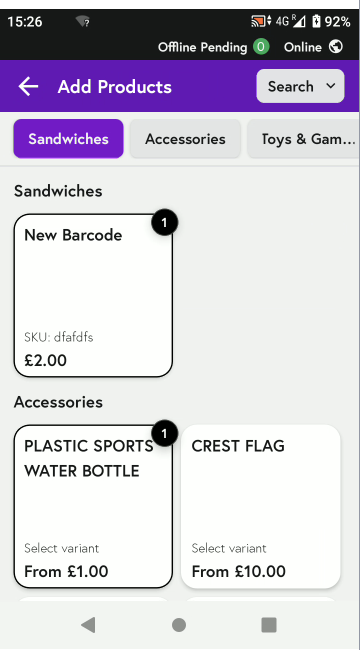
4. From the item list, tap the items you want to add. If you have a long item list, use the search bar to find specific items. Select the items you want, then tap the left arrow at the top to add them to the basket.
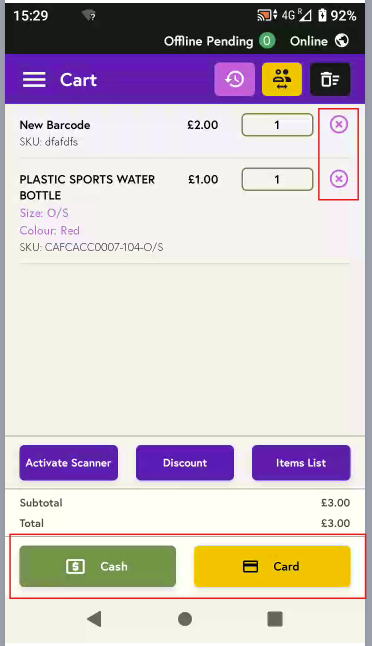
5. You will now see the items you selected added to the cart. At the bottom of the screen, choose either Card or Cash to take the payment. To remove an item, tap the cross button on the right-hand side of the item.