1. Login to the NOQ Portal.
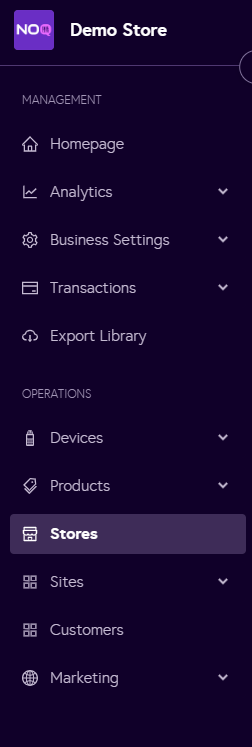
2. Navigate to Stores.
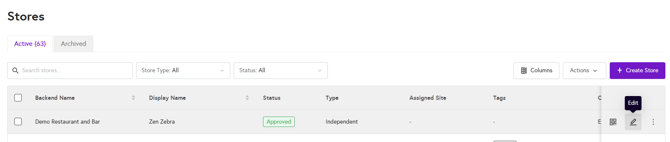
3. Click on the edit icon of the store you would like to add the location to.
4. Click on Location.

5. Enter location/Sub Location Details:
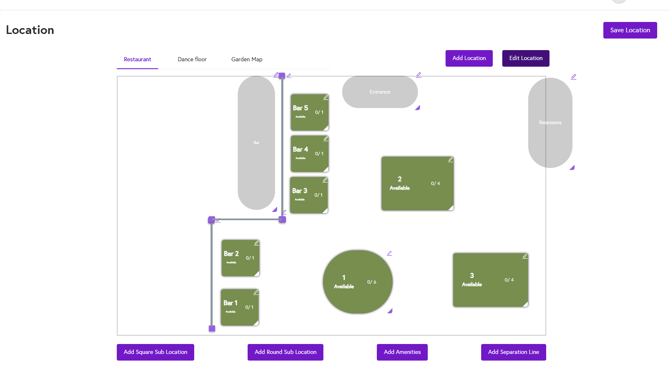
- Add Location: To add a location, click on Add Location, enter the location name, and it will appear at the top of the list.

- Edit Location: To edit a location, click on the location you would like to edit, then click on the Edit Location button. In the pop-up that appears, you can rename the location, delete the location, or duplicate the location. After editing click 'Save'.

- Add Square/Round Sub Location: Once you have created a location, you can create sub-locations in either a square or round format. Click on your preferred shape sub location button, then enter the sub-location number and capacity, and click Add. The sub-location will appear on the square board, where you can drag and adjust its position as needed.

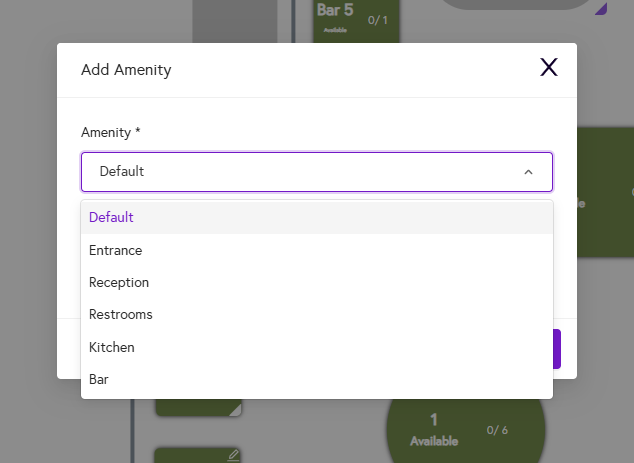
- Amenities: To add amenities to your location, click on Add Amenities. You can either type a custom amenity name by clicking on Default and entering the name, or select an existing amenity from the dropdown and click Add.
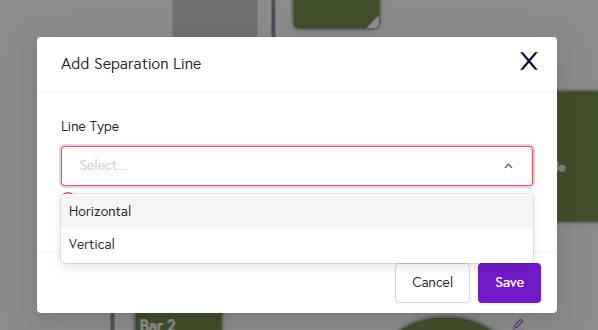
- Separation Line: To add a separation line, choose either a horizontal or vertical line, place it on the board, and click Save. You can then drag the line to position it exactly where you want it.
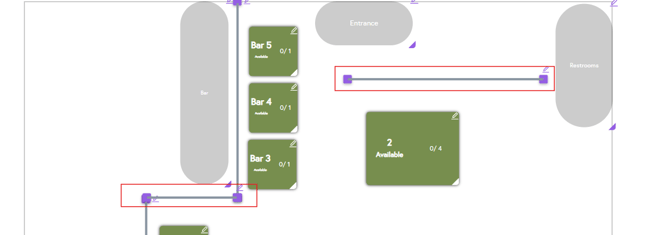
6. Once you have added all your location details, your layout will look similar to the screenshot below.