
1. Login to the NOQ Portal.
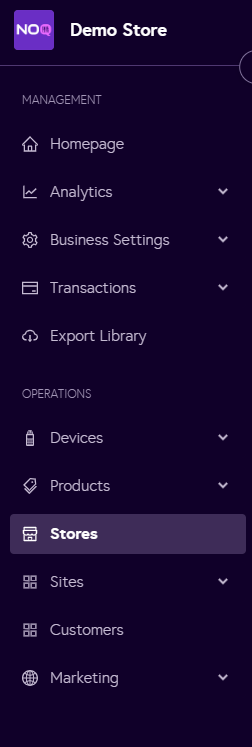
2. Navigate to 'Store' from the left navigation panel.
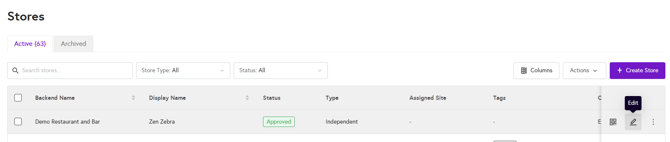
3. Once you are in Stores, click on the pencil icon (Edit) for the store you want to Add Reasons for Refund.
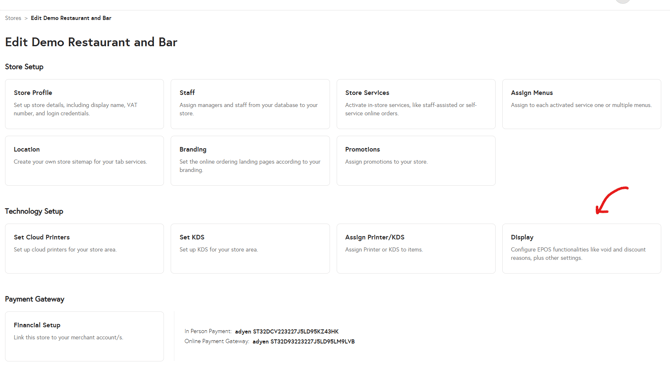
4. Click on 'Display' under the 'Technology Setup' section.
5. Under the ‘Reasons for Refund’ section, enter a name for the discount and click ‘Add’. Then click 'Save Display' on top right corner of the page.

Your reason for refund has now been added. To delete it, click the bin icon. To add another reason, repeat the same process as above.