1. Login to the NOQ Portal
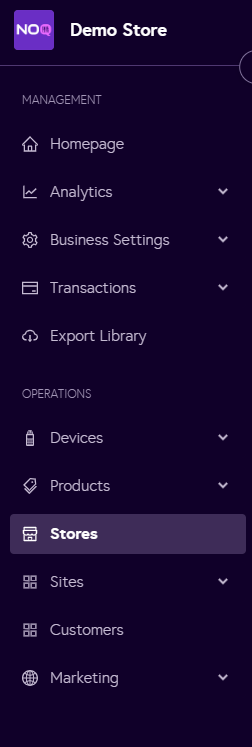
2. From the sidebar menu, click on Stores.
3. Click on the Pen🖊️ icon to see the Store Profile.

⚠️Service Charge can only be applied to Site Independent and Independent stores. It cannot be applied to Site Dependent stores.⚠️
4. Click on the Store Services.

5. Click on either Onsite Service or Offsite Service.
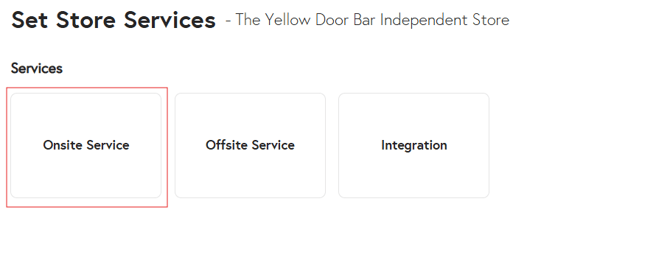
6. You can apply a Service Charge to all service types except Self-Service Kiosk. Click on the service type you want to configure the Service Charge for.

7. Within your selected onsite service, choose a Service Charge Type from the available options shown below:

a. For Percentage, follow the below steps:
1. Enter the Service Charge Percentage (%) you want to apply..
2. Enter the Service Charge Cutoff amount in £.
3. Click Save on the top right corner of the page .

b. For Flat, follow the below steps:
1. Enter the Service Charge Amount in £ you want to apply..
2. Enter the Service Charge Cutoff amount in £.
3. Click Save on the top right corner of the page.

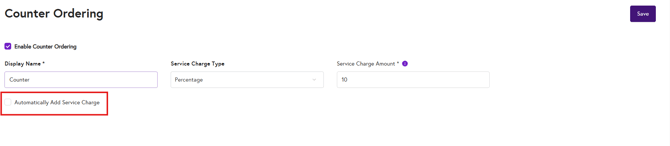
8. To apply the service charge automatically, tick the box labeled “Automatically add service charge.”