
Once you’ve set up your service types, you can assign menus to each service type here. To learn how to set up service types for your store:
- For dependent stores, click here.
- For independent stores, click here.
To continue assigning menus to your enabled service type, follow the guide below:
1. Login to the NOQ Portal.
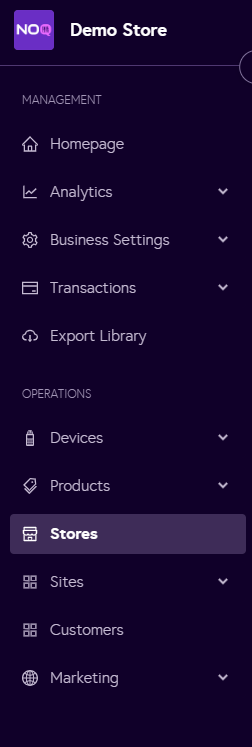
2. Navigate to 'Store' from the left navigation panel.
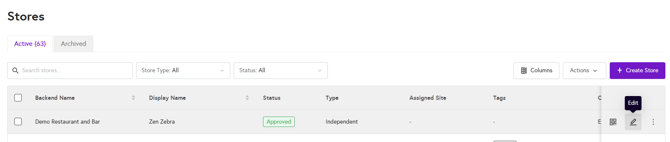
3. Once you are in Stores, click on the pencil icon (Edit) for the store you want to Assign Menus to.
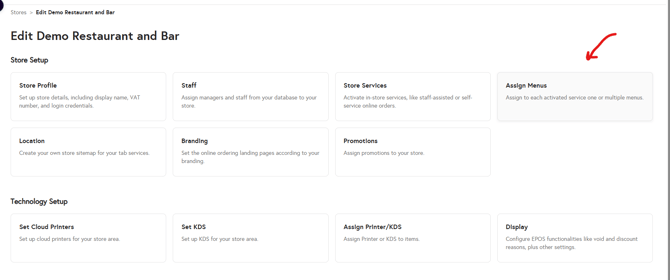
4. Click on Assign Menus
5. Click on Add for the service type for which you would like to Assign the menu

6. From the dropdown select the Menu you would like to add and click on 'Add button'
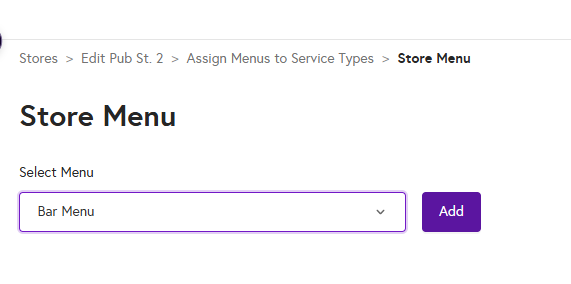
7. You have now successfully assigned the menu to your store.
