
1. Login to the NOQ Portal.
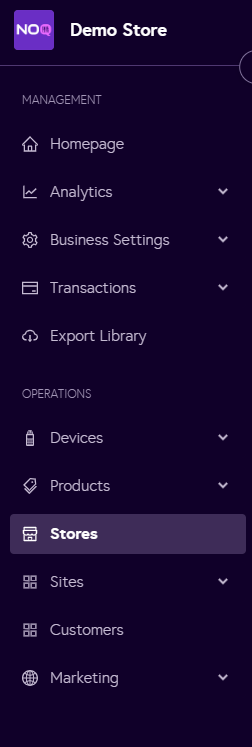
2. Navigate to 'Store' from the left navigation panel.
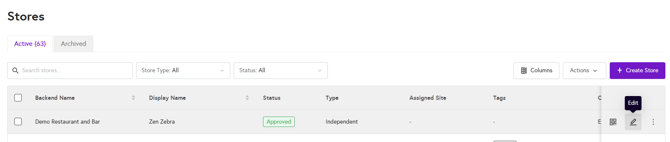
3. Once you are in Stores, click on the pencil icon (Edit) for the store you want to Assign Promotions to.
4. Click on Promotions

5. Select the promotion you want to add from the drop-down menu, then click the 'Add button'

6. The selected promotion is now added to your store.

Note: You can add multiple promotions to a single store. To remove a promotion, click the Remove button; it will be removed from the store. To add it again, follow the same steps as above.