
1. Login to the NOQ Portal.
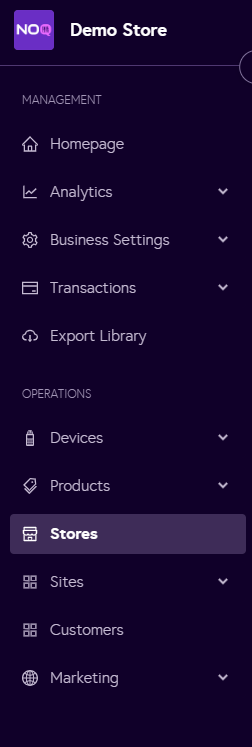
2. Navigate to 'Store' from the left navigation panel.
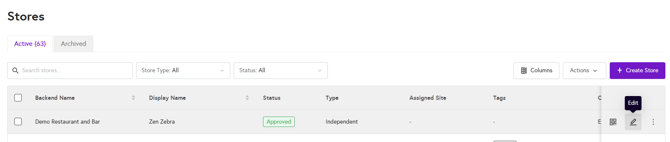
3. Once you are in Stores, click on the pencil icon (Edit) for the store you want to enable collection.
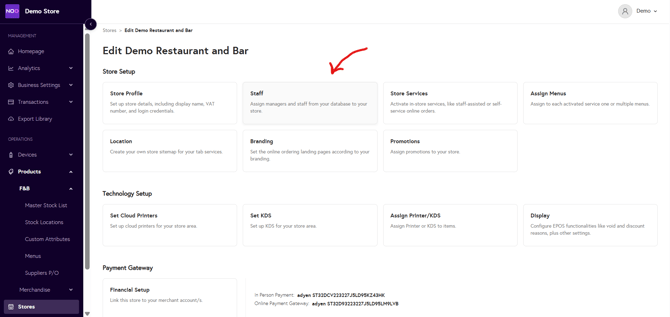
4. Click on Staff
5. Adding Staffs
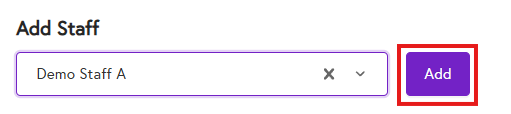
- Click on the drop down
- Select the Staff's name you want to add.
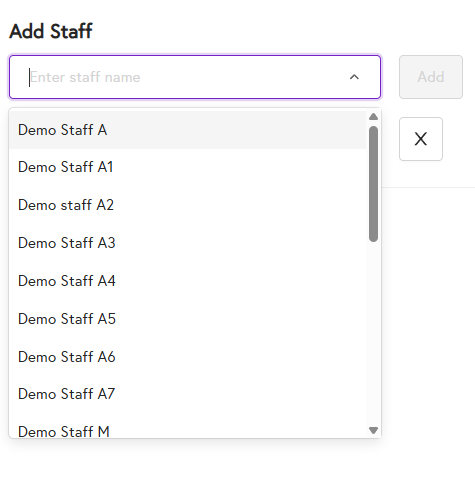
- The Add button will be enabled, click on it to Add the Staff to your store
Note: If you are adding only one staff to your store, you will be able to see Skip button on your terminal. However, if you are adding more than one staff to your store then each staff added would need a pin to login to the store.