Bulk Upload Ingredients
Rather than create several individual ingredients, we recommend taking advantage of the Bulk Upload function. This quick guide will demonstrate how to use the New Ingredients Template.
- Navigate to the NOQ Backend Portal > Products > F&B Products > Master Stock List > Ingredients
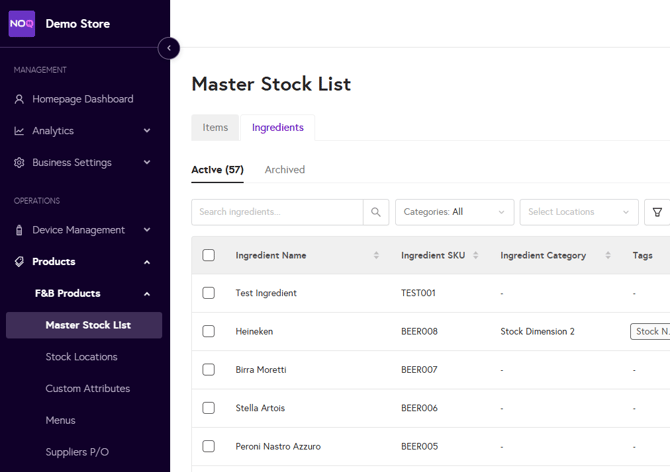
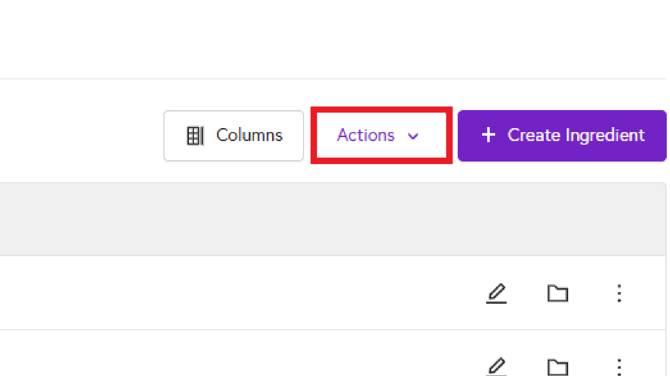
- Click the Actions button
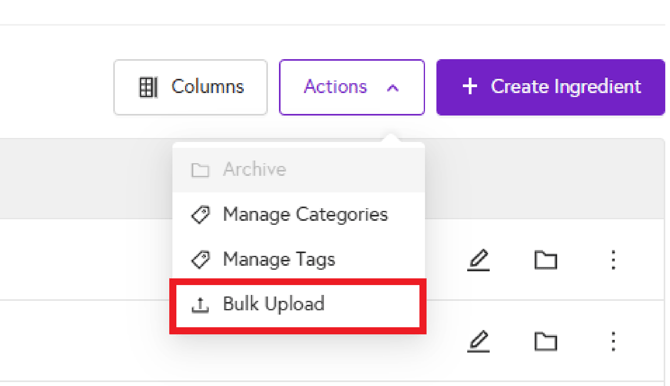
- Click Bulk Upload.
- Download the New Ingredients Template CSV file.
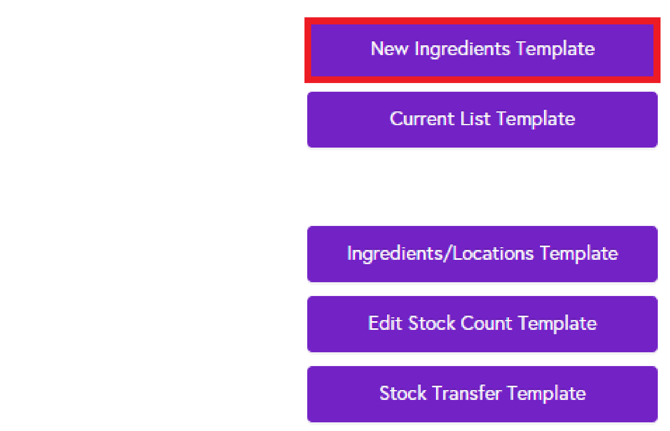
- Open the file in Excel or Google Sheets and populate the following fields with your Ingredients:
Key Fields in the Template
- Ingredient Name: The name.
- Ingredient Category: Organize ingredients into categories (e.g., Mixers, Spirits).
- Ingredient Tags: Enables tagging of ingredients to enhance search functionality.
- Ingredient SKU: Stock Keeping Unit ID.
- Purchase Unit Type: Unit type of ingredient (e.g. kegs, cases)
- Units: Individual unit type (e.g. bottles, cans)
- Unit Quantity of the case: The amount of units per case.
- Unit Measurement: The measurement type of each unit (e.g. cl, kg)
- Cost Per Purchase Unit: Cost of raw goods (for profit tracking).
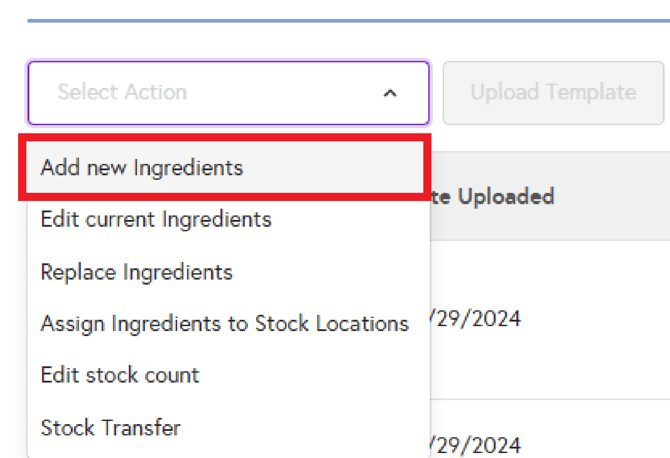
Save the completed template as a CSV file and upload it to the system via the Bulk Upload page. In the Upload Template menu, select Add New Ingredients and then upload your Items CSV.